
Uploading files to the document library
The document library is accessed by selecting Document Library from the Libraries section of the main navigation menu.
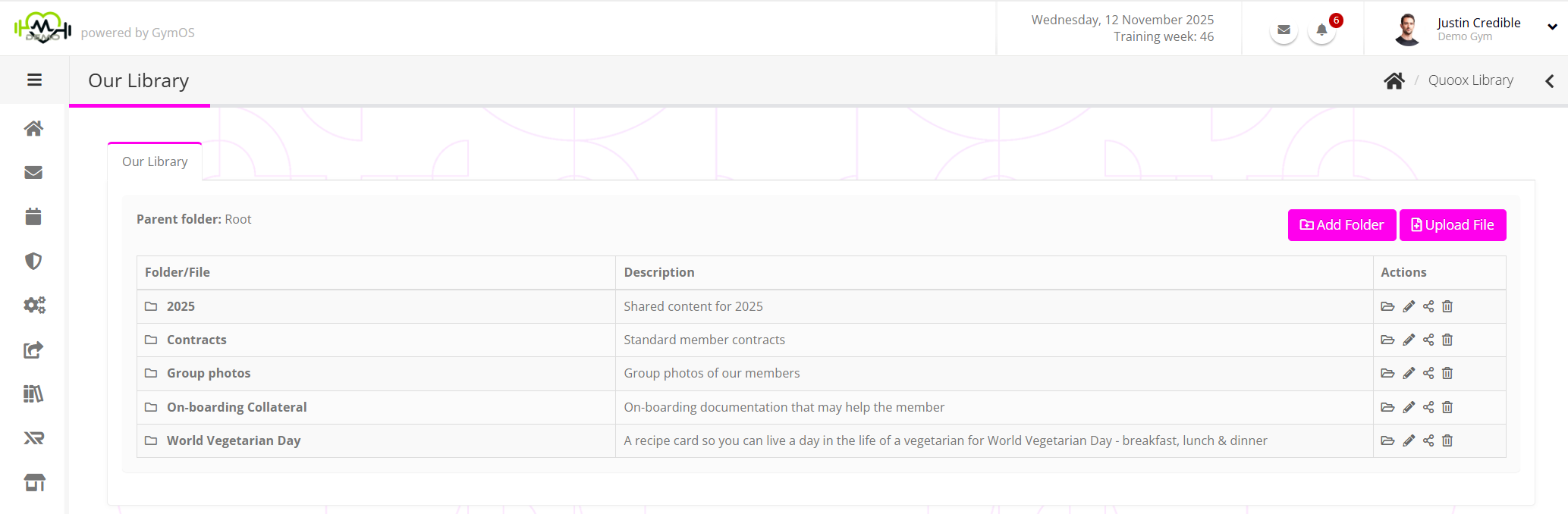
The document library has a hierarchical structure. I.e. you can create multiple levels of folders to organise your documents.

When you access the document library, it opens at the root level. That is the top level of the directory structure.
The listing displays all folders and files within the currently selected folder, as indicated by the Parent folder label. If you have navigated to a subfolder, you can click on the name of the parent folder to return to the previous level.
For each row, the folder/file name and an optional description are displayed. Folders are denoted by the icon on the left hand side of the folder name.
The final column provides context-sensitive actions, which may comprise:
- Open the folder.
- Edit the file/folder.
- Download the file to your device.
- Share/allocate the folder or document with a member, a group of members, or a membership.
- Delete the file or folder.
Creating a new folder
To create a new folder within the currently selected folder, click the Add Folder button. A new row will appear at the top of the current listing.

Enter a name for the folder, and optionally enter a description.
Be aware: your members see the names of the folders and files.
Click the icon to create the folder, or to abort.
Navigating to a folder
To navigate into a given folder, click the icon in the actions column. You will be taken into that folder, and the content will be displayed.
Uploading a new file
To upload a new file into the current folder click the Upload File button. A new row will appear at the top of the current listing.

Click the Select button to select the file that you wish to upload.
The maximum size for a single file within the document library is 75Mb. File extensions of the following types are permitted: jpg, jpeg, png, gif, tif, tiff, bmp, webp, webm, mpeg, mpeg4, 3gpp, mov, avi, mpegps, wmv, flv, ogg, mp3, m4a, wav, ogg, txt, css, html, htm, doc, docx, xls, xlsx, ppt, pptx, pdf, pages, ai, psd, dxf, svg, eps, ps, ttf, xps, zip, rar, tar, gzip, mts, indd, 7z, rtf, csv, mpg, gz, indb, indt, otf, mp4

Renaming or moving a file/document
Once you have uploaded a file, you may rename it or move it to a different folder by clicking the icon.

You can update the name and description as you’d like. To move the file to a different folder, select the alternative folder from the Folder drop-down menu.
Click the icon to commit the change, or to abort.
Sharing a file or folder with your members
There are several ways to share a file or folder with your members within the GymOS system. Some methods are manual, others automated.
To learn more about sharing content from your document library, click here.