
Mobile App: Schedule
Using the Schedule
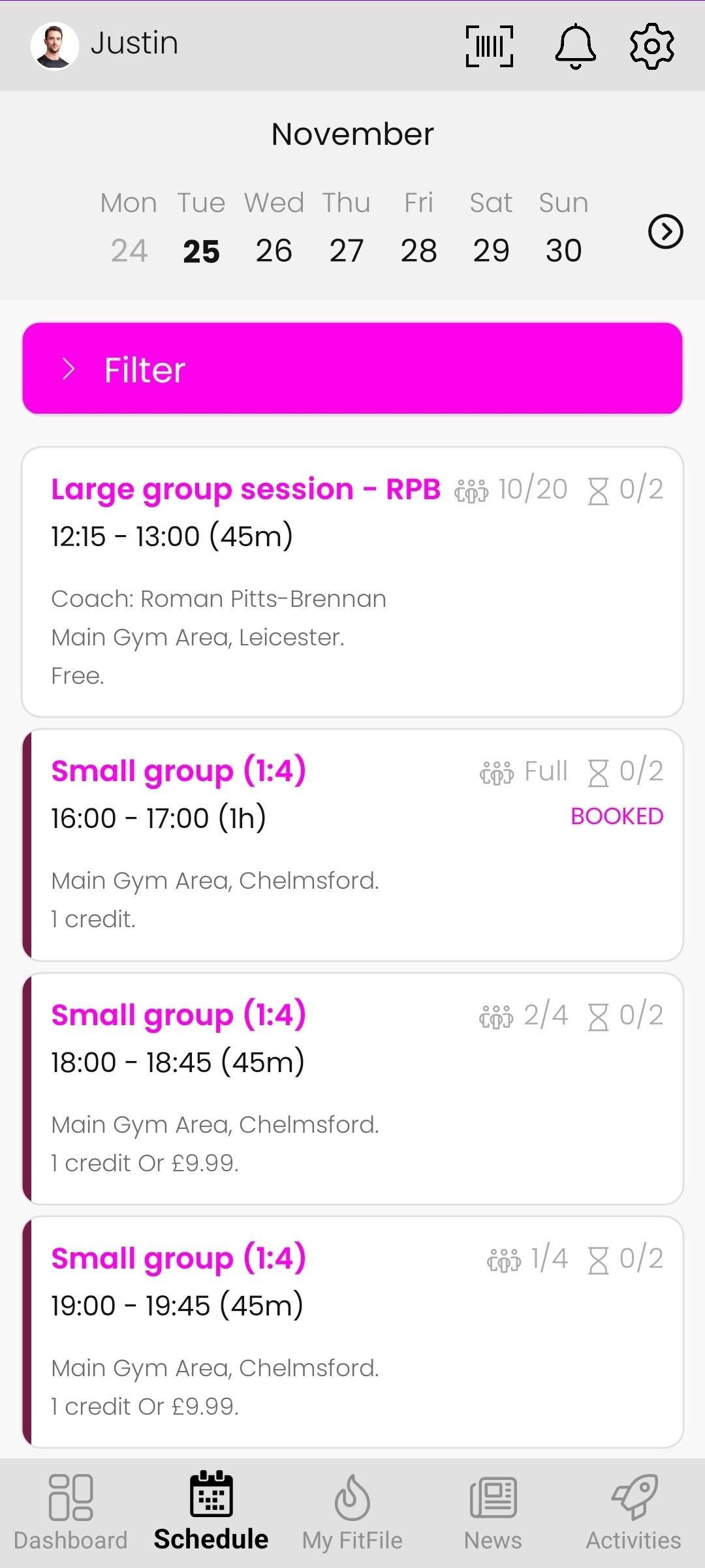
The Schedule section allows members to browse upcoming sessions, filter options to find what they need, and book directly into available classes. This feature can be accessed at any time by tapping the Schedule icon located in the bottom menu of the app.
Navigating the Schedule
When the member taps Schedule, they are taken to a screen that displays:
- The current month
- The days of the week
- The dates for that week
To the right of Sunday, the member will see a forward arrow icon . Tapping this will move the schedule forward by one week, allowing the member to browse future sessions.
The member can tap on any date to view the sessions available on that specific day.
Viewing and Booking Sessions
Once a date is selected, all sessions scheduled for that day are displayed. From here, the member can:
- View individual session details
- Tap on a session to open its information page
- Book a session (provided it is available, and they have the credits or membership required)
Using Filters to Find Sessions
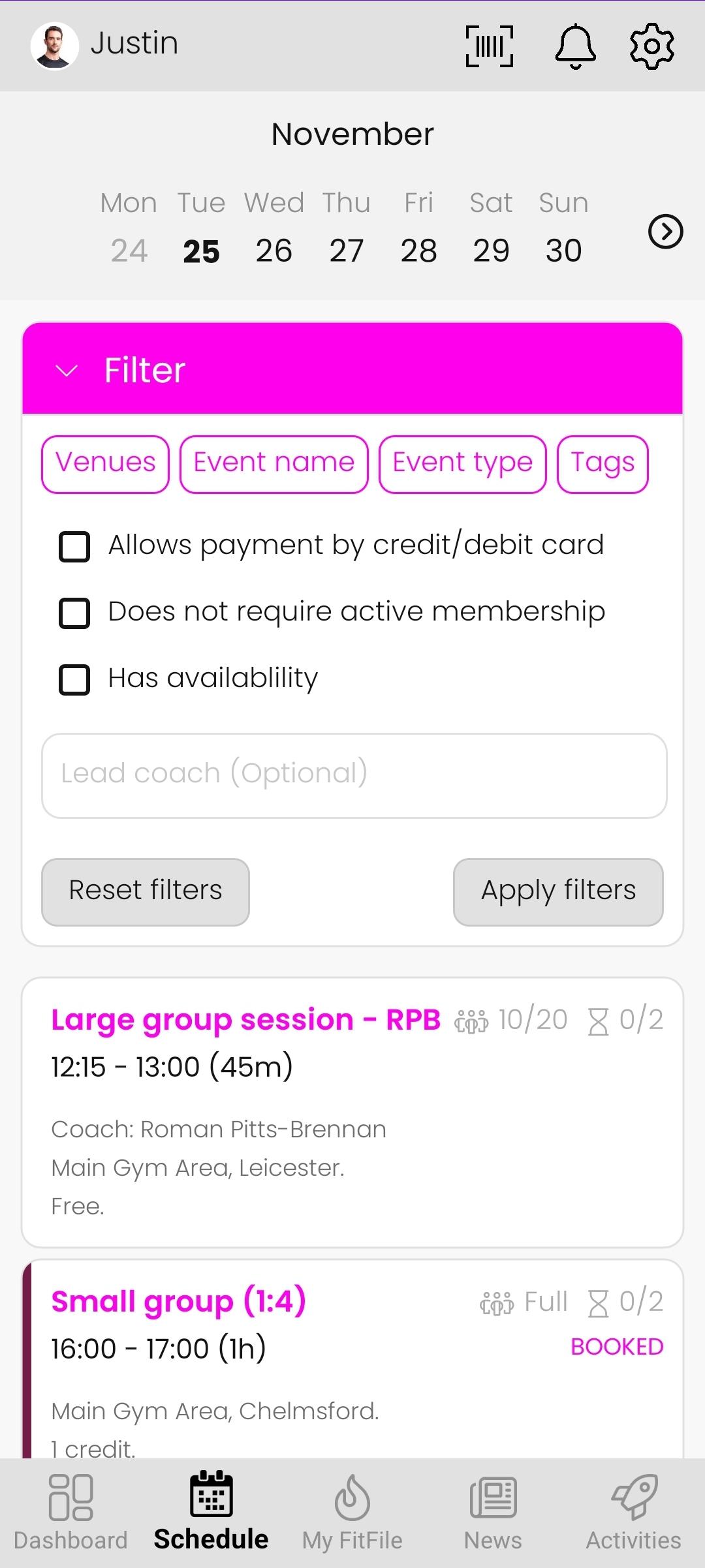
A pink Filter button appears on the Schedule page. When tapped, it opens advanced filtering options that help the member locate specific types of sessions.
Members can filter sessions using the following criteria:
Session Filters
- Venues – Narrow results to sessions at a certain location
- Event Type – Filter by session type (e.g., session, course, popup, consultation)
- Event Name – Filter by session name
- Tags – Select from custom session tags created by the gym
Additional Filter Options
- Allows Payment by credit/debit card
- Does not require active memberships
- Has availability (to show only sessions with open spaces)
- Lead Coach – Select sessions led by a specific coach
These filters allow the member to quickly locate sessions that match their preferences or schedule.