
Mobile App: Booking a Session
Booking a Session
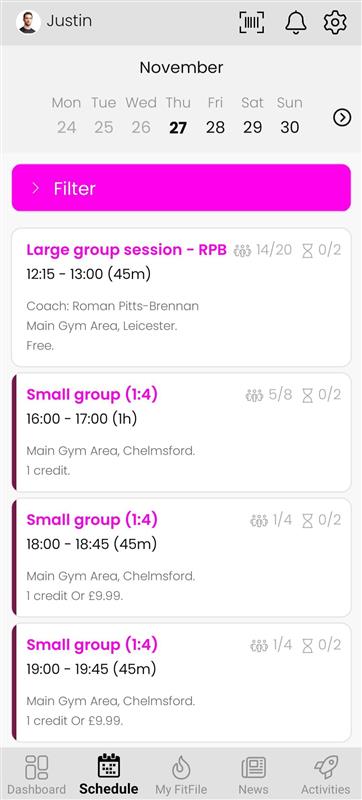
Members can book sessions quickly and easily through the app. All available sessions can be accessed through the Schedule section, where the member can browse by date or use filters to locate a specific session.
Finding a Session to Book
To book a session, the member should:
- Tap the Schedule icon in the bottom menu.
- Select a date at the top of the screen or use the Filter button to narrow down sessions by venue, event type, tags, coach, or other criteria.
- Locate the session they wish to attend and tap on it to open the full session details.
Viewing Session Details
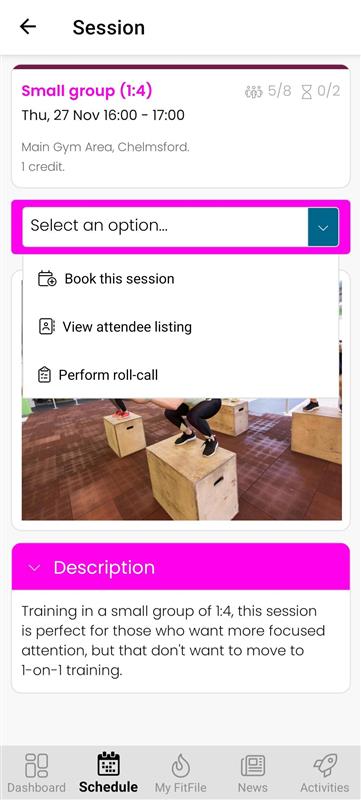
When a session is selected, the app displays a detailed overview including:
- Session name
- Venue/location
- Number of people booked
- Number of people on the waitlist
- Session cost
- Available payment methods (e.g., credits or debit/credit card)
- Session description
- Representative session image
This provides the member with all the information needed before confirming their booking.
Booking the Session
At the bottom of the session page, the member will see a dropdown menu. Tapping this allows them to select Book this session.
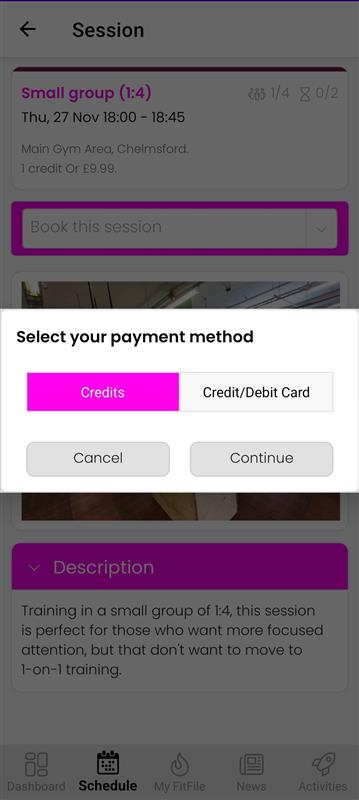
If the session offers more than one payment method, a pop-up window will appear asking the member to choose how they would like to pay. Common options include:
- Pay with credits
- Pay with debit/credit card
The member simply selects their preferred payment method to proceed.
Once the booking is completed, the session will immediately appear in the Upcoming Sessions section on the member’s Dashboard.
This section provides a clear overview of all future bookings so the member can easily keep track of their schedule.