
Employee tab: Roles & Remuneration
The Roles & Remuneration tab on the Employee record is where the primary job role information for an employee is configured. This ripples through into many areas of GymOS, particularly shift management.
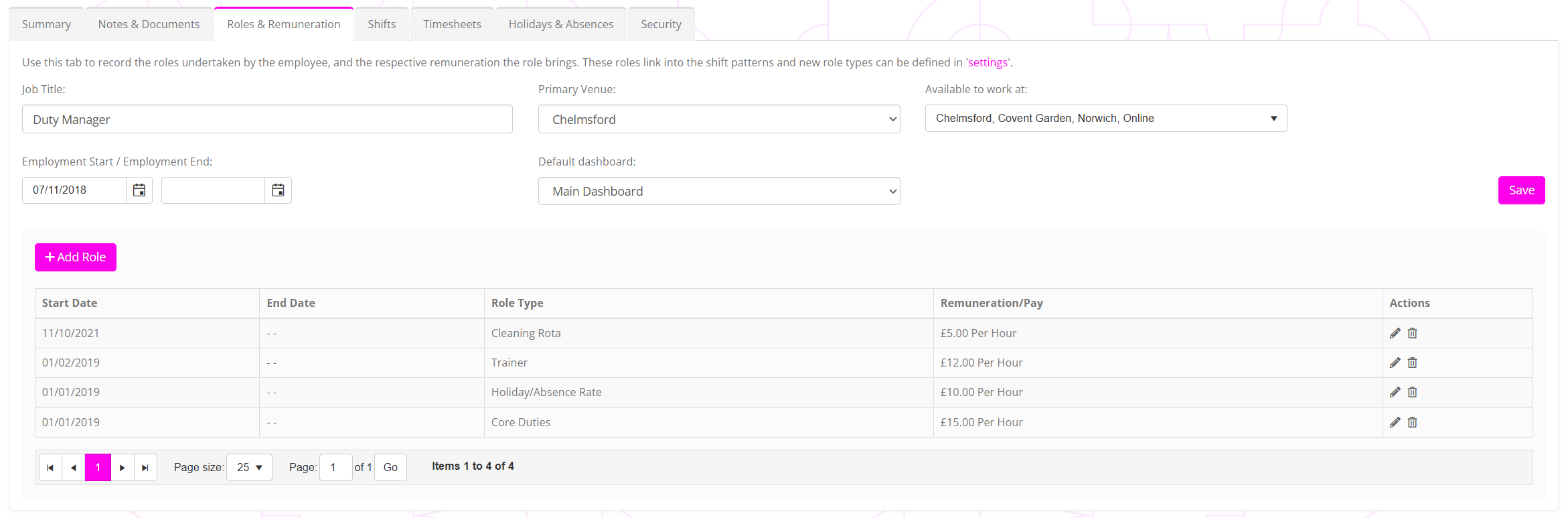
The tab is split into two main sections:
- Base employment details and locations
Information such as the employee’s employment start and end dates, and the venues at which they work. - Employee roles
The different roles that the employee may undertake, and their remuneration for each. Most employees will typically have only one role.
Base employment details and locations
Configure the base employment details for the employee:
- Job title
The employee’s primary job title. E.g., “Coach”. - Employment start/Employment end
The start and end dates of the employee’s employment. A start date is required, but an end date is optional. - Primary venue
Select the main venue that the employee works at. For most employees, they will typically work at only one venue. - Available to work at
Select all of the venues (including the primary venue) that the employee may work at as part of their employment. Again, for most employees this will be just one venue. - Default dashboard
For most employees, the standard “Main dashboard” is the appropriate selection. However, if the employee is solely an “online coach”, then “XRcize hub” might be a more suitable choice.
Employee roles
Whilst an employee will typically have only one role, they can be assigned as many as appropriate. For example, you might pay an employee a different rate when they’re coaching versus when they’re doing lead generation calls.
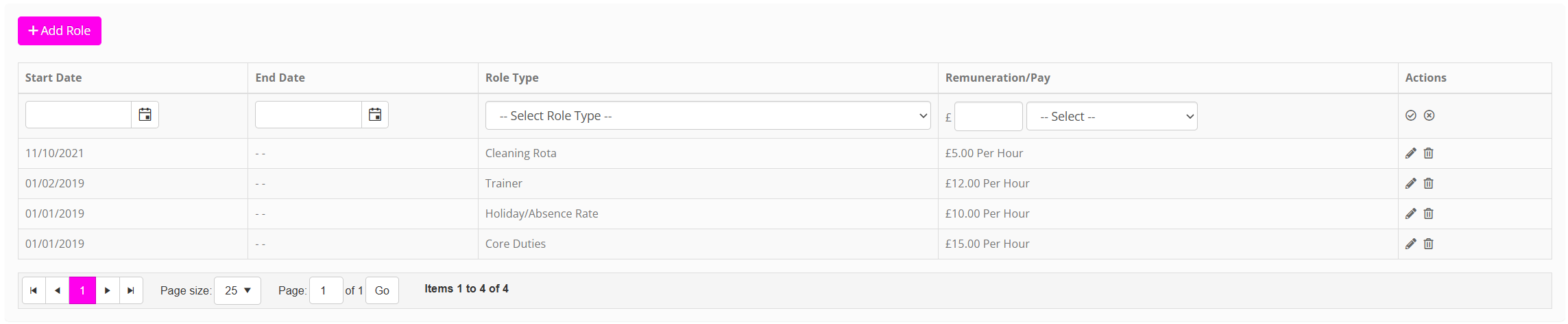
To add a role to an employee, click the Add Role button. For each role, provide:
- Start date
The date upon which the role becomes applicable to the employee. Typically, this is the employee’s start date, but it also allows for pre-configuring pay rate changes. - End date
If known and relevant, provide an end date for when the role concludes. - Role type
Select the type of role from the drop-down list. These roles may be configured in the Employee Roles section of Lists & Groups. - Remuneration/Pay
Enter the value of the remuneration and the corresponding unit. E.g. £25.00 “per hour”
Click the icon to commit the change, or to cancel.
You may edit an existing role record by clicking the corresponding icon. A role may be deleted by clicking the icon.