
Employee tab: Timesheets
The Timesheets tab of the employee record is where the permissions regarding timesheet creation and update may be set for an employee, and where timesheet entries may be reviewed.
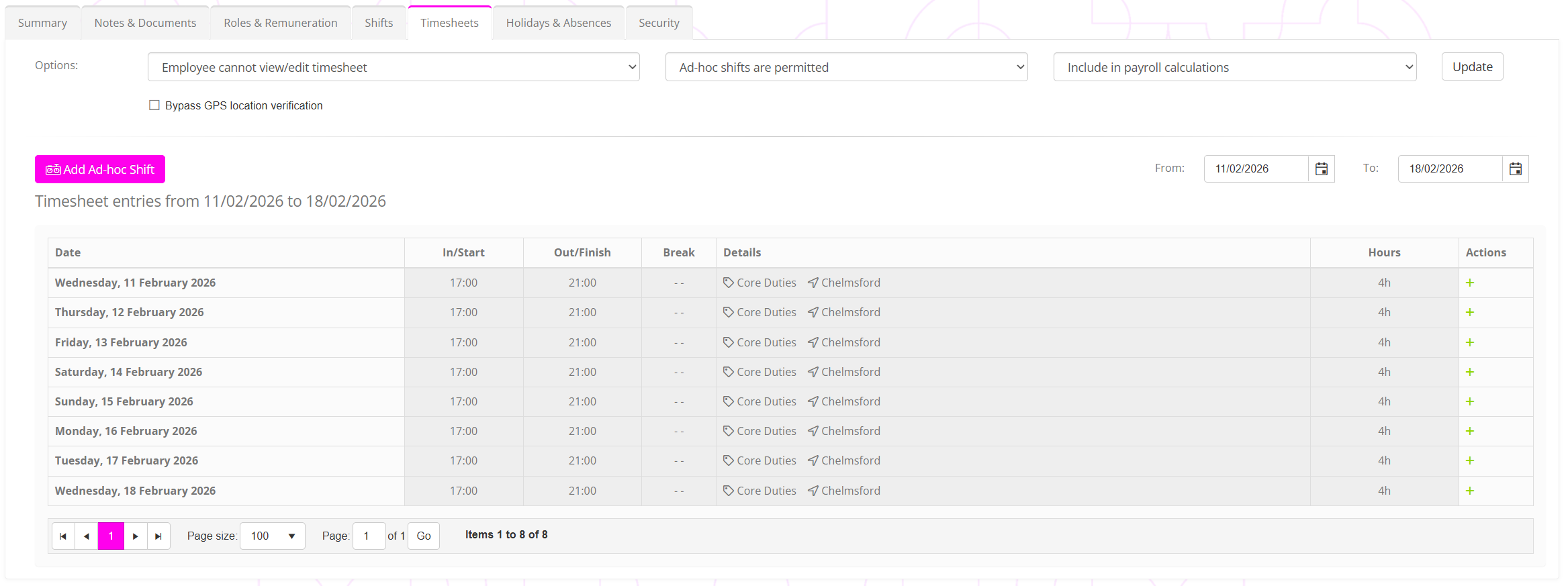
The tab comprises two primary sections:
- Timesheet configuration
Set up what permissions the employee has with regards to timesheets and clocking in/out. - Timesheet review
Review the timesheet entries alongside scheduled shifts.

Timesheet configuration
Providing employees access to their timesheets is optional. An employee can still clock-in/out of a scheduled shift via the GymOS FitnessHub Mobile app even if they don’t have timesheet access.
The top section of the timesheets tab provides a number of configuration options regarding the employee’s access to timesheet functionality within the GymOS FitnessHub Mobile app.

Timesheet access
- Employee cannot view/edit timesheet
The employee is neither able to review or edit their timesheet in the mobile app. They can still check-in/out using the app. - Employee can view but not edit timesheet
The employee is able to view their clock in/out times in the mobile app, but they cannot edit them. - Employee can view and edit timesheet
The employee is able to both view and edit their timesheet entries, which includes adding manual entries and/or amending automated entries arising from clocking in/out.
Ad hoc shifts
- Ad hoc shifts are not permitted
The employee is unable to add their own shifts, and may only clock in/out and update pre-scheduled shifts. - Ad hoc shifts are permitted
The employee is able to add their own shifts. This is useful if the employee works a non-regular schedule and they need to be able to record the time they work on an ad hoc basis.
Payroll calculations
- Include in payroll calculations
The employee is factored in and included in payroll calculations. - Exclude from payroll calculations
The employee is excluded from payroll calculations. This can be useful if the employee is salaried, and you do not need to include their attendance calculations amongst those for staff paid hourly.
Bypass GPS location verification
By default, clocking in/out for shifts via the mobile app includes GPS position verification to ensure the employee is in the “expected location” at the time of clocking in/out. Checking the Bypass GPS location verification checkbox bypasses this check. This can be useful if an employee exerts their rights to not share their location information with the GymOS FitnessHub mobile app.
Configuration selections are committed by clicking the Update button.
Timesheet review
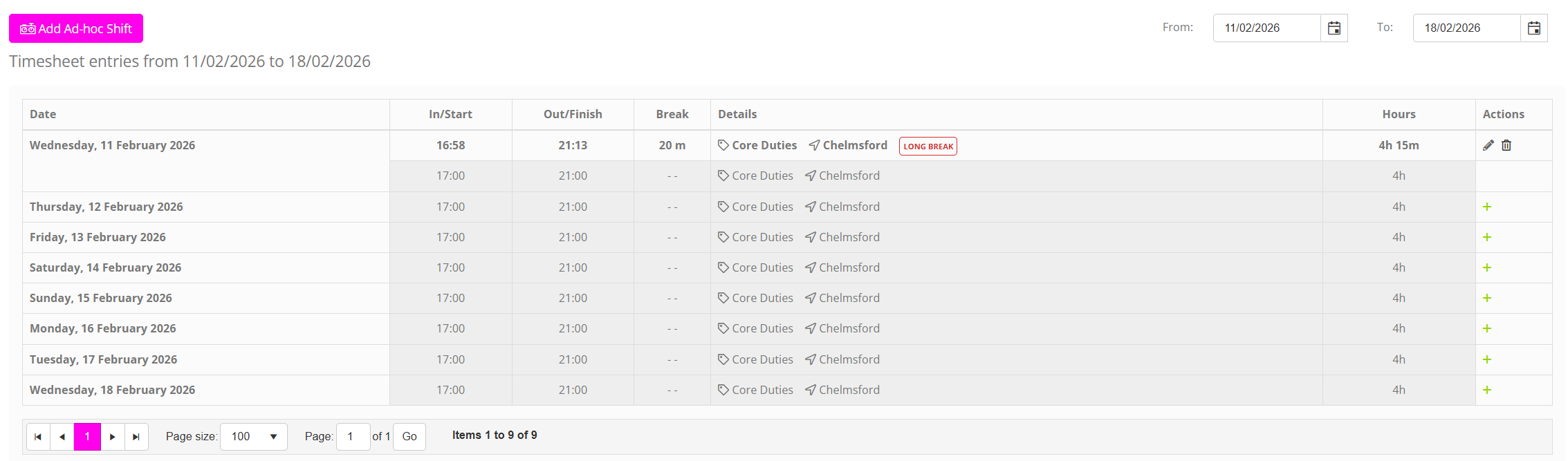
The primary section of the timesheets tab shows the timesheet entries for the selected week, as determined by the From and To date selectors.
The listing shows the days of the timesheet week in ascending chronological order. Shifts are shown highlighted in grey, with their corresponding timesheet entries appearing above.
Whilst it would typically be done by the employee, it is possible to manually add a timesheet entry for a given shift by clicking the corresponding button. Existing timesheet entries may be edited by clicking or deleted by clicking .
GymOS will highlight potential issues with a timesheet entry, such as an excessive break, insufficient duration, or a period that spans significantly more than an expected shift pattern.
Once a timesheet entry has been processed by the payroll function, it may no longer be edited.
Adding an ad hoc shift
You may add an additional shift to an employee’s timesheet by clicking the Add Ad-hoc Shift button. This will add a new row at the top of the timesheet entries listing.

Complete the entries for the shift, and then click the button to save it. Click to abort. The shift is published immediately.