
Employee tab: Holidays & Absences
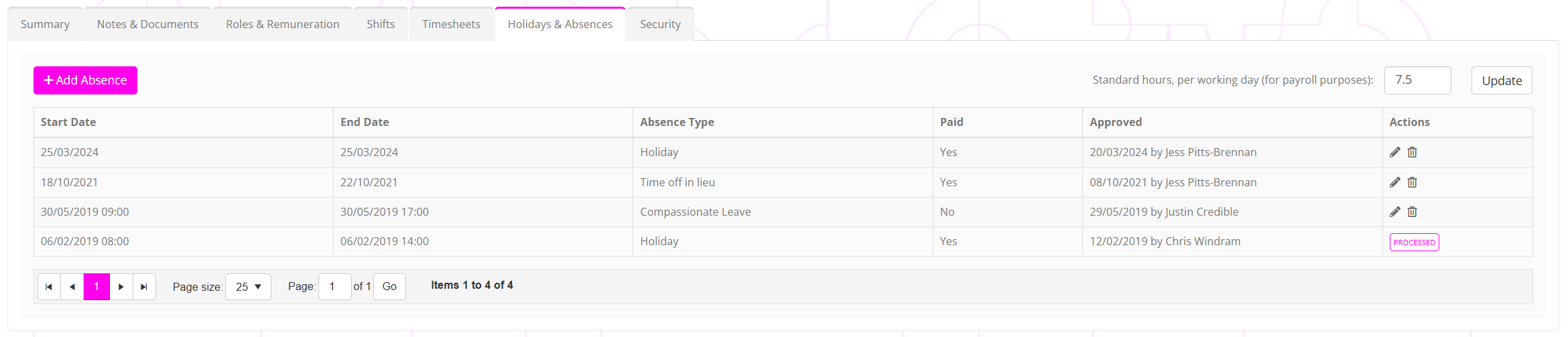
The Holidays & Absences tab is where you may record past, present or future absences for a particular employee. Absences are submitted directly via this interface, and there isn’t a “absence request” process within GymOS.
Adding an employee’s absence or holiday
To record a past, current or future absence for an employee, click the Add Absence button. This will add a new row to the top of the absence table.

Complete the fields accordingly, and click the icon to save the absence, or to abort.
The absence type is determined from the Absence Reasons for employees list in Lists & Groups.
If the absence is to be paid, check the Paid checkbox. If you approve the absence, click the Approved checkbox.

Configuring the length of a standard work day
If using the GymOS Payroll calculation function, it is important that GymOS know the length of a day for an employee (E.g., 8 hours). This is so that, where an hourly rate is provided, GymOS can correctly calculate the due pay.
To provide this information, plus the corresponding value in the Standard hours, per working day (for payroll purposes) box, and click the Update button.