
Payroll
The Payroll function of GymOS is accessed from within the Manage section of the main navigation menu.
The aim of the payroll process is to consolidate timesheet data with an employee’s role remuneration and to provide a spreadsheet of the gross pay due to the team member, based on data recorded in GymOS.
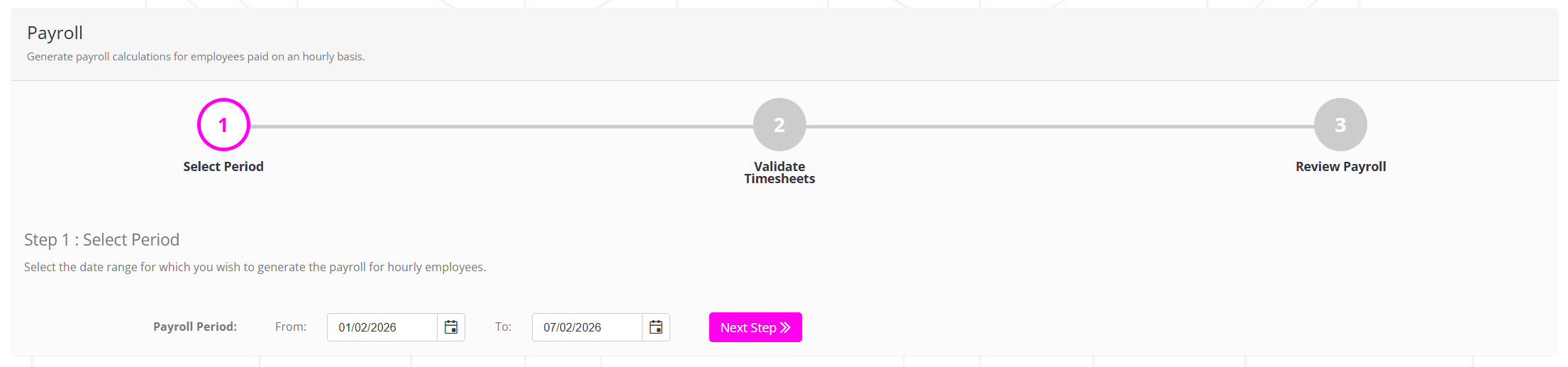
Running payroll is a three step process:
- Select period
Determination of the period for which you wish to collate timesheet data. - Validate timesheets
Review and validation of any timesheet entries that require it, such as out-of-band attendance. - Review payroll
Provision of a spreadsheet of consolidated timesheet and pay data for onward progression through an appropriate payroll system.

To generate a spreadsheet of data to use with your payroll system from GymOS, complete the steps outlined below.
Step 1: Select period
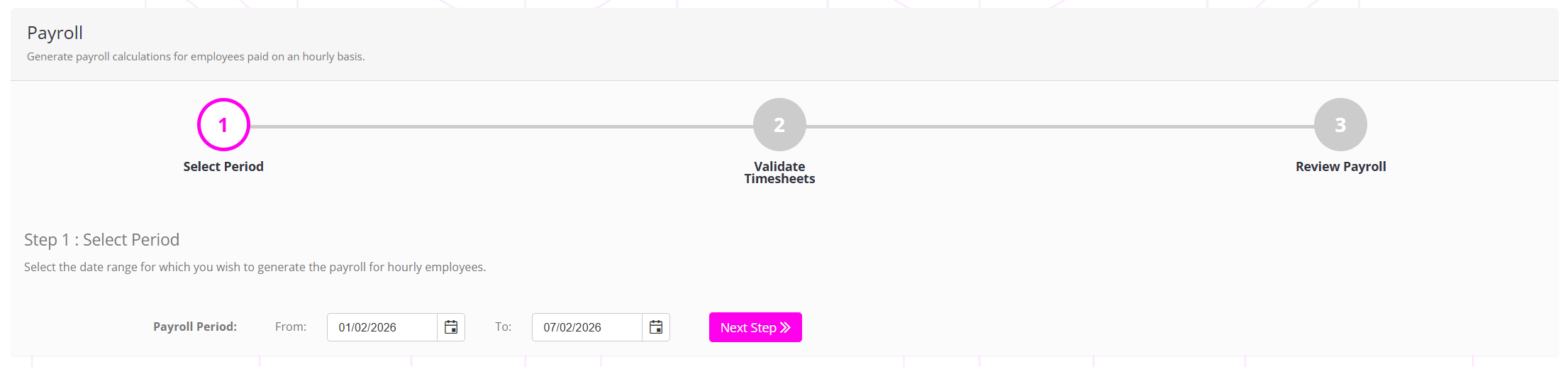
To tell GymOS the period for which you wish to run payroll, select the appropriate date range with the From and To boxes.
Click Next Step to proceed.
Step 2: Validate timesheets
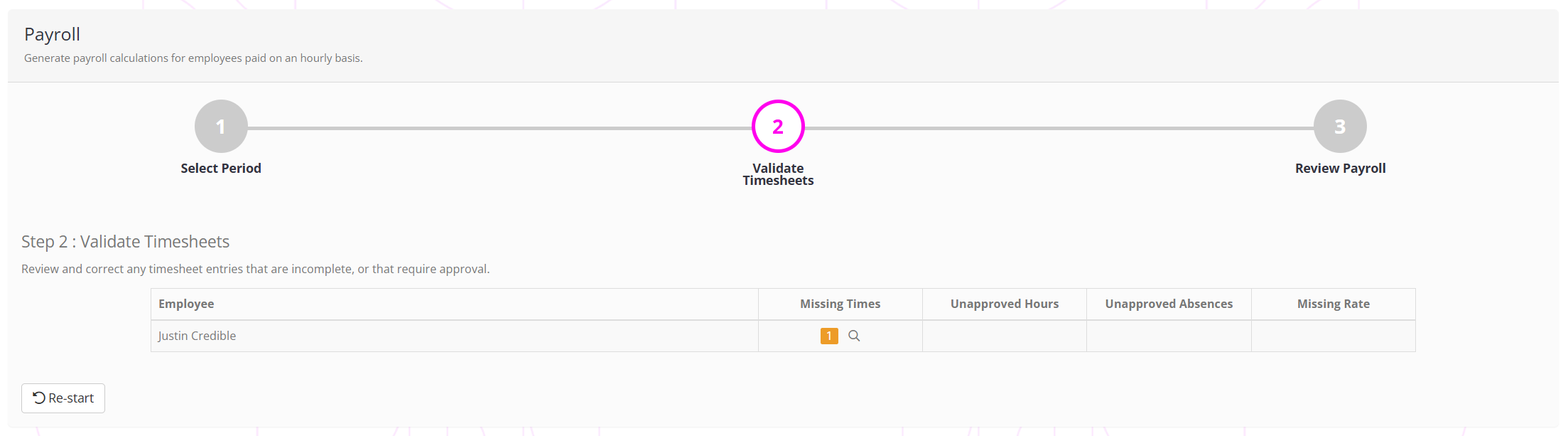
For the date range selected, GymOS will validate the timesheet data provided. This will include:
- Looking for incomplete timesheet entries
- Looking for unapproved hours
- Looking for unapproved absences
- Looking for missing rates
If any of these issues are found, the system will flag the problem for remedy. Clicking the icon will take you to the timesheet record that needs fixing.
If there are no issues, or once all issues have been corrected, you will see the message below.

You may then move onto the payroll spreadsheet generation by clicking the Next Step button.
Step 3: Review payroll
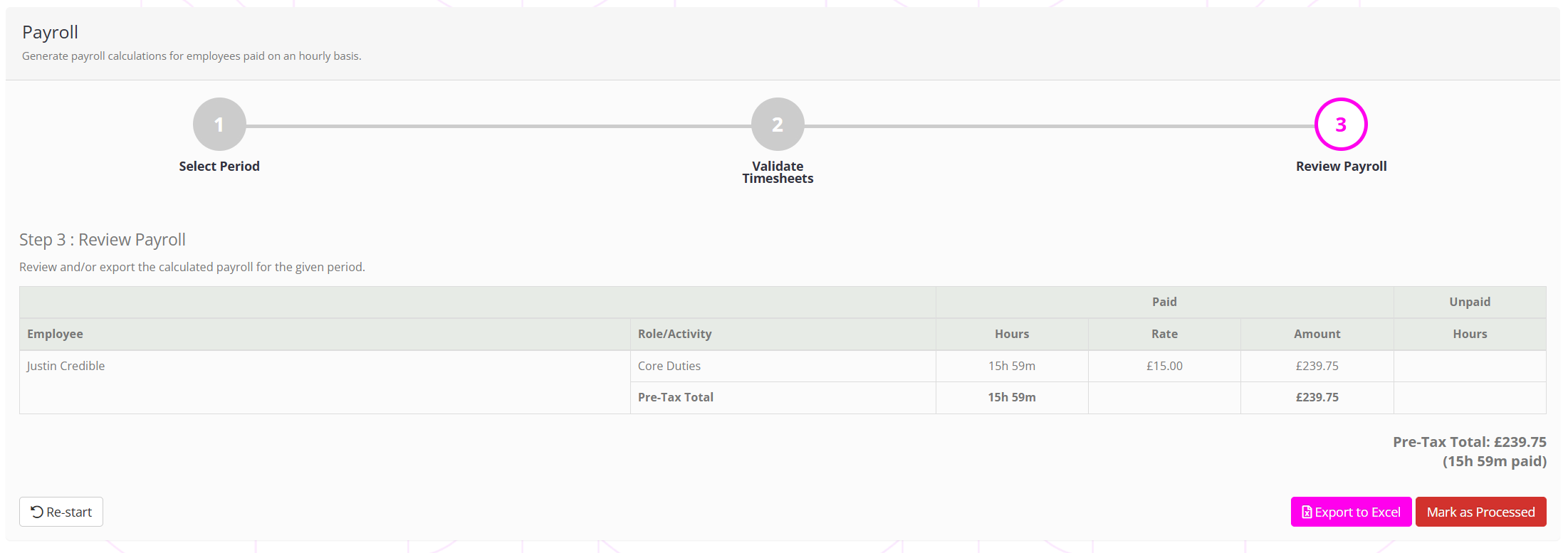
The final step will show a summary of the calculations performed by GymOS.
The data may be exported to an Excel XLSX spreadsheet by clicking the Export to Excel button.
Once you are confident that the payroll data has processed to your satisfaction, you may click the Mark as Processed button.
Warning: Once you have marked a set of timesheet entries as “processed” you cannot re-process them through GymOS.
Prior to the final committal, you may restart the Payroll process at any time by clicking the Re-start button.