
Store inventory/Products for sale
The products that are available for purchase from the administration portal store and the FitnessHub member site store are configured within the Inventory area of Settings.
Inventory Listing
When you access the Inventory function, your currently configured products are listed.
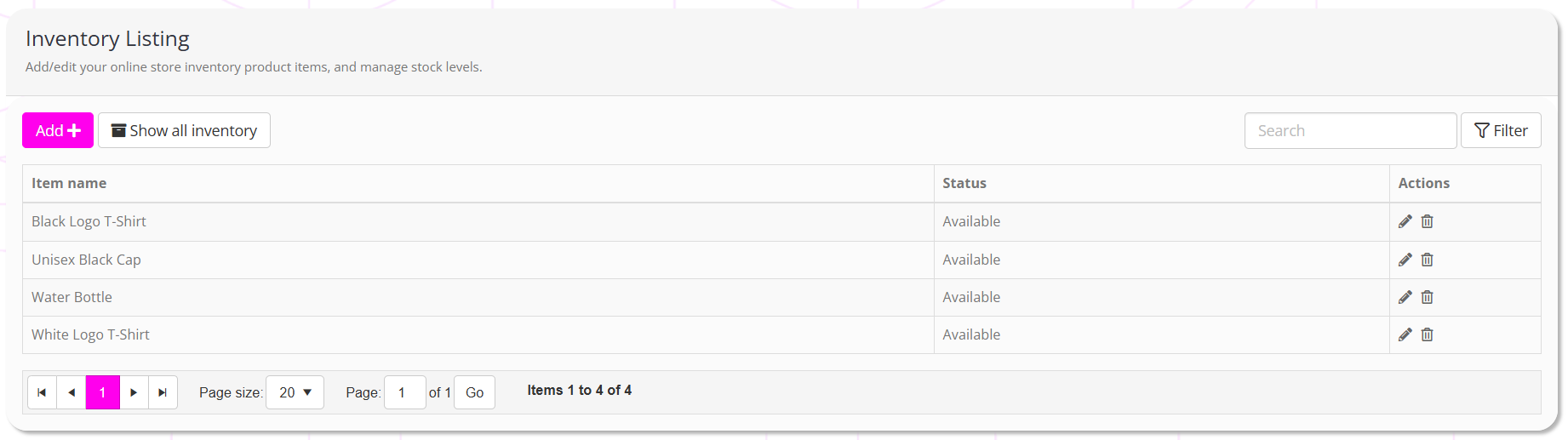
The information displayed for each product comprises:
- Item name – The name of the product being sold. E.g., “Black Logo T-Shirt”.
- Status – The current status of the item.
- Actions, comprising:
- Edit the inventory item
- Delete the inventory item
By default, archived products are not listed. Clicking the Show all inventory button will included archived products in the list.
Adding/Editing Inventory
To add a new inventory item, click Add . Existing inventory items are edited by clicking the corresponding icon.
The process for adding or editing inventory items is functionally identical.
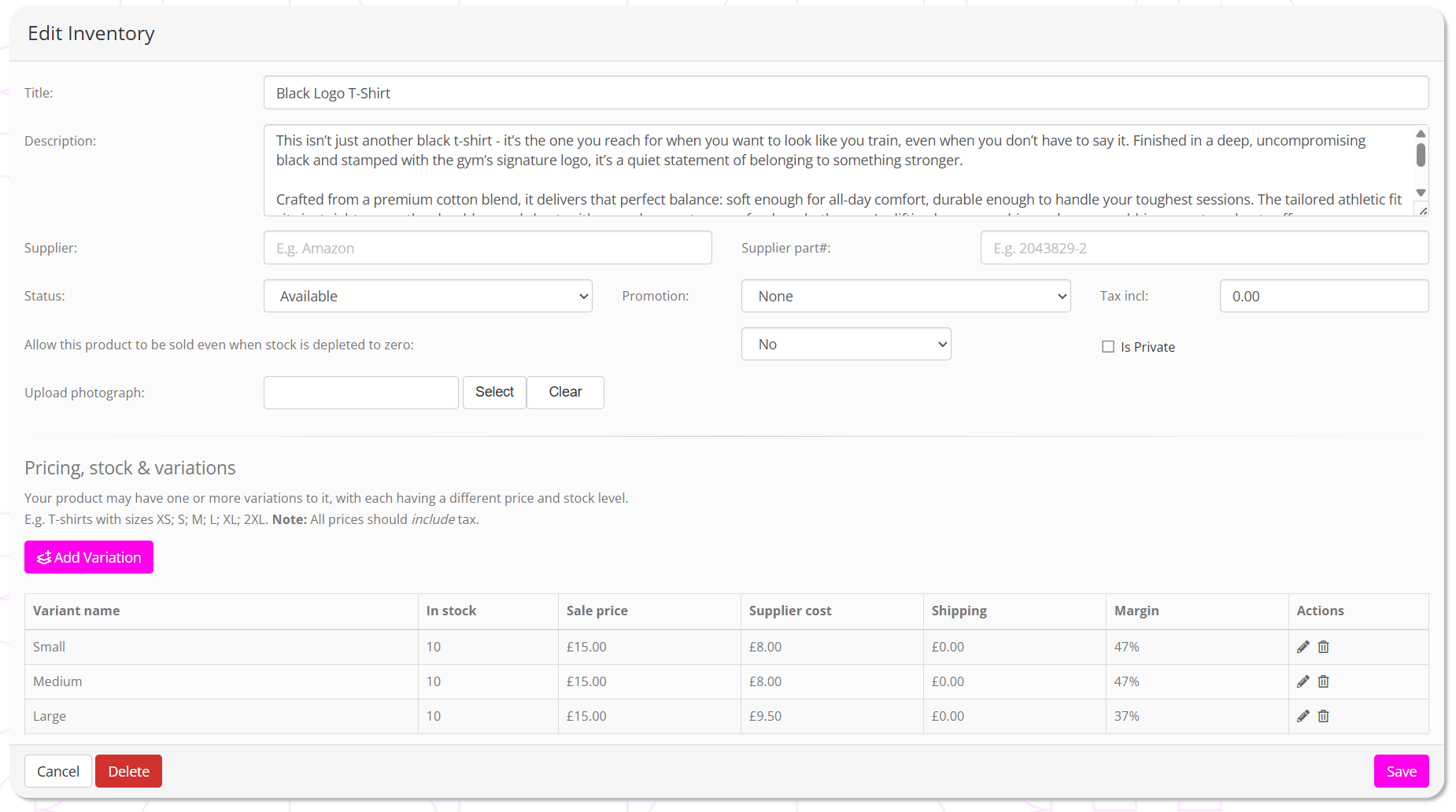

When configuring your inventory items, review and complete all fields accordingly.
Title:
The name for your product, E.g. “Black Logo T-Shirt”.
Description:
Give your product a meaningful promotional description. This is shown to members, and you are looking to encourage a purchase. Leaving this blank will not assist your sales.
Supplier:
Optionally, enter your supplier’s name. This is only visible in the administration portal, but may assist you with re-ordering.
Supplier part #:
Optionally, enter your supplier’s part number. This is only visible in the administration portal, but may assist you with re-ordering.
Status:
Available; Temporarily Unavailable; or Discontinued.
Promotion:
You may select an optional promotion flag to display alongside the product, to help promote it to members.
Tax incl.:
The percentage tax included in the gross product figures provided.
Allow this product to be sold even when stock is depleted to zero:
Whether the store should continue to allow purchase of the product, even when the inventory level has depleted to zero. Typically, you would set this to “no”, but it may be enabled if you wish to advance sell products.
Is Private:
Ticking this box will hide the product from the member-facing store(s). It will remain visible in the administration portal store.
Upload a photograph:
Optional, but highly recommended. Add a photograph of the product to promote its sale.
JPEG or PNG, maximum size 500kb. Your image will be cropped to the correct size upon saving, so check the final result.
Pricing, stock & variations
Click the Add Variation button to add a new product variant. Existing variants may be edited by clicking the icon, or deleted by clicking the icon.
For each variant, provide:
- Variant name – a meaningful name for the product variation. E.g., “Large”.
- In stock – The current, unsold, stock level.
- Sale price – The gross price at which you are selling the product to your members.
- Supplier cost – The gross cost of the product from your supplier.
- Shipping – An optional cost to add when the member purchases the item for shipping.
- Margin – Your gross margin on the product.
When adding/editing a variant, click to update the variant, or to abort.
Make sure that you click the Save button to commit your changes.