
Venue management
A venue is a location at which you operate. Typically, this will be the location of your gym.
In addition to your physical location, every GymOS account also has an “Online” venue. This is a special venue used for online or hybrid sessions. Further details may be found in the configuring the online venue article.
Additional venues incur a GymOS subscription charge and may only be added by Quoox. If you click the Add button, you will see a message to this effect. Raise a support ticket to request adding a new venue.
Venue Listing
The venue management functions are accessed by selecting Venues from the Settings section of the main navigational menu.
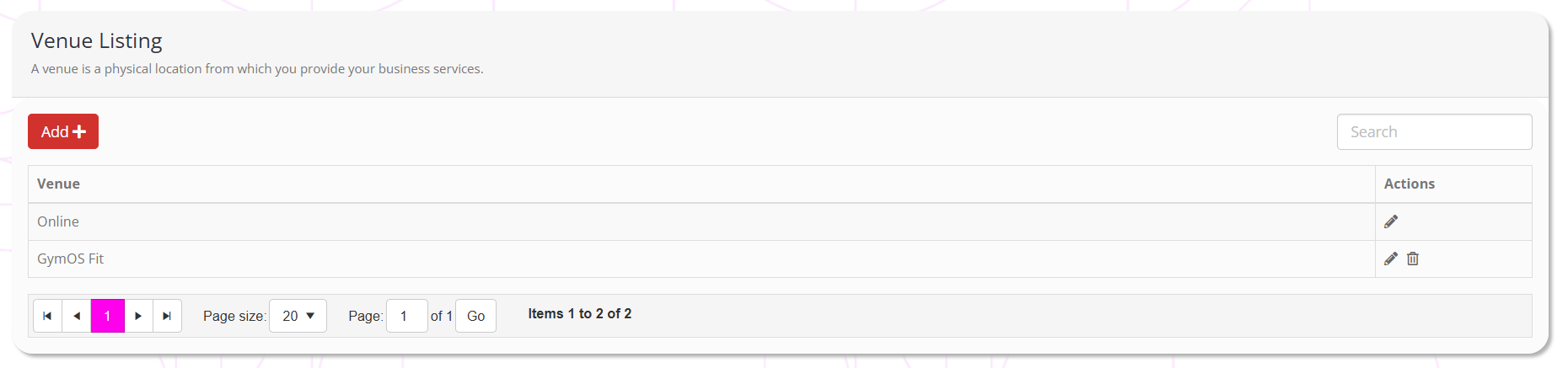
You may edit an existing venue by clicking the icon.
Venue Details
When you edit a venue, you are taken the Venue Details tab of the venue record.
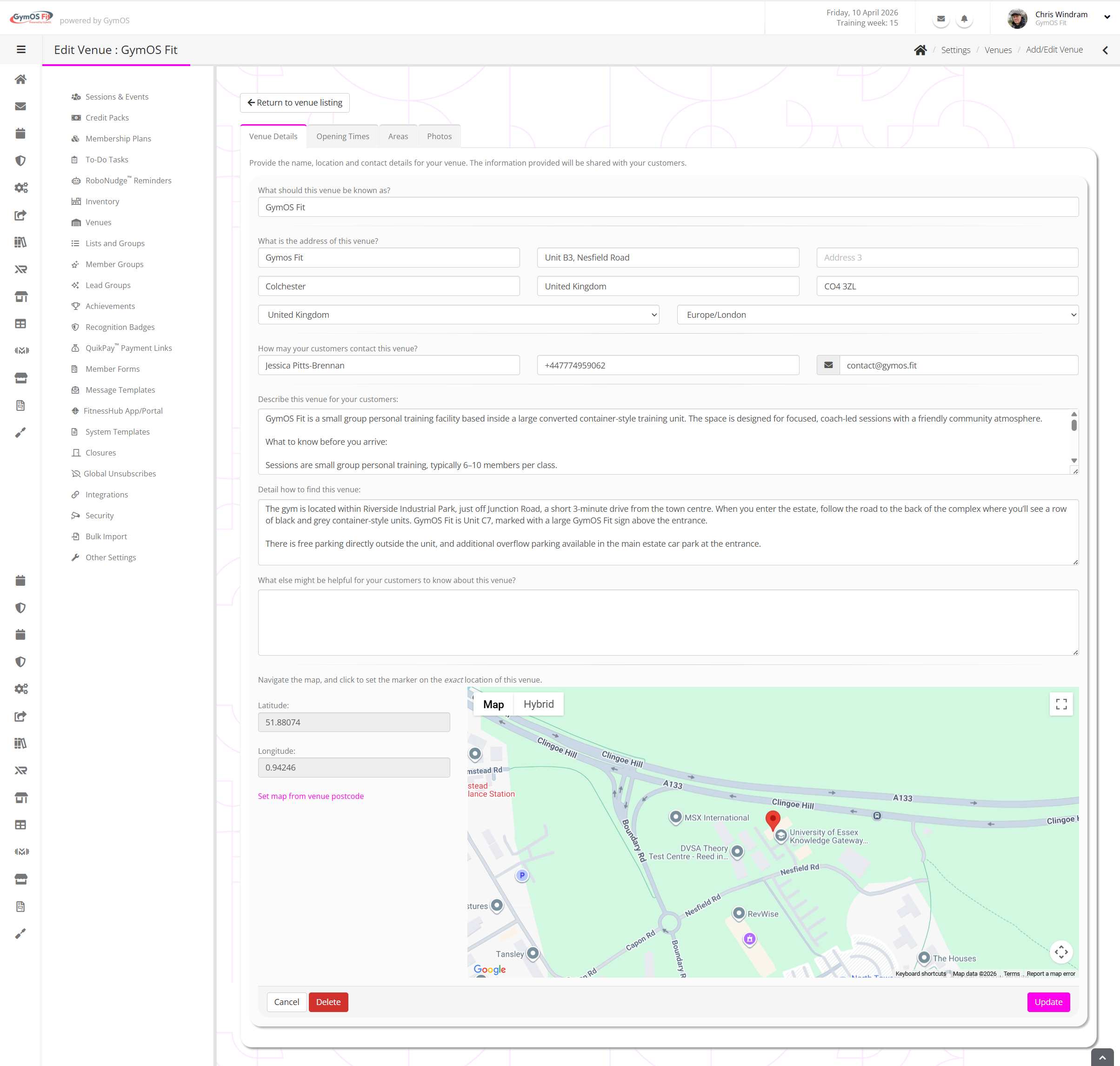
We recommend that you review and complete all fields on this page. This information is displayed to your members and leads in both the GymOS FitnessHub mobile app and the FitnessHub member portal.
By providing useful information to your members, you can make their lives much easier. Information about parking is a popular topic to cover on this page.

Opening Times
The Opening Times tab lets you set your venue’s opening times. These are also displayed to leads and members in the GymOS FitnessHub mobile app and the FitnessHub member portal.
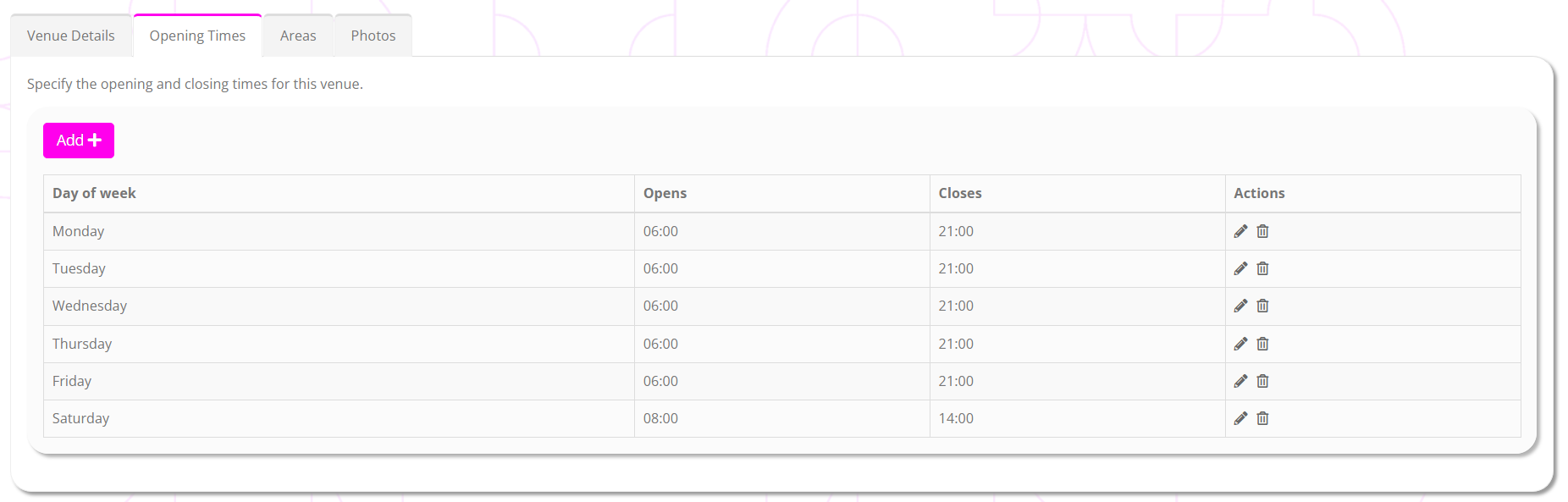
To add a new open period to your venue, click the Add button. You may edit an existing entry by clicking the icon. Click the icon to remove an opening time.
Click the icon to commit a change, or to abort.
Venue Areas
Typically, a venue will comprise multiple areas. You can configure these on the Areas tab. These are then available for allocation elsewhere in the GymOS system, such as with sessions and DropSlot consultations.
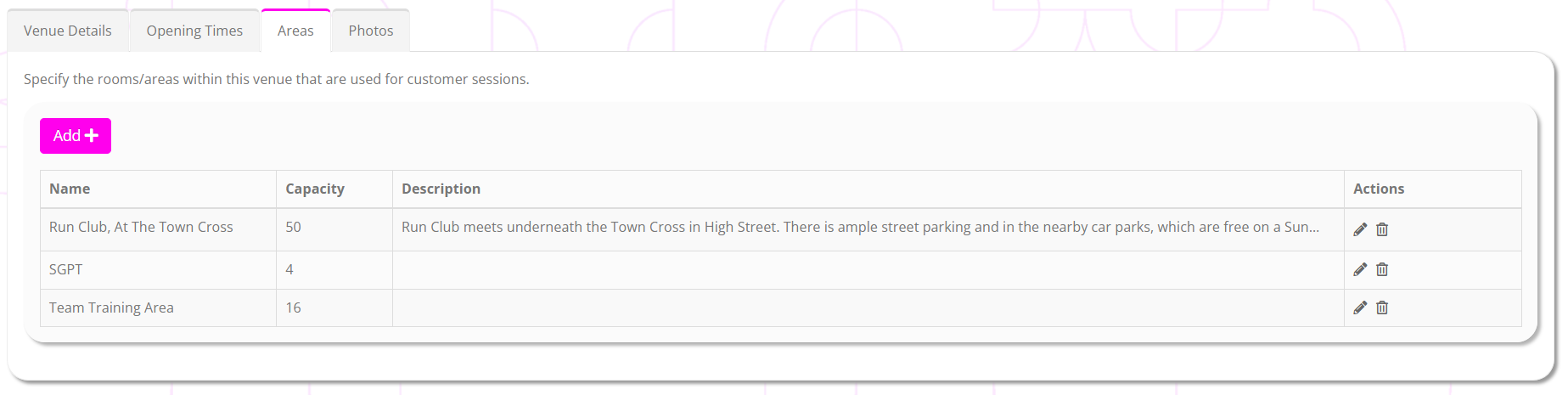
Each venue has a default capacity. This is used in functions such as session configuration but can typically be overridden as needed.
To add a new venue area, click the Add button. Existing areas may be edited by clicking the icon, or deleted by clicking the icon.
Venue Photos
The Photos tab is where you may upload photographs of your venue.
It is recommended that you upload some photographs of your facility. These are shown to members in the GymOS FitnessHub mobile app and the FitnessHub member portal.
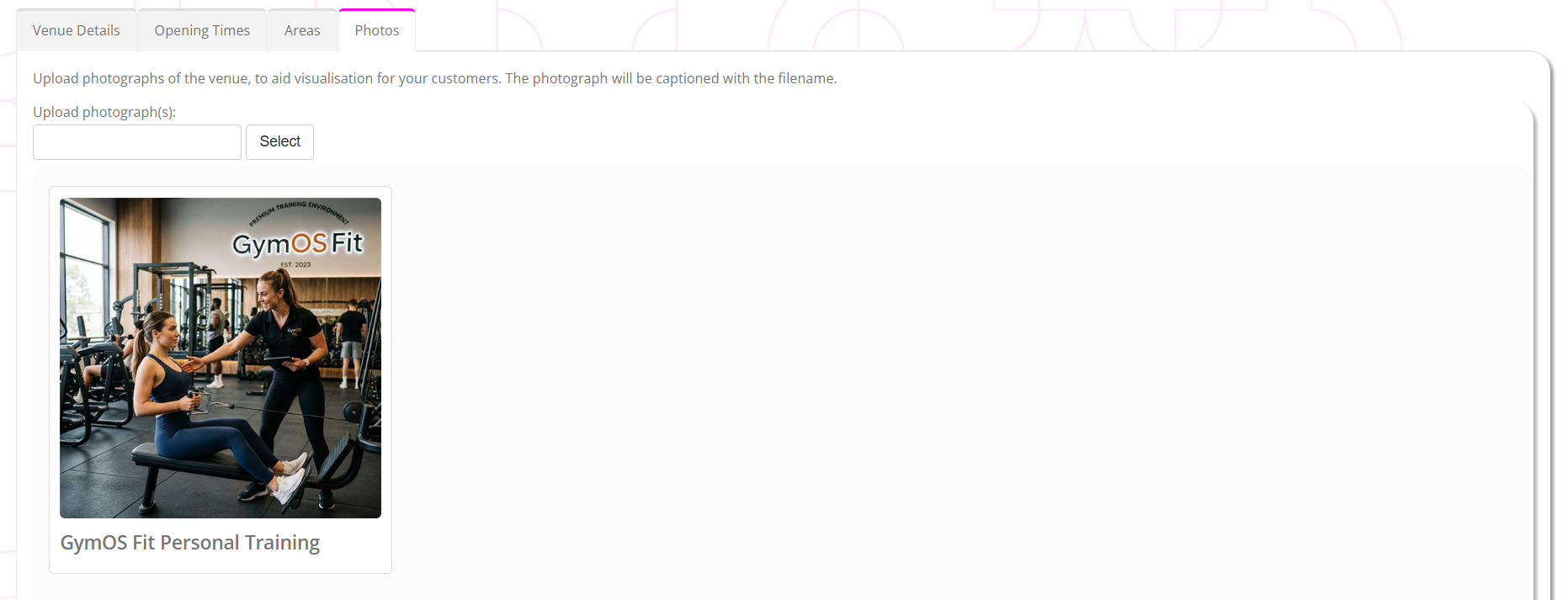
The photograph will be assigned a caption derived from the filename of the photograph being uploaded, so set this to something meaningful before you add the photo to GymOS.