
Mobile App: View Attendance Listing
Accessing the Attendance Listing
To view the attendance listing:
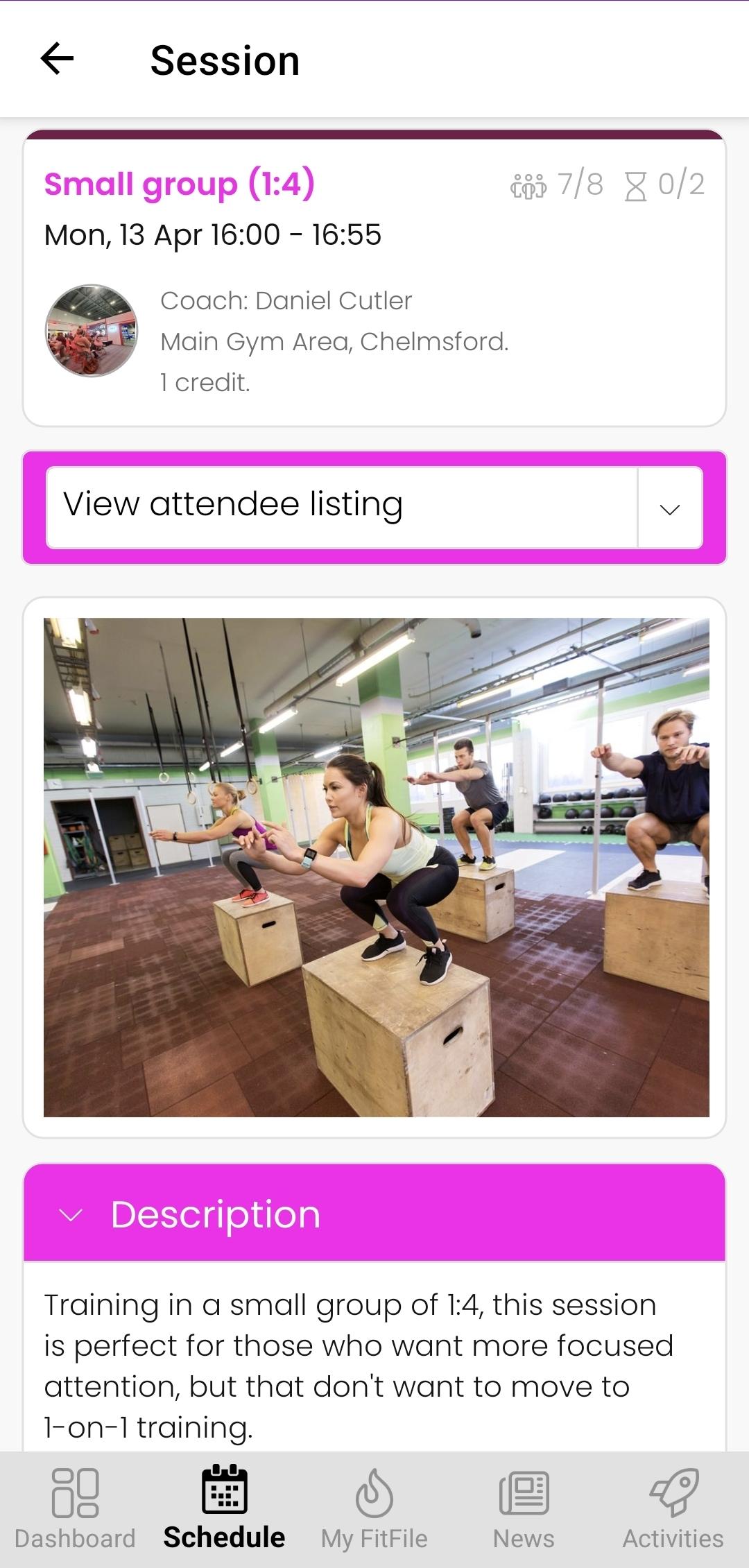
- Navigate to the Schedule tab within the mobile app.
- Select a session where the employee is assigned as the coach.
- Tap on the session to open the available options.
- From the dropdown menu, select View Attendance Listing.
This will take the employee to the attendance listing screen for that session.
Viewing Attendee Information
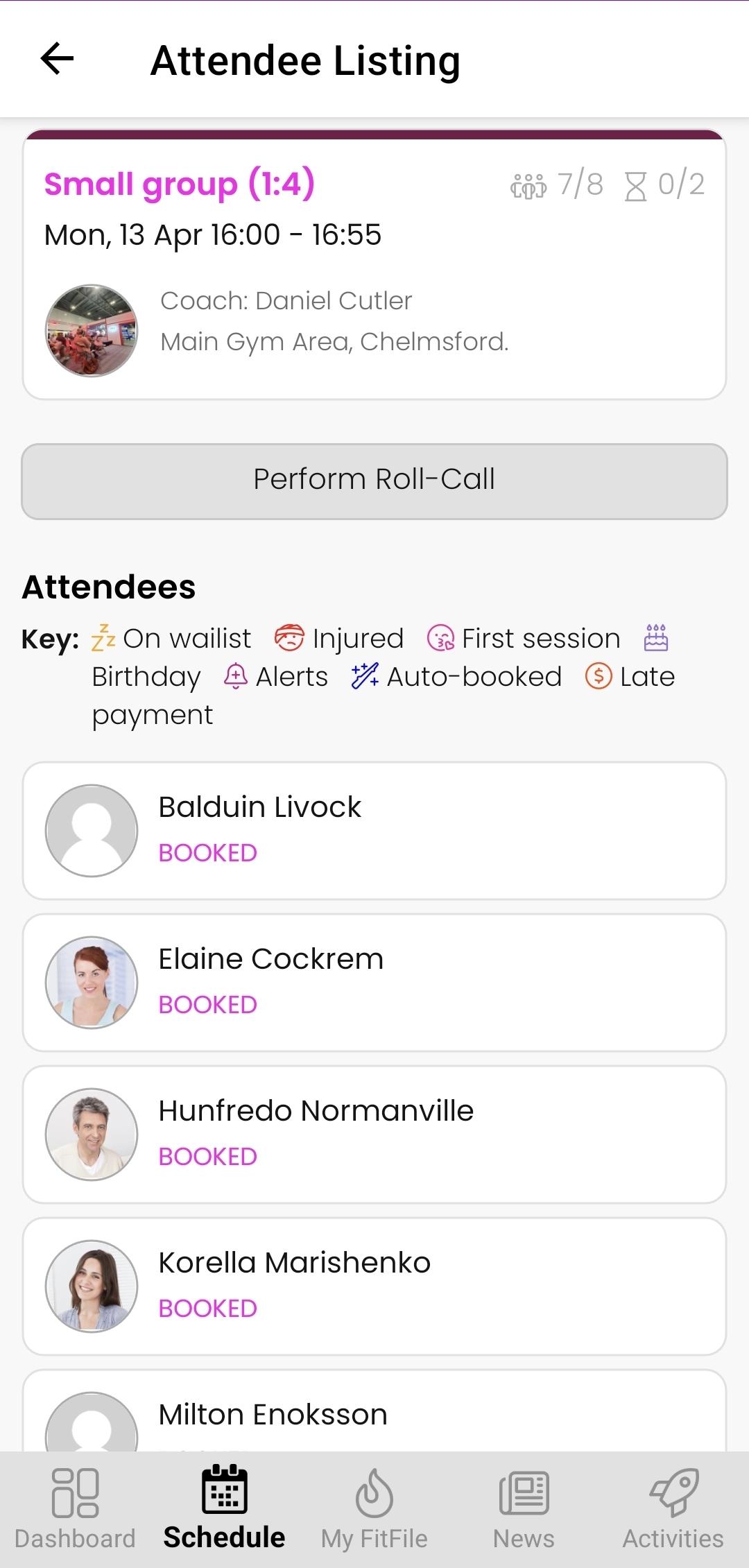
On the attendance listing screen, the employee will see a list of all members booked onto the session.
Alongside each member’s name, there may be icons displayed that provide additional information.
Understanding Attendance Icons
A key is provided on the screen to explain what each icon represents.
These icons may indicate information such as:
- The member is currently injured
- It is the member’s first session
- It is the member’s birthday
This allows the employee to quickly identify important details about attendees before or during the session.
Performing Roll Call
Employees can also complete roll call directly from the attendance listing screen.
To do this, tap the Perform Roll-call button.
This enables the employee to mark attendance for each member booked onto the session.