
Mobile App: Roll Call
Accessing Roll Call
To perform roll call:
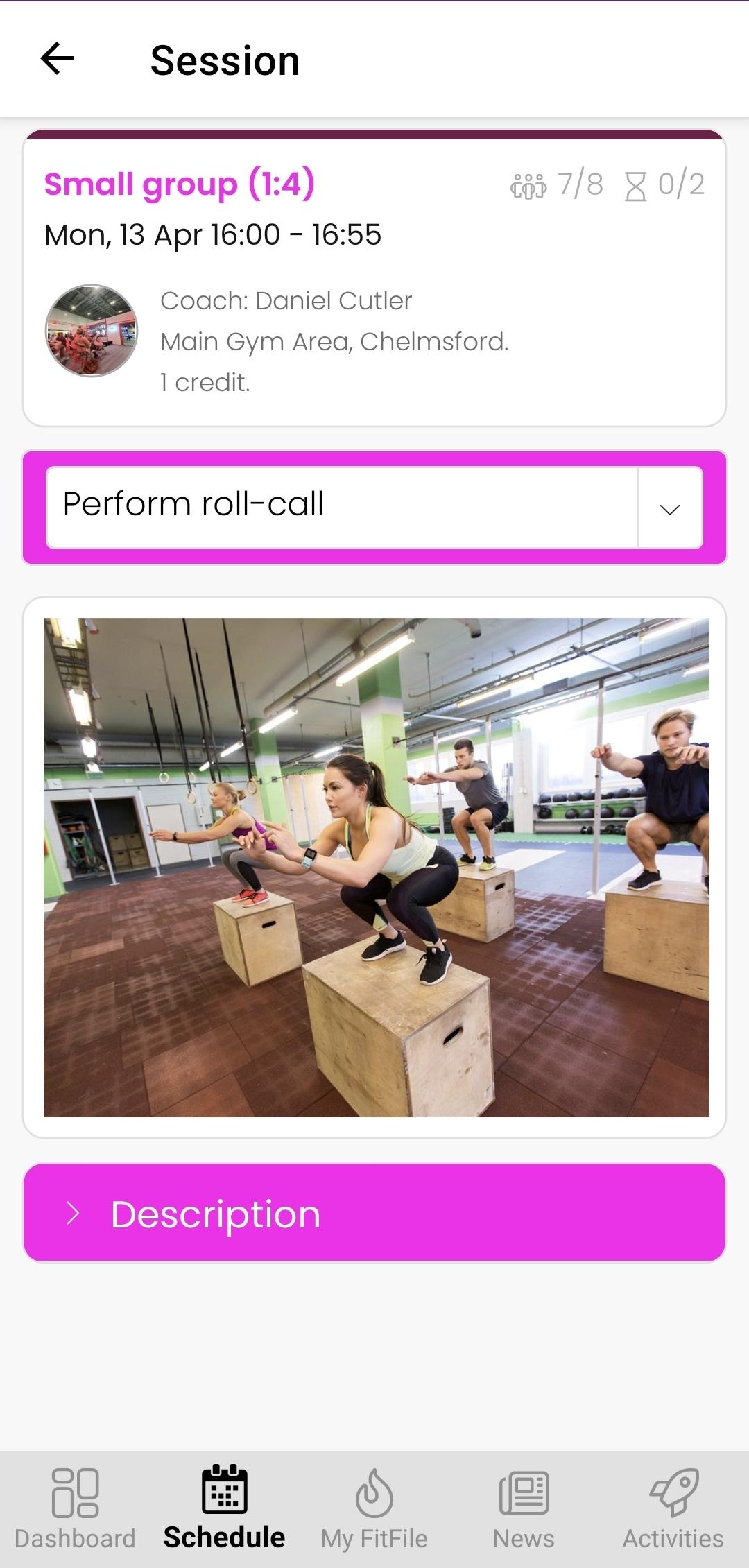
- Navigate to the Schedule tab within the mobile app.
- Select a session where the employee is assigned as the coach.
- Tap on the session to open the available options.
- From the dropdown menu, select Perform Roll-Call
This will take the employee to the roll call screen.
Viewing Member Details
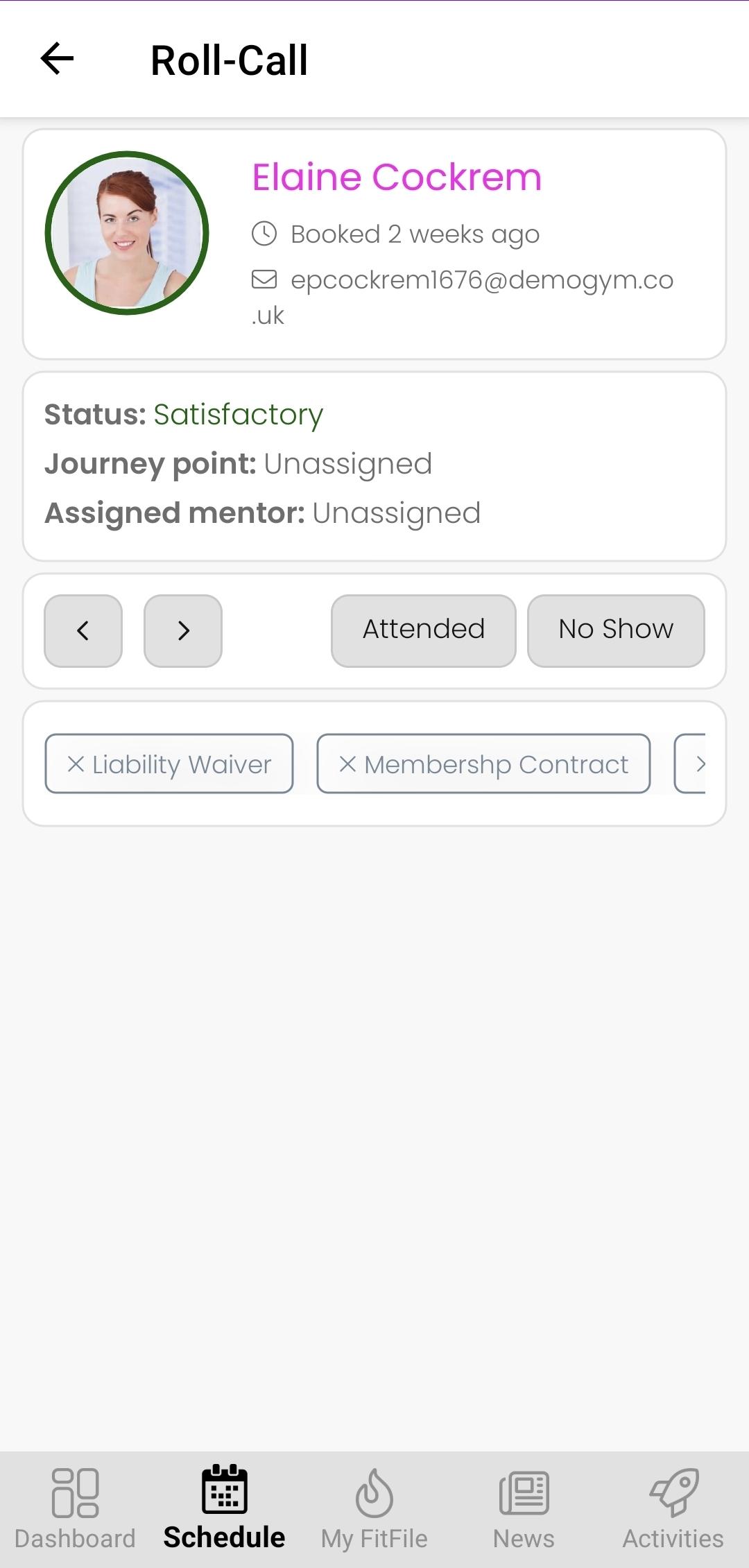
On the roll call screen, the employee will be shown each member booked onto the session, one at a time.
For each member, the following information will be displayed:
- Member name
- Profile Picture
- Booking date and time
- Email address
- Current status
- Assigned journey point
- Assigned mentor
This provides the employee with all the relevant information needed before marking attendance.
Marking Attendance
Employees can record attendance using the available options:
- Attended
- No Show
After selecting one of these options, the system will automatically move to the next member in the session.
Amending a Selection
If an incorrect selection is made, the employee can tap the arrow button to return to the previous member and update their attendance status.
Additional Member Information
Below the attendance controls, the employee will also be able to see whether the member has completed key requirements, including:
- PAR-Q
- Liability waiver
- Signed contract
If a member has any recorded injuries, these will also be displayed on this screen to ensure the coach is aware before or during the session.