
Mobile App: Employee Timesheets
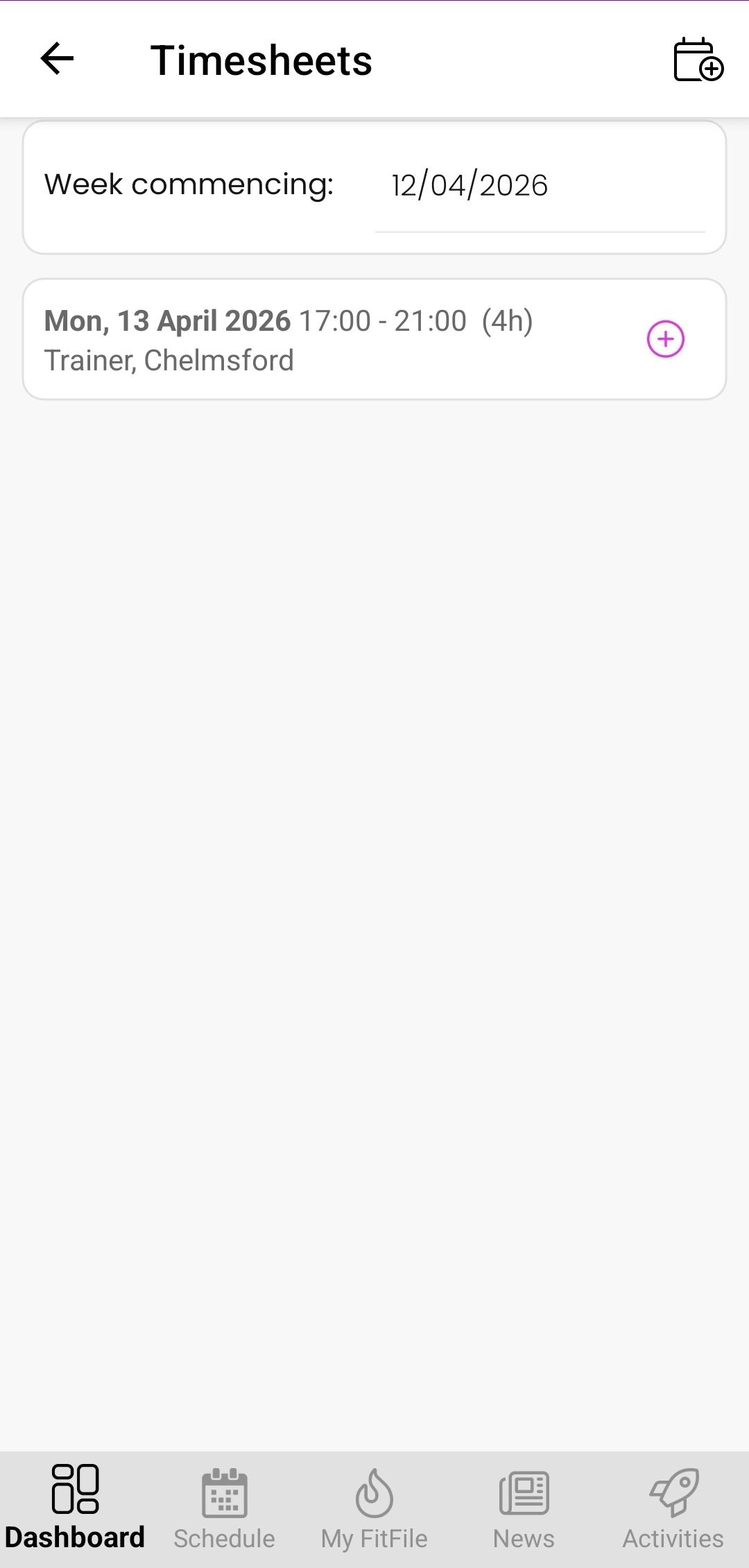
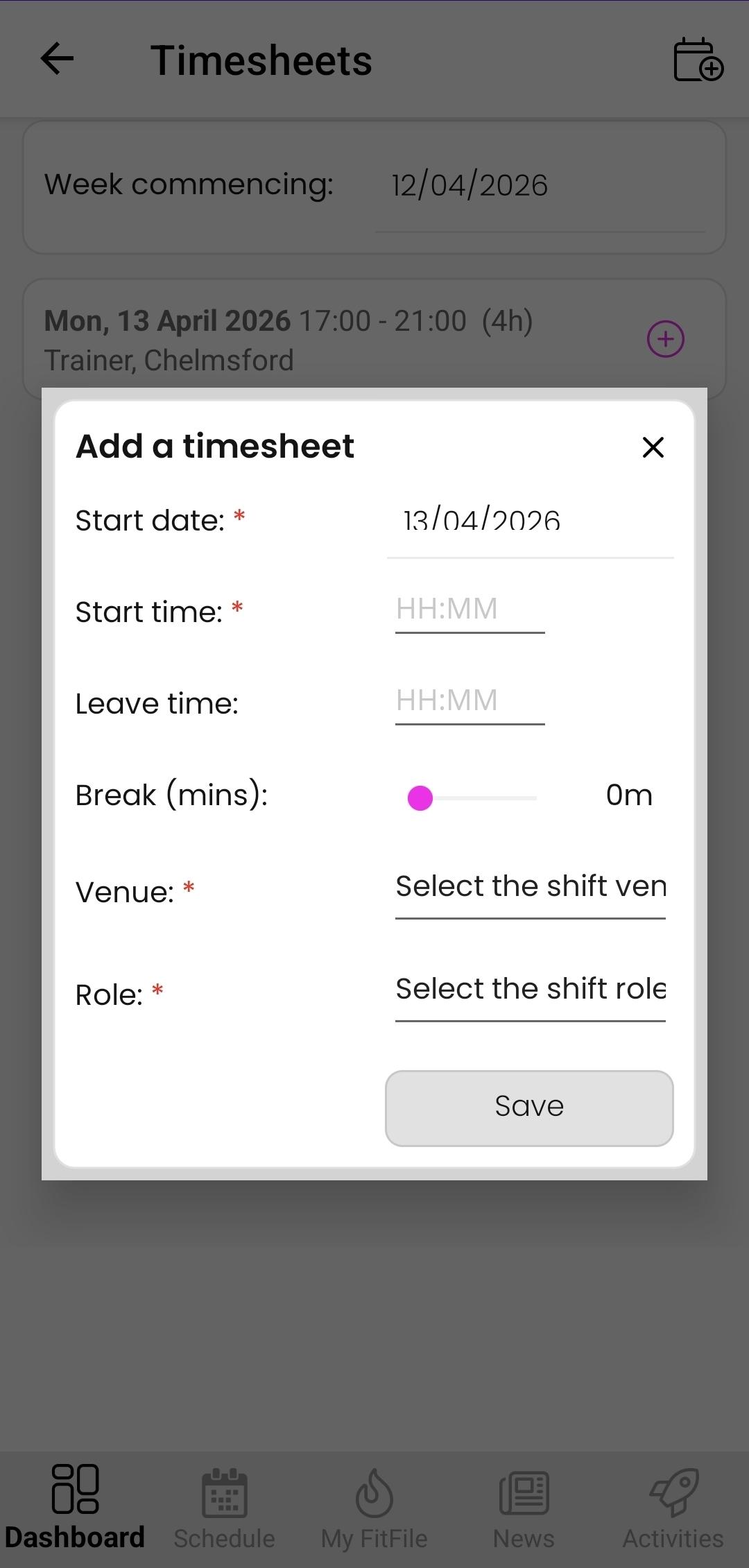
Employees with the appropriate permissions can add, update, and submit timesheets directly within the mobile app.
Accessing Timesheets
Timesheets can be accessed in the same way as Session Allocations:
- From the Dashboard, tap the icon in the top-right corner.
- Select My Account.
- Tap on Timesheets.
This will take the employee to the Timesheets screen.
Viewing Timesheets by Week
At the top of the screen, the employee will see a week commencing date.
- This can be tapped to select a different week
- The screen will then update to display timesheets for the chosen period
Submitting Timesheets for Allocated Shifts
Any allocated shifts will be listed on the screen.
To submit a timesheet for a shift:
- Tap on the + icon next to the shift.
- Enter the required details.
- Submit the timesheet.
Adding a New Timesheet
If the employee has the required permissions, they can also add a new timesheet entry by tapping on the icon in the top-right.
To do this:
- Select the option to add a new timesheet
- Provide the required information.
- Submit the timesheet.