
Mobile App: Employee Shifts
The Shifts feature allows employees to view upcoming shifts and, where enabled, clock in and out directly from the mobile app.
Accessing Shifts
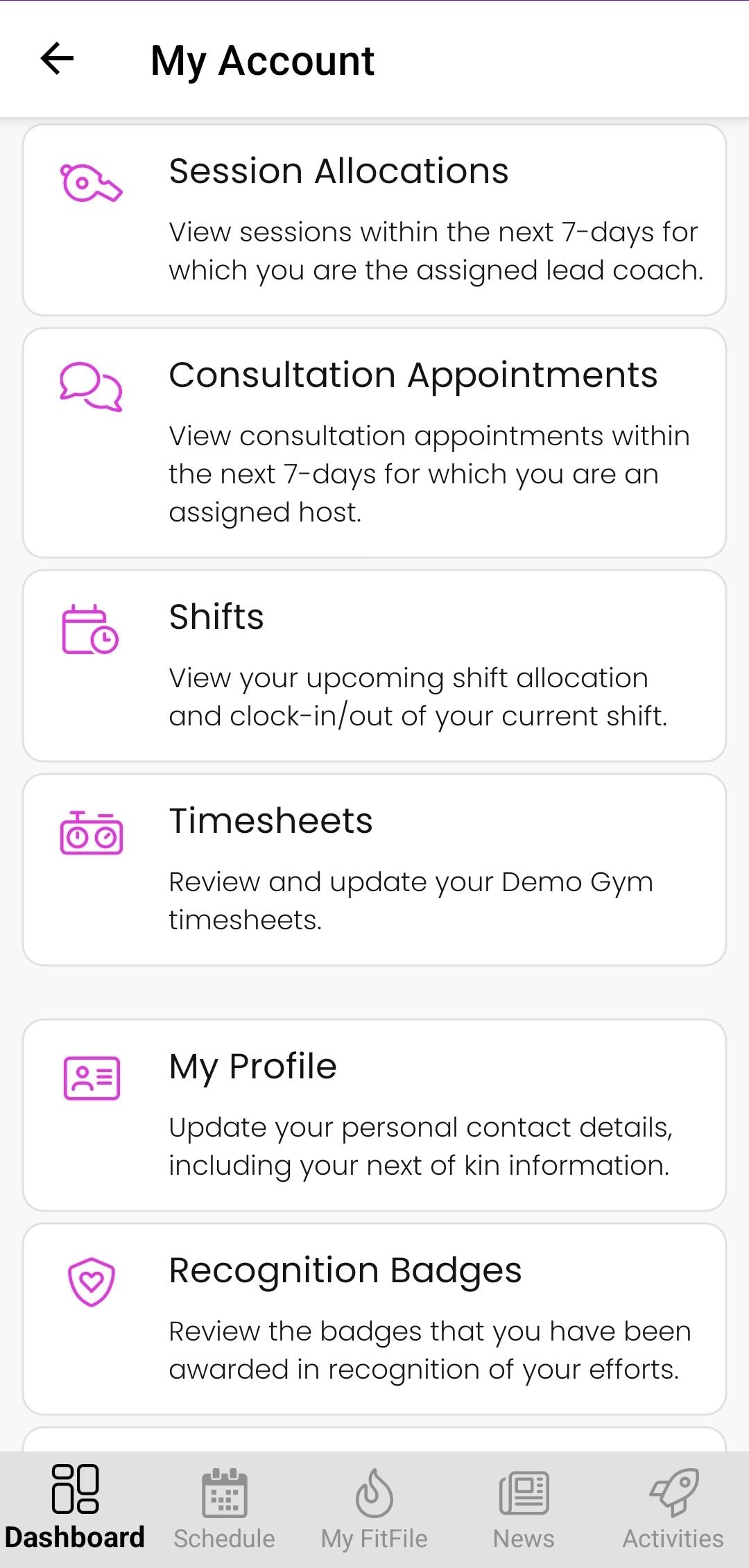
Shifts can be accessed in the same way as Timesheets:
- From the Dashboard, tap the icon in the top-right corner.
- Select My Account.
- Tap on Shifts.
This will take the employee to the Shifts screen.
Viewing Upcoming Shifts
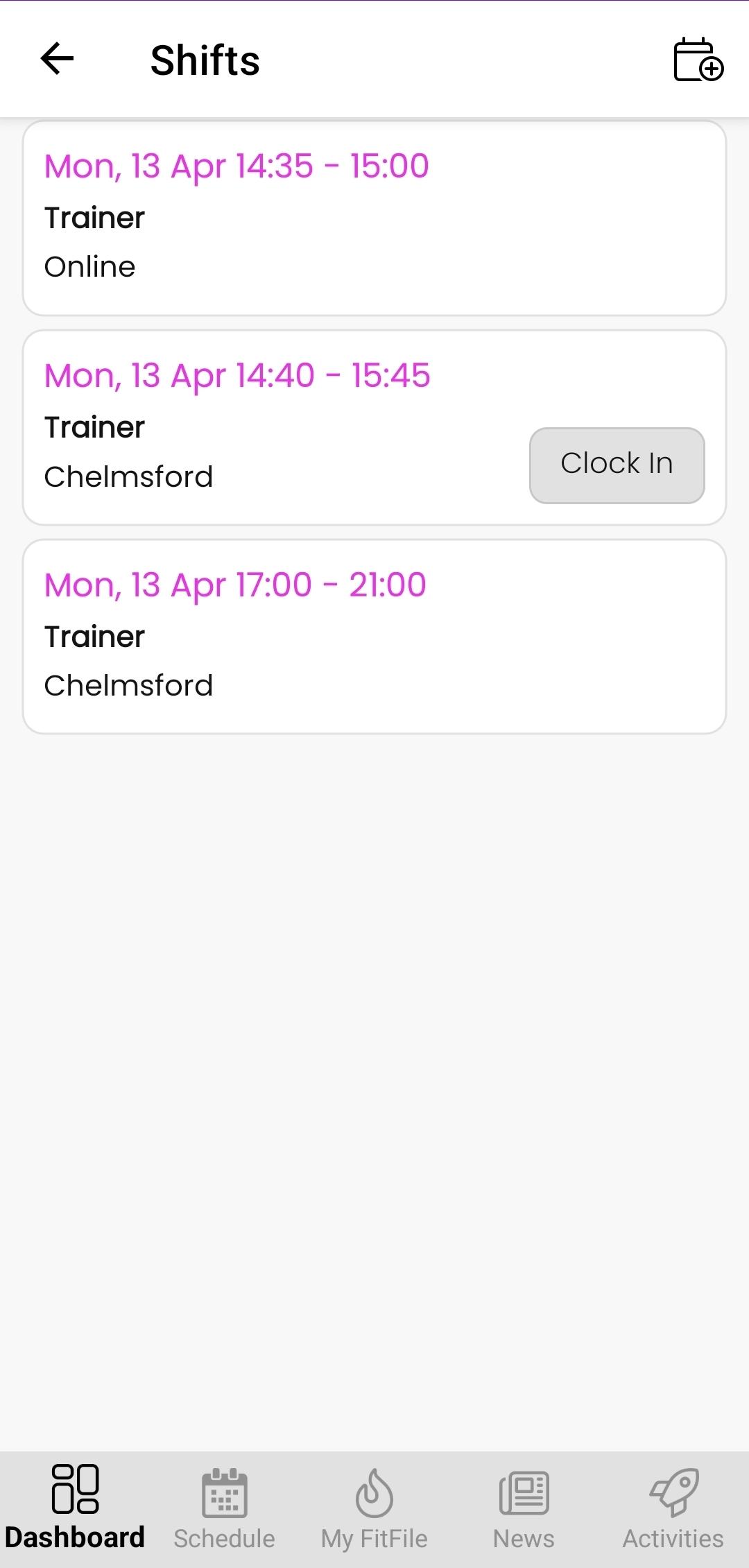
On this screen, the employee will see a list of any upcoming shifts.
Each shift entry will display:
- Date and time of the shift
- Venue location
- Assigned role
This provides a clear overview of scheduled working hours.
Clocking In and Out
If the gym has enabled this feature, employees can clock in and out for their shifts directly within the app.
- When within the clock-in window, a Clock In button will be available
- Tapping Clock In will prompt the app to request the device’s location
- A GPS location check will be performed to confirm the employee’s presence
To clock out:
- Return to the Shifts screen
- Tap the Clock Out button for the relevant shift
Adding Ahoc Shifts
If an employee works adhoc shifts, they can add these manually (if permitted).
To add an adhoc shift:
- Tap the icon in the top-right corner.
- Select the venue and role.
- Tap Clock In to begin the shift.
The employee can then clock out in the same way by tapping the Clock Out button.