
Configuring and enabling Konduo
This article explains how to switch Konduo on for your gym, where incoming calls to your number are sent, how to create your recording announcement, and how to choose whether calls are recorded and transcribed.
You need to be a manager to change these settings. Once Konduo is switched on, it is available to all of your staff.
Finding the Konduo settings
In the administration portal, go to Settings and choose Konduo in-app calling.
If the page says Konduo is not available for your account yet, calling has not yet been made available to your gym. Please contact support.
Switching Konduo on (United Kingdom)
Setting up takes a few minutes, and there are no documents to provide.
Step 1: What you are switching on
The first step sets out what Konduo does and the rules it follows. Please read it: it includes some important points, such as the fact that Konduo cannot call the emergency services, and that you are responsible for making sure your calls follow the rules that apply to them, including the rules for marketing calls.
It also shows what calls cost. Tick both boxes to confirm that you understand the charges and accept the terms on behalf of your gym.
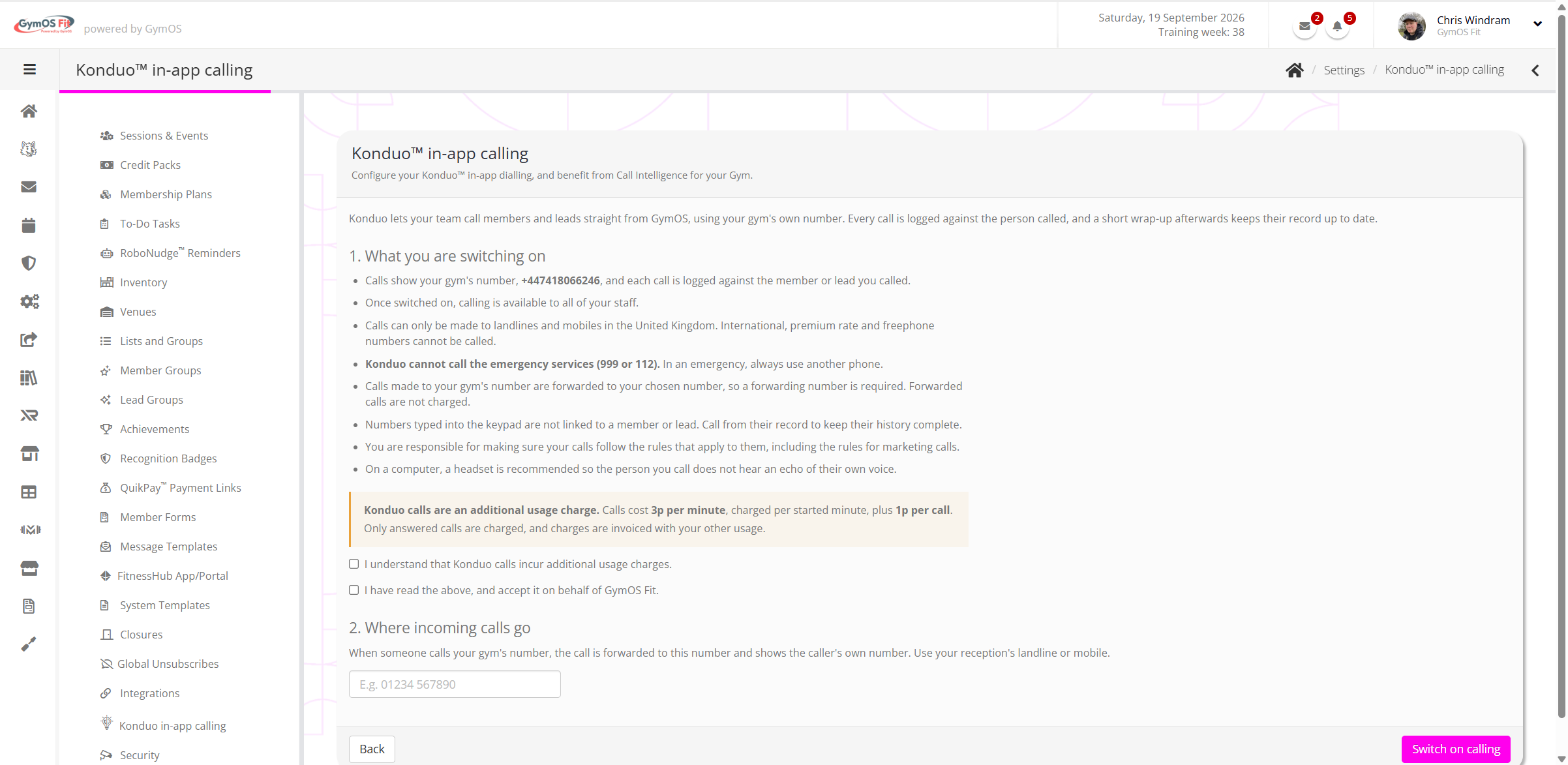
Step 2: Where incoming calls go
When your team calls a member, the member sees your gym’s number, and may call it back. Enter the number those calls should be forwarded to, usually your reception’s landline or a mobile. The call is forwarded showing the caller’s own number, so you can see who is calling.
- The forwarding number must be a landline or mobile in your own country.
- Premium rate numbers, and your GymOS number itself, cannot be used.
- Forwarded calls are not charged.
Click Switch on calling. Konduo is now switched on, and your team can call members and leads from their records.
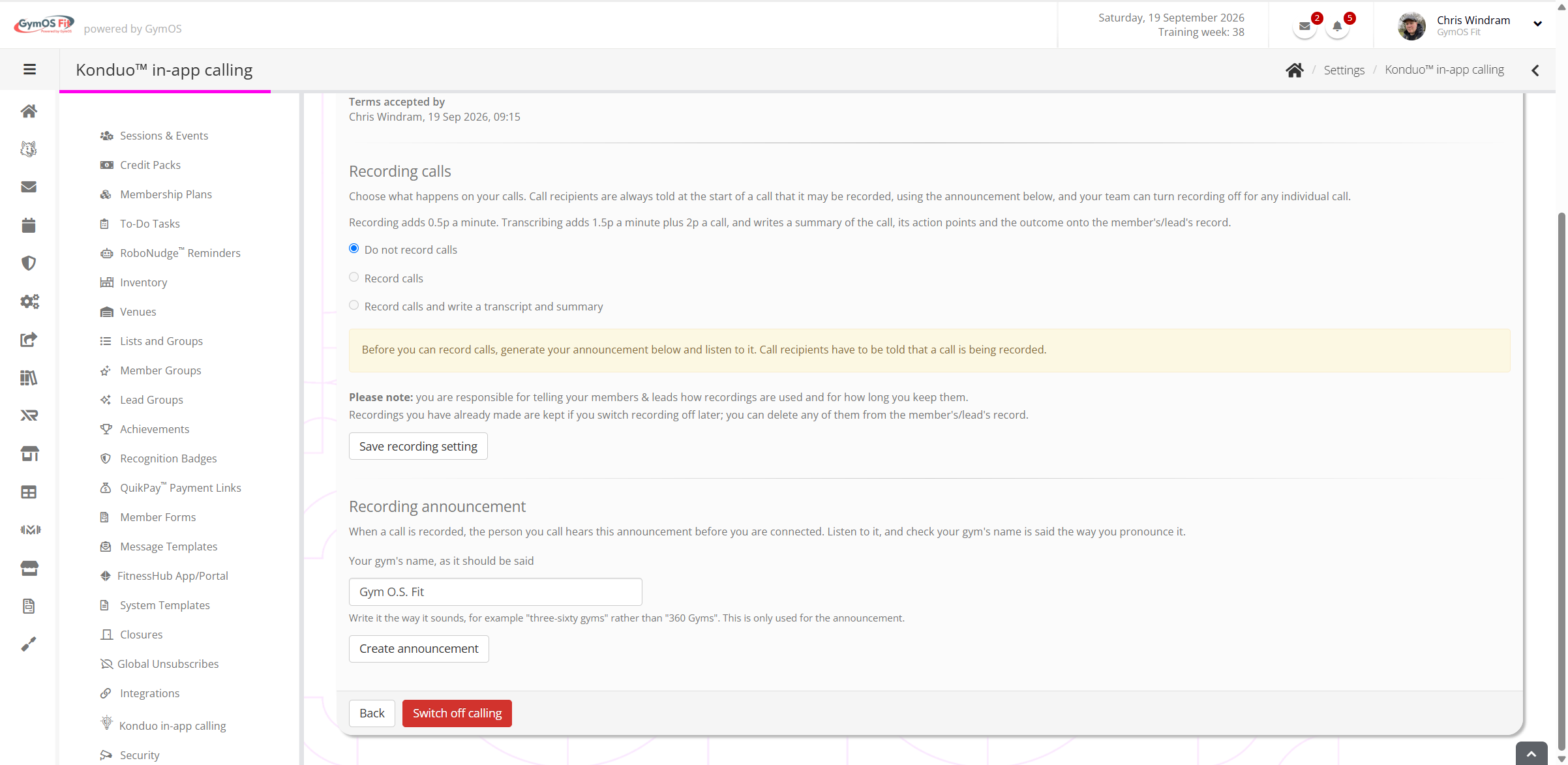
Note: A forwarding number is required because regulations require the number your calls show to be one people can call back.
Your recording announcement
Before your gym can record calls, you need a recording announcement. It is played to the person you are calling, before you are connected, and says: “You’re receiving a call from [your gym]. Just to let you know, this call may be recorded.”
- Under Recording announcement, enter your gym’s name, as it should be said. Write it the way it sounds: for example, “three-sixty gyms” rather than “360 Gyms”. This is only used for the announcement.
- Click Create announcement.
- Listen to it. If the name does not sound right, change how it is written and create it again.
- When you are happy with it, click Approve this announcement.
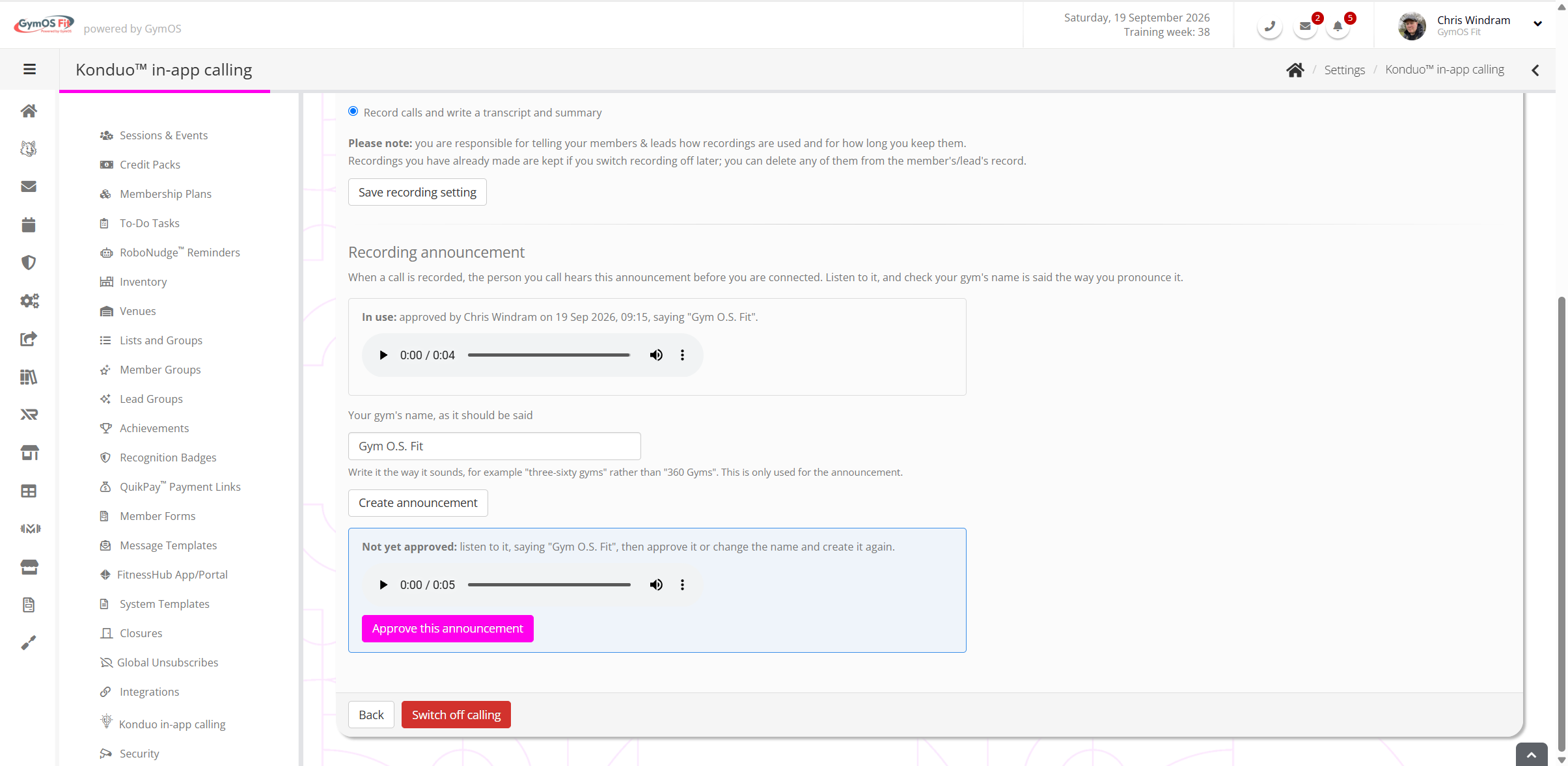
Tip: Spell tricky names phonetically. If your gym is called “Fyt Lab”, try “fit lab”.

Choosing your recording setting
Under Recording calls, choose what happens on your gym’s calls, then click Save recording setting:
- Do not record calls
- Record calls — the recording is kept on the member’s or lead’s record.
- Record calls and write a transcript and summary — as well as the recording, a transcript and a summary of the call, with its action points, are added to the person’s record, and the summary is written as the call’s outcome.
This is your gym’s default. Your team can switch recording off for any individual call before placing it. Recording and transcription have their own charges, shown on the page and in Konduo pricing.
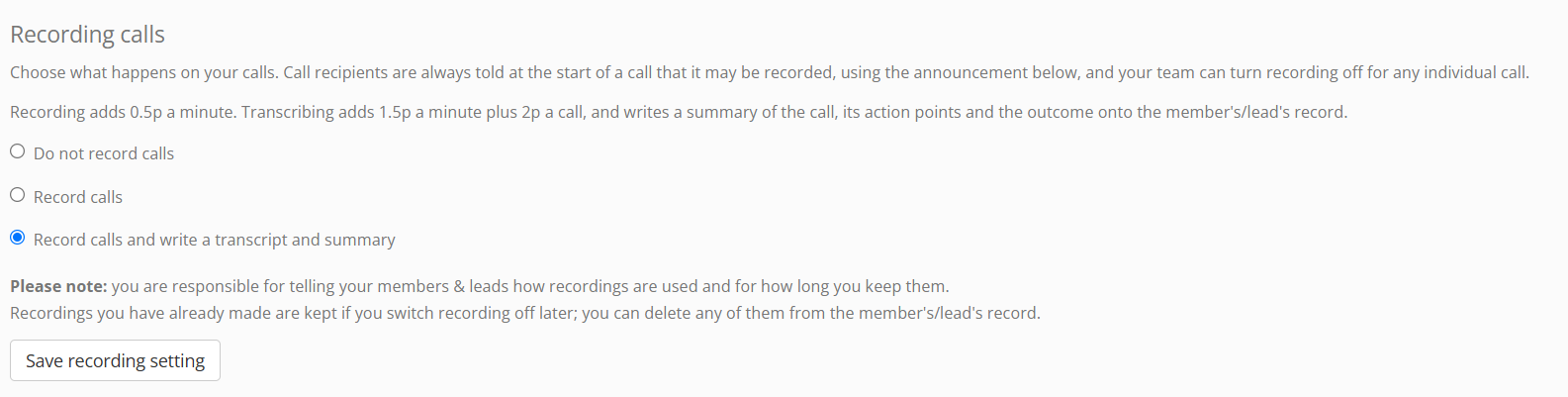
Important: You are responsible for telling your members and leads how you use call recordings and how long you keep them, usually in your own privacy notice. Recordings and transcripts are kept until you delete them. If you switch recording off later, the recordings you have already made are kept, and you can delete any of them from the member’s or lead’s record.
Transcription sends the recording to Microsoft (Azure AI Speech) to be written out as text, and the transcript to Anthropic to write the summary. Neither uses your data to train its models. The details are at gymos.com/ai-providers.
Your team is asked once
Before a member of your team places their first recorded call, Konduo tells them how recordings are handled, including where transcription sends them, and asks them to agree. They can agree, or place that call without recording. They are only asked again if this changes.
Switching Konduo on (Ireland)
In Ireland, calls need a local Irish number registered in your business’s name, which regulations require. Konduo registers one for you. There is nothing to pay for the number itself.
Fill in:
- Your business: your registered business name, exactly as registered with the CRO; your CRO company number; and your website.
- Authorised representative: a senior manager responsible for the business’s phone numbers, usually the owner.
- Business premises: the street address, town, county and Eircode of your premises. Your number will be local to this address, so it must be where your business is, not a PO box. We will also update the address on your GymOS account.
Confirm the details are accurate, and click Register my Irish number.
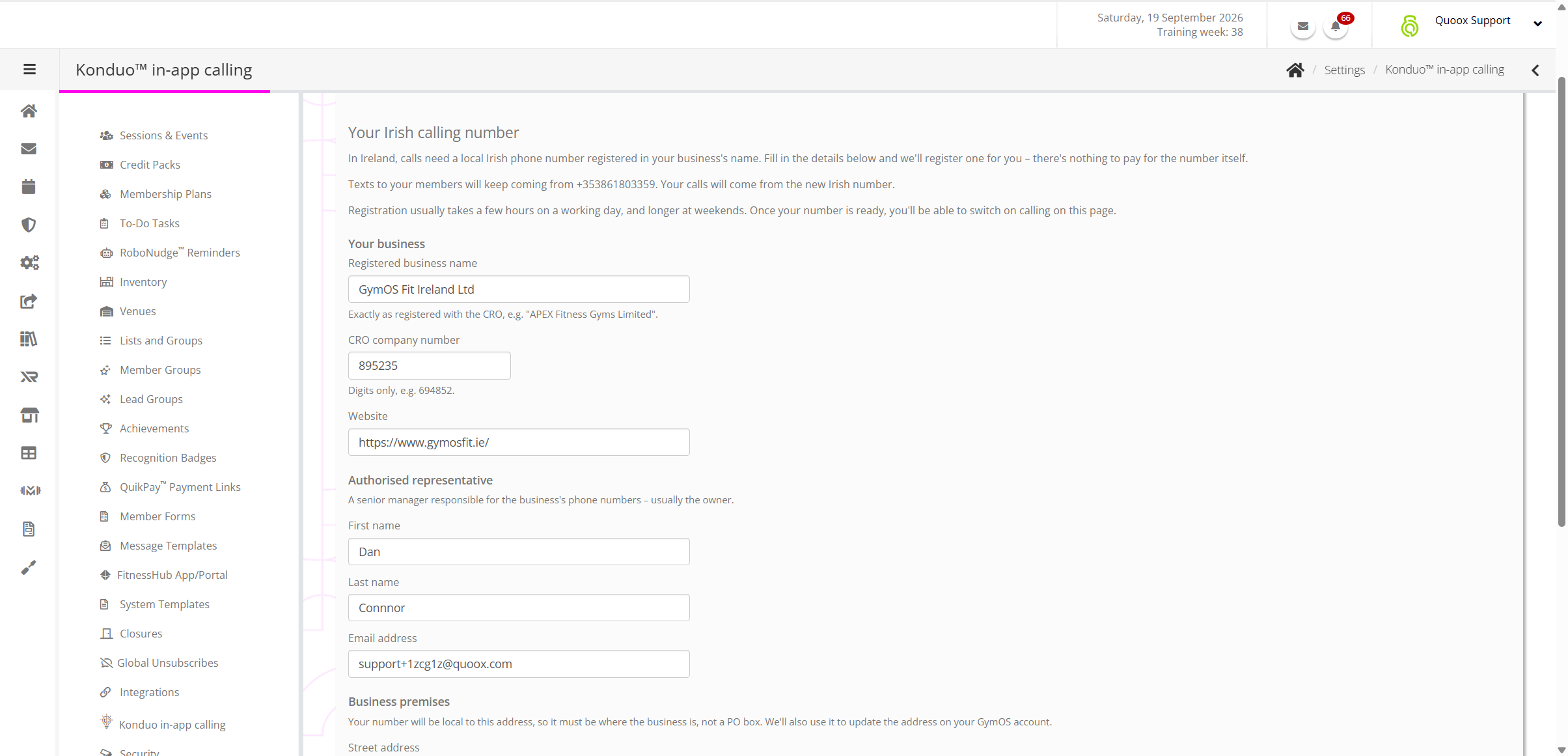
Registration usually takes a few hours on a working day, and longer at weekends. There is nothing else you need to do: once the number is ready, the page lets you switch calling on, following the same steps as in the UK.
- Your texts do not change. Texts to your members and leads keep coming from your current number. Your calls come from the new Irish number.
- If our telephone provider asks us to check your details, the page tells you. Make sure everything matches your company’s registration with the CRO, and submit again.
- If no numbers are available for your area, the page tells you. We keep watching, and set one up as soon as one becomes available.
Changing your settings later
- Forwarding number — on the Konduo settings page, click Change next to the forwarding number.
- Announcement — change the spoken name, create the announcement again, and approve it. New calls use the new announcement.
- Recording setting — choose a different option and save. New calls follow the new setting.
Updated terms
If Konduo’s terms change, the settings page shows a banner asking a manager to review and accept them. Calling carries on in the meantime.
Switching Konduo off
Click Switch off calling and confirm. Konduo is switched off for all of your staff. Calls made to your gym’s number are still forwarded, and recordings and transcripts you have already made stay on your members’ and leads’ records.