
Connect your GymOS account to Stripe
Connecting your GymOS account to Stripe is required only once. Every GymOS account is required to be connected to Stripe, even if you choose not to use the credit/debit card functionality.
To connect your account to Stripe, complete the following steps:
- Set up an account with Stripe. This is done on the Stripe website.
- Follow the entire Stripe process, validating your account and providing documentation as required.
- Gather your live Publishable and Secret keys from within Stripe. Whilst Stripe do change the process from time to time, at the time of writing this article these are found:
- Select Developers from the footer bar of the Stripe window (bottom left)
- From the pop up menu, select API keys
- From within the Standard Keys section, locate the tokens for the publishable key and secret key.
You may create a restricted key if you need to, but this should have full API permissions for it to work with GymOS.
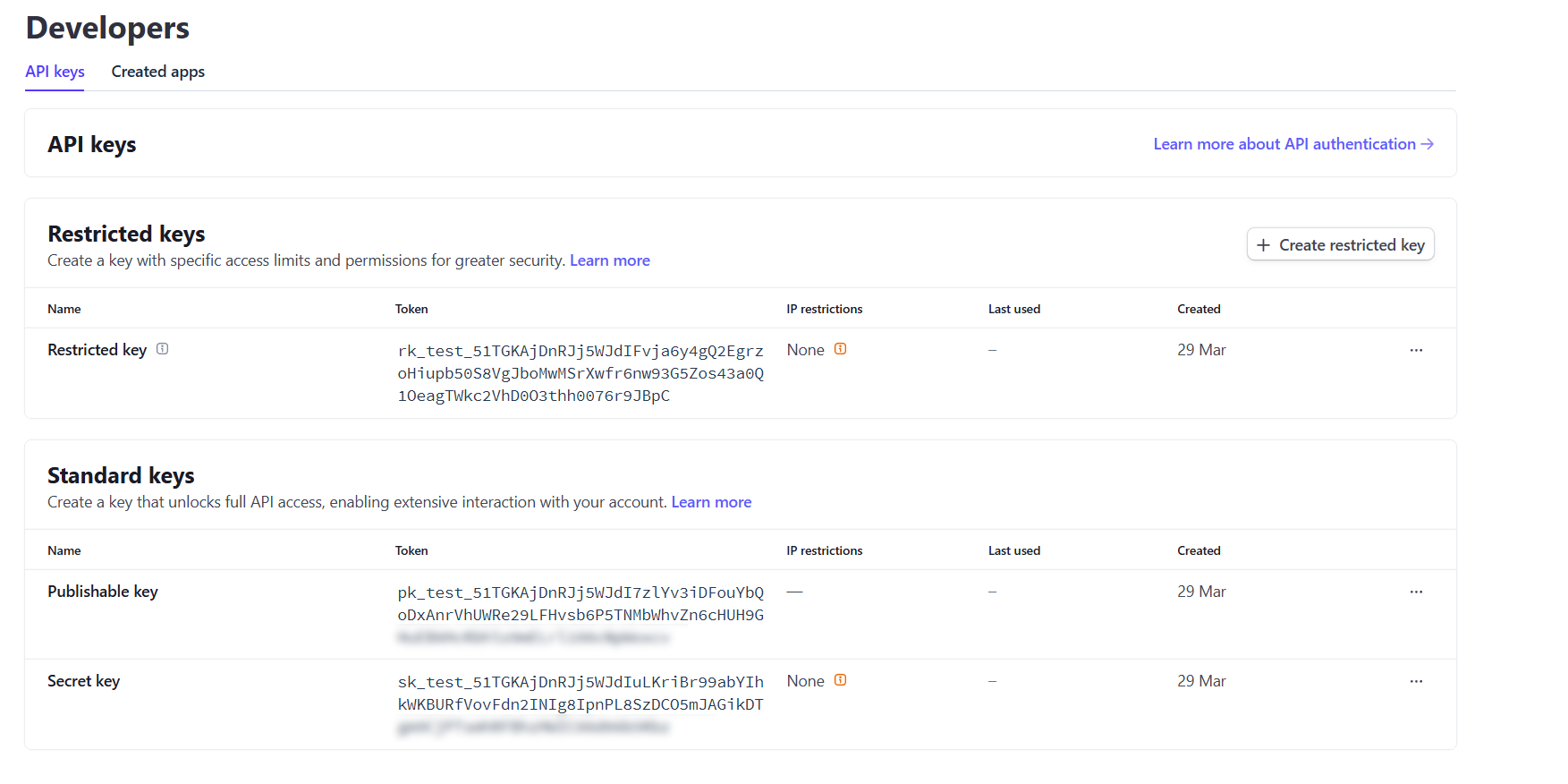

- Within GymOS, select Integrations from the Settings section of the main menu.

In turn, paste your publishable and secret Stripe keys into GymOS. These will begin pk_live_ and sk_live_ respectively. If they start pk_test_ or sk_test_, then you have not yet activated your Stripe account and the test keys will not work in the live production environment.
Click Save. GymOS will verify the Stripe connection works, and will set up several data points within Stripe.

Please be aware that Quoox does not offer an import function for previous card data. From our experience, other software vendors typically do not provide the information required to do so with the level of confidence required by the UK and European financial regulatory bodies.