
Employee tab: Notes & Documents
The Employee Notes & Documents tab is very similar to that of the member record, with some context-relevant differences. In fact, the employee record pulls across notes & documents from the employee’s corresponding member record.
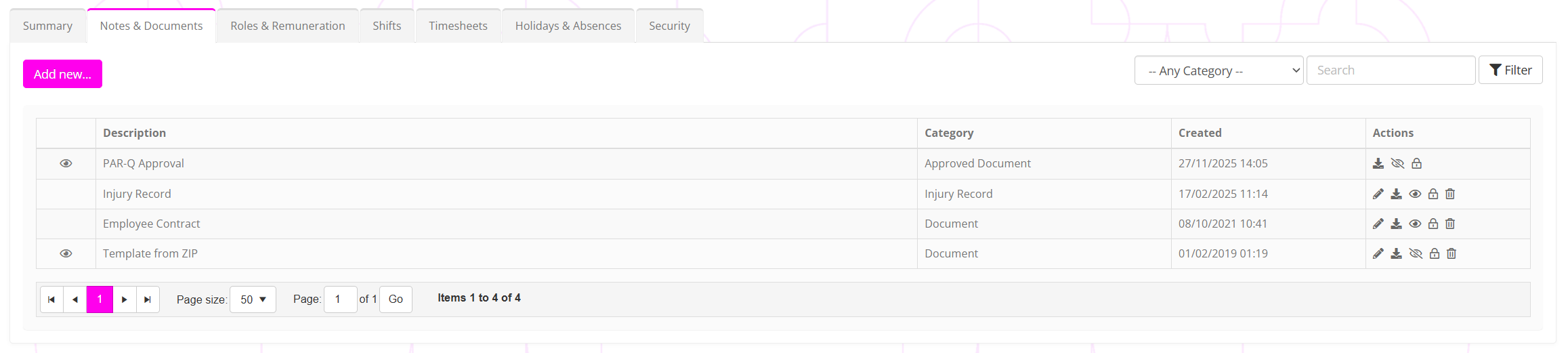
The key difference is that the options in the Add new… drop-down are relevant to the context of an employee.
Documents listing
The documents tab lists the document-type elements recorded against the employee record in reverse-chronological order, with the most recent appearing first. The list is paginated, as it is likely to become quite long.
The information displayed for each comprises:
- icon: If present, this indicates that the record is visible to the member via the GymOS FitnessHub app and Member portal.
- icon: If present, this indicates that the record is only visible to managers within the GymOS system.
- Description: A summary of the document or, in the case a note, the note content.
- Category: The type of document.
- Created: The date/time upon which the document was created.
For each row/document record, there is a corresponding set of actions. The complete set of actions comprises:
- Edit the record.
- Clone and edit the record. This applies to some document types, such as member forms.
- Download the document.
- Mark the document as being visible to the employee/member.
- Hide the document from view for the employee/member.
- Toggle the manager only visibility flag for the document.
- Permanently delete the document.
Filtering the document listing
The document listing may be filtered by document category and/or description.
The document categories are client-configurable and are administered in Settings Lists and Groups Document Types. You may add as many document types as you wish, to help you organise your document filing.
A filter is applied by clicking the Filter button.
Recording a document against an employee
A new document record can be created for an employee by clicking the Add New… button and selecting the desired option from the drop-down list. The process and flow is the same as for a member record, and corresponding guidance is provided below.
The options available comprise:
- Add Document
Upload a new document. Learn more… - Add Note
Add a textual note. Learn more… - Add Incident
Record an incident involving the member. Learn more… - Add Member Form
Add and complete an internal member form. Learn more…