Member messaging in the FitnessHub app
Messages in the FitnessHub app bring everything your gym sends you into one place. You can read your emails, texts and notifications from the gym, and chat with the team in real time.
Opening your messages
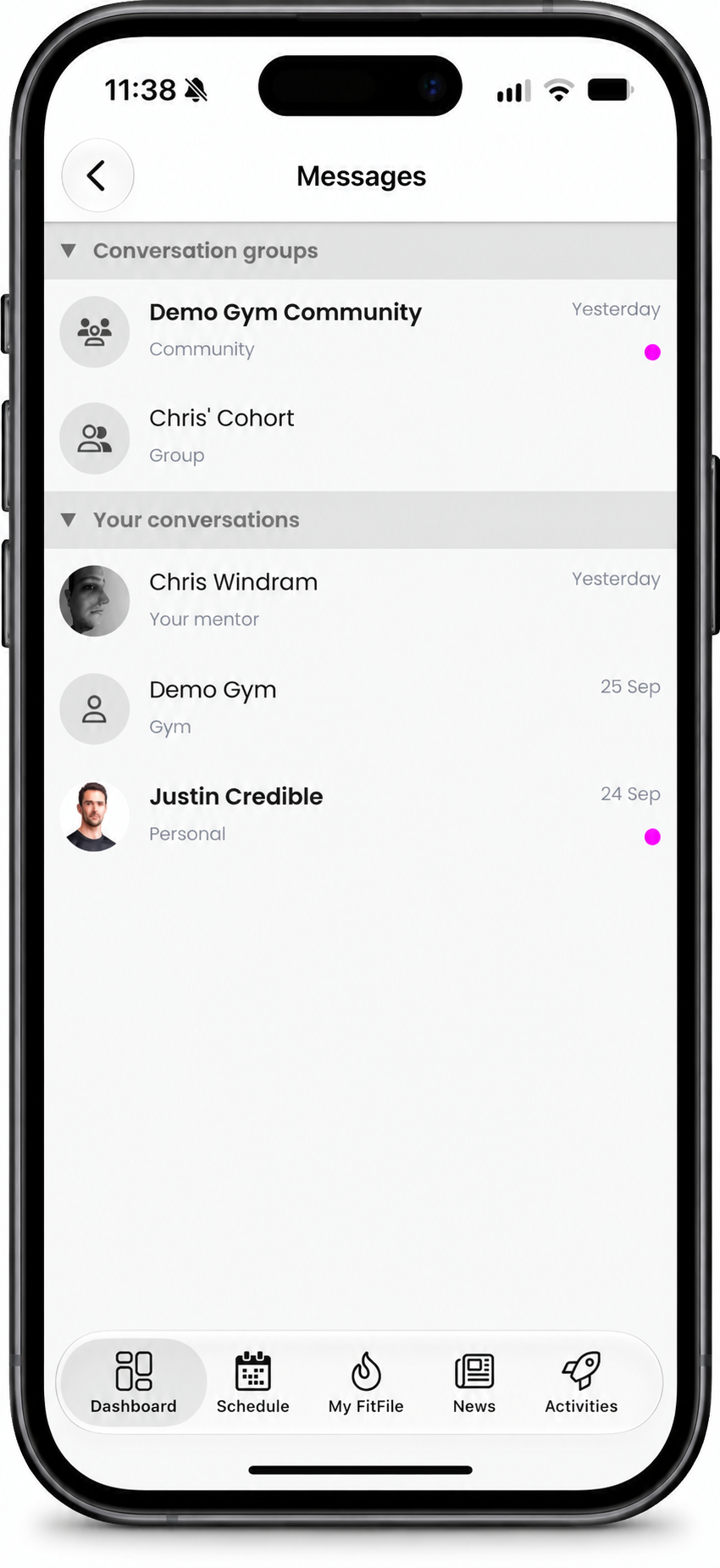
Tap the speech bubbles icon at the top of the app. A number on it shows how many conversations have something new for you. The same number appears on the app’s icon on your phone.
What you will see
- Your conversation with the gym. Everything the gym has sent you, and everything you have sent it, in the order it happened.
- Conversations with individual members of the team, such as your coach.
- Group chats for any groups you belong to.
- The community, which is a chat for all of the gym’s members and its team.
You only ever see your own conversations. Nobody else can see what you and the gym say to each other, apart from the gym’s team.
Reading a conversation
Tap a conversation to open it. The newest messages are at the bottom, and Load earlier messages at the top brings back older ones.
- Chat messages appear straight away, and you can see when somebody is typing.
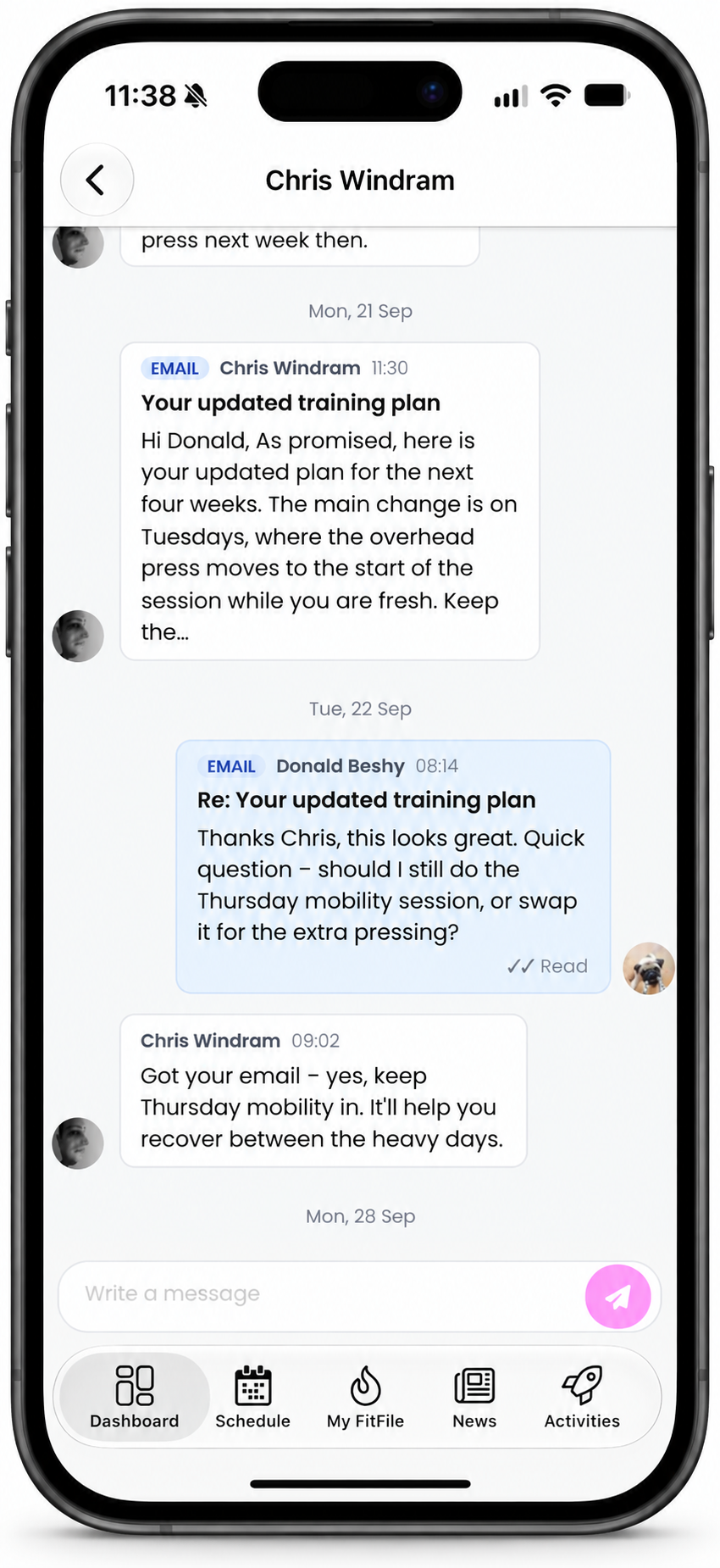
- Emails show their subject and a short preview. Tap one to read it in full. If it has pictures from elsewhere, tap Show images to see them.
- Texts and notifications the gym has sent you are shown here too, so you can always look back at them.
- A line marked New shows where the messages you have not yet read begin.
Replying
Type your message in the box at the bottom and tap the send button. Your message is sent as chat, and the team is told it has arrived.
- To reply to an email or a text, you can also simply reply to it in the usual way. Your reply still reaches the gym.
- Ticks beside your message show that it has been sent, and then that it has been read.
- Use *asterisks* for bold, _underscores_ for italic and ~tildes~ for strikethrough, if you like.
In some conversations you can read but not reply. Where that is so, the message box is replaced by This conversation is read-only and chat replies are turned off. Your gym decides where members can post, and many gyms keep the community and their groups for announcements.
Deleting a message
To delete a chat message you have sent, press and hold it, then tap Delete. It is replaced by the words message deleted for everybody. You can only delete your own messages, and only chat messages.
Notifications
- You are notified when a member of the gym’s team sends you a chat message, or posts in a group you belong to or in the community.
- You are not notified when other members chat in a group or the community, so a busy group will not keep interrupting you.
- Emails and texts arrive as they always have. The app shows them as new, without notifying you a second time.
If you are not receiving notifications, check that they are allowed for the FitnessHub app in your phone’s settings.
Common questions
I cannot see the messages icon. Why?
Your gym may not have switched messages on yet, or your app may need updating. Install the latest version from your app store.
Can I message another member privately?
No. You can talk to other members in a group you both belong to, or in the community.
Who can see my messages to the gym?
The gym’s team. Other members cannot.
Why can I not reply in the community?
Your gym has chosen to keep it for announcements. You can always message the gym directly.
I look after my child’s membership. Where are their messages?
Emails and texts for a child are sent to you. To see their messages in the app, switch to their profile.
Can I send a photo?
Not in chat, which is text only.
The number on the app’s icon looks wrong. What should I do?
Open the app. The number is corrected whenever the app is opened.