
Mobile App: How to Access App Diagnostics
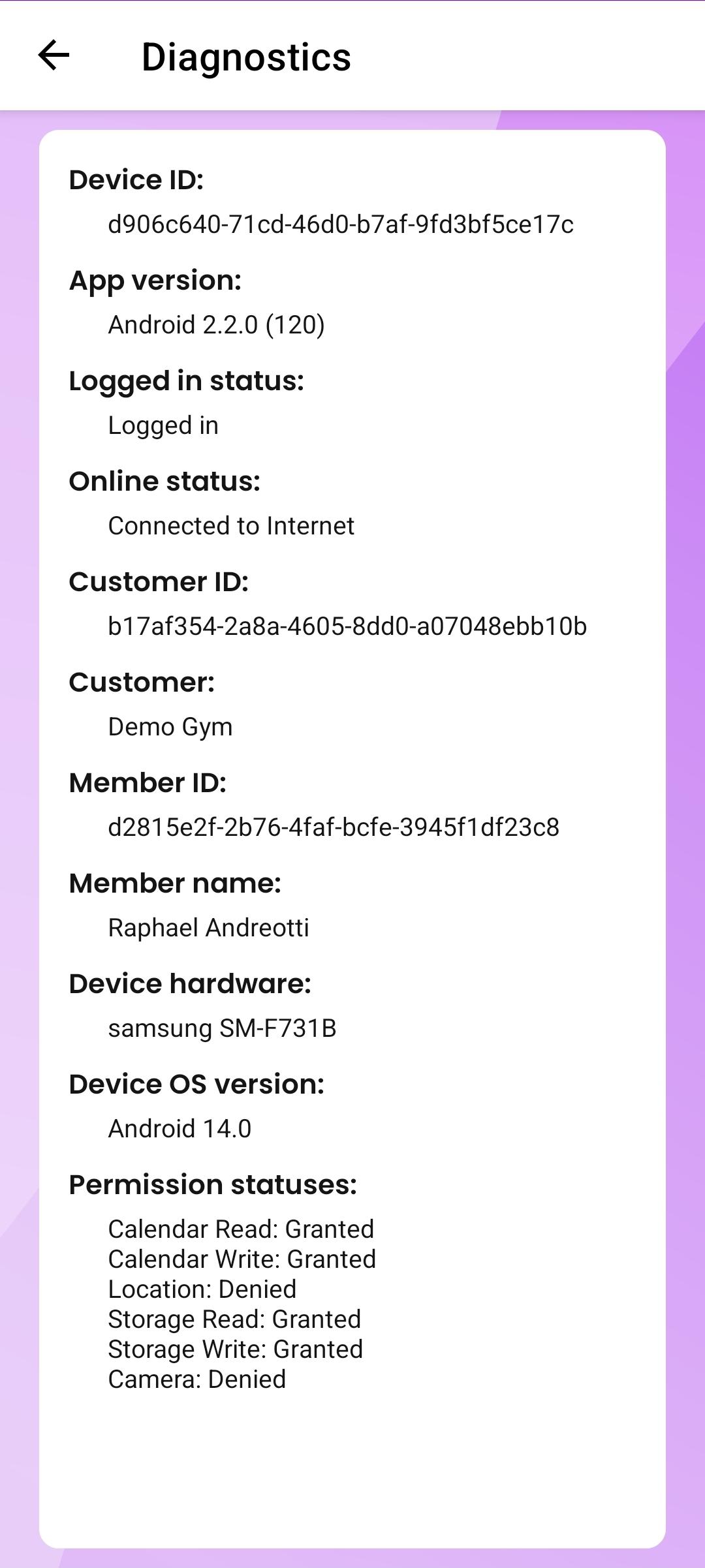
App Diagnostics
In rare cases, the support team may ask a member to provide a screenshot from the App Diagnostics screen. This information helps the team investigate and resolve app-related issues more effectively.
Accessing App Diagnostics
To open the App Diagnostics screen, the member should follow these steps:
- From the Dashboard, tap the cog icon in the top-right corner.
- Select App Settings.
- Tap App Diagnostics.
This will open a screen containing detailed technical information about the app and the device it is running on.
Why This Information Is Requested
The details shown on the App Diagnostics screen can help the support team identify the cause of unusual or unexpected behaviour within the app. A screenshot of this screen may be requested to assist with troubleshooting.