
Member tab: Documents
The Documents tab of the member record is home to various content elements that may be stored against the member record. It covers far more than just documents.
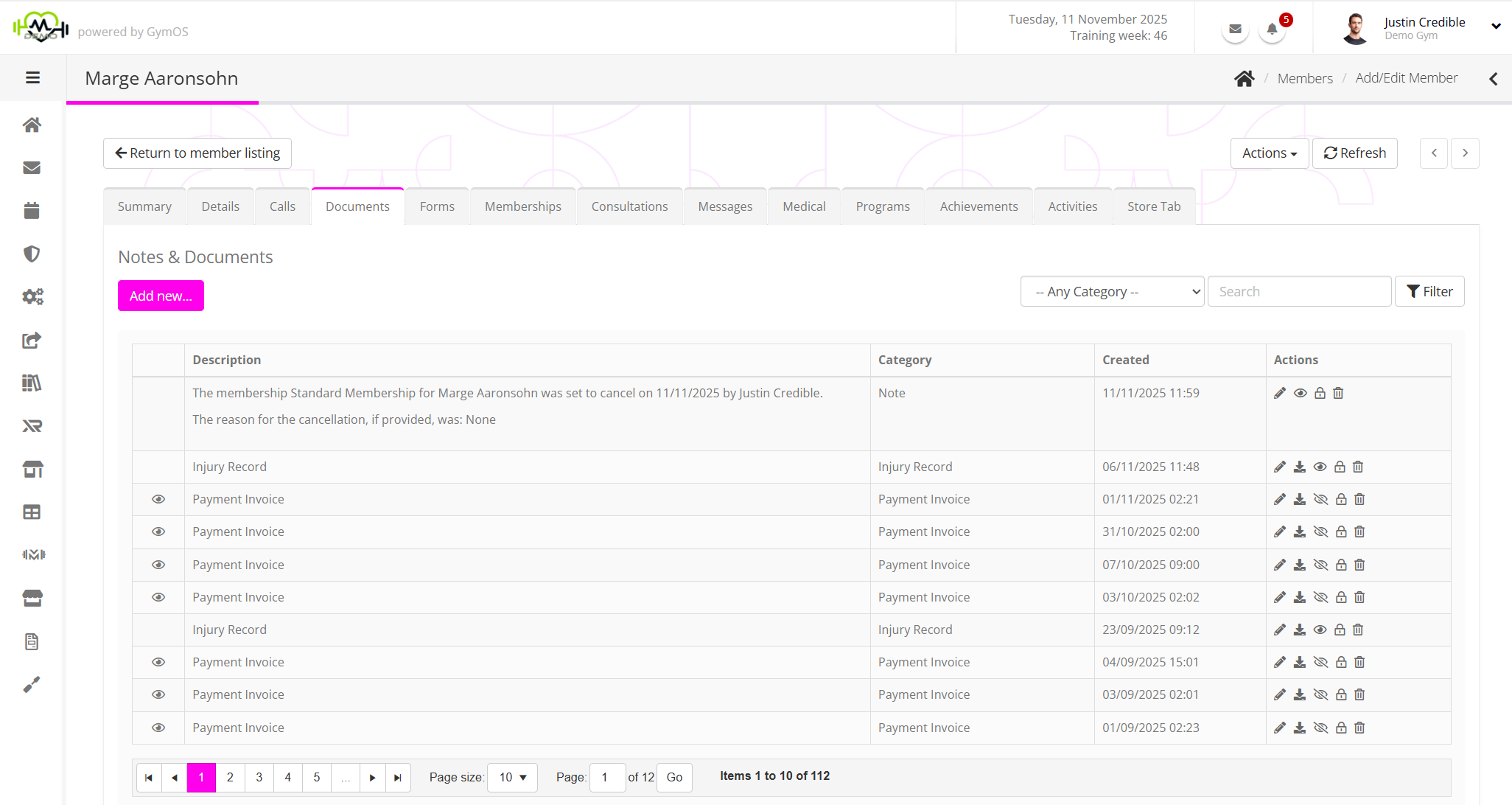
The documents tab lists the document-type elements recorded against the member record in reverse chronological order, with the most recent displaying first. The list is paginated, as it is likely to become quite long.
The information displayed for each comprises:
- icon: If present, this indicates that the record is visible to the member via the GymOS FitnessHub app and Member portal.
- icon: If present, this indicates that the record is only visible to managers within the GymOS system.
- Description: A summary of the document or, in the case a note, the note content.
- Category: The type of document.
- Created: The date/time upon which the document was created.
For each row/document record, there is a corresponding set of actions. The complete set of actions comprises:
- Edit the record.
- Clone and edit the record. This applies to some document types, such as member forms.
- Download the document.
- Mark the document as being visible to the member.
- Hide the document from view for the member.
- Toggle the manager only visibility flag for the document.
- Permanently delete the document.
Filtering the document listing
The document listing may be filtered by document category and/or description.
The document categories are client-configurable and are administered in Settings Lists and Groups Document Types. You may add as many document types as you wish, to help you organise your document filing.
A filter is applied by clicking the Filter button.
Recording a document against a member
A new document record may be created against a member record by clicking the Add New… button and selecting the desired option from the drop-down list.
The options available comprise:
- Add Document
Upload a new document. Learn more… - Add Note
Add a textual note. Learn more… - Add Incident
Record an incident involving the member. Learn more… - Add from library
Allocate the member a document from the document library. Learn more… - Add Member Form
Add and complete an internal member form. Learn more…
Note: Member forms differ from Forms & Questionnaires. The facility completes member forms. The member completes forms & Questionnaires.