
Member forms
A Member form is an internal form that may be completed by managers and employees within the GymOS administration portal. It is designed for recording structured information, such as check-in reviews or induction meetings.

To use a member form, you first configure the structure of your form. Having done this, you may then use the form as many times as you wish. You can also clone a previous form and use it as the starting point for updating member information.
Creating a member form
Follow these steps to create a member form:
- Select Member Forms from the Settings menu on the main navigation menu. The listing of existing forms will be displayed:
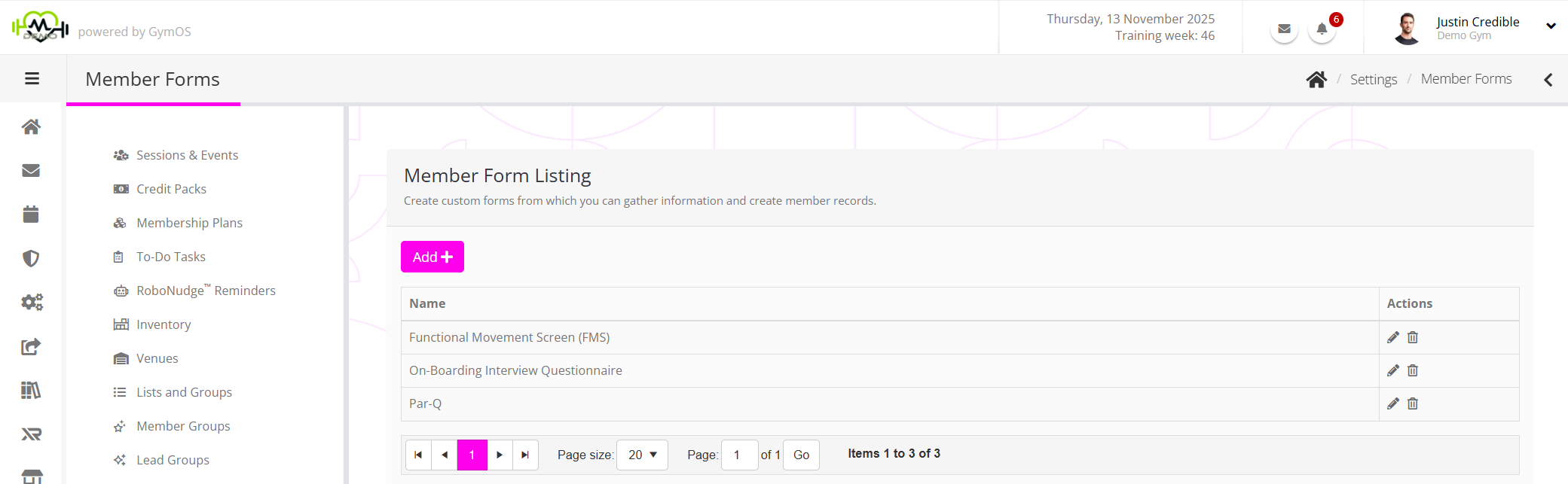
The listing is paginated and displayed in alphabetical order.
- Click the Add button. This will open the Add Member Form page:
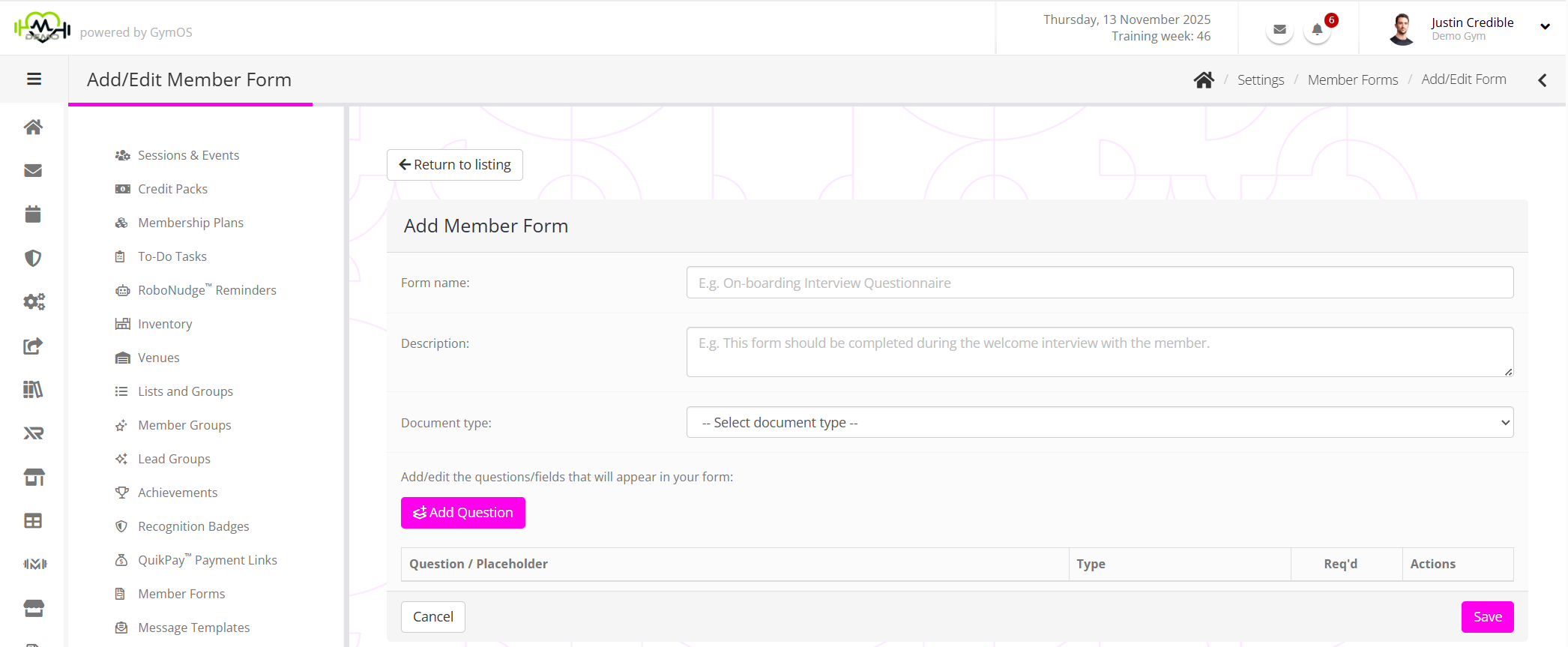
- Provide a meaningful name for the form (E.g., Induction Questionnaire).
- Optionally enter a description of the form.
- Select the document type that you’d like the form to be filed as.
You can administer the list of document types in Settings Lists and Groups Document Types. - To add a question to the form, click the Add Question button. This will add a new row to the top of the questions listing:

- For each question,
- Enter the question text (E.g., “What are your goals?”).
- Optionally enter placeholder text to guide what should be entered in the answer field (E.g., “Summarise how the memeber describes their goals”).
- From the Type drop-down, select whether you wish the answer field to be a single-line or multiple-line field.
- If you wish the question to be mandatory, check the Req’d checkbox.
- Click to add the question, or to cancel the question.
- Once you have added all of your questions, click the Save button.
Editing a member form
You may edit an existing member form by selecting the icon alongside the given form. Forms may be deleted by clicking the icon.
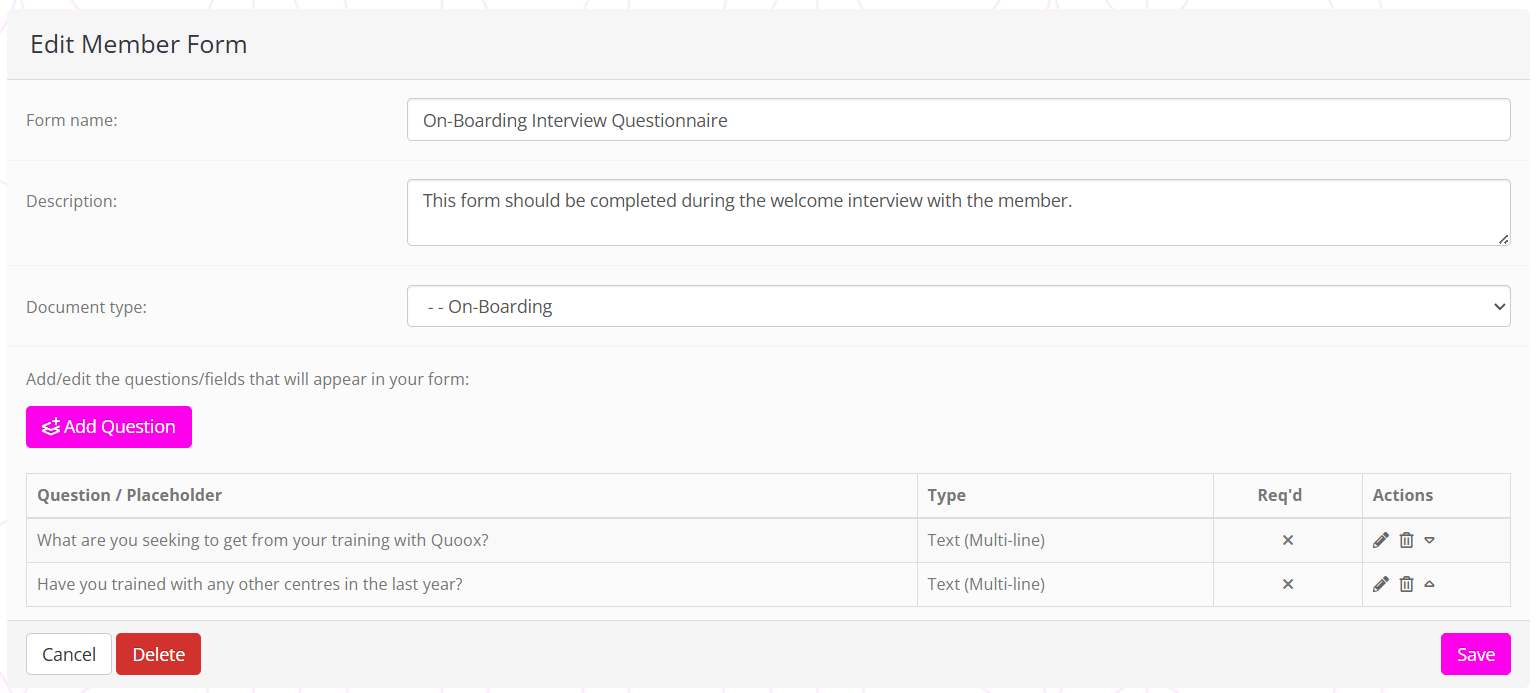
You may adjust the question order by using the and arrows. A question may be edited by clicking the icon, or deleted by clicking the icon.
Note: Deleting a question will also remove it from forms that have previously been completed. Similarly, editing a question will change it on forms that have already been filled in.
Adding a form to a member
Follow these steps to add a member form to a member record:
- Navigate to the Documents Tab of the member record to which you wish to add the form.
- Select Add Member Form from the Add new… drop-down list.
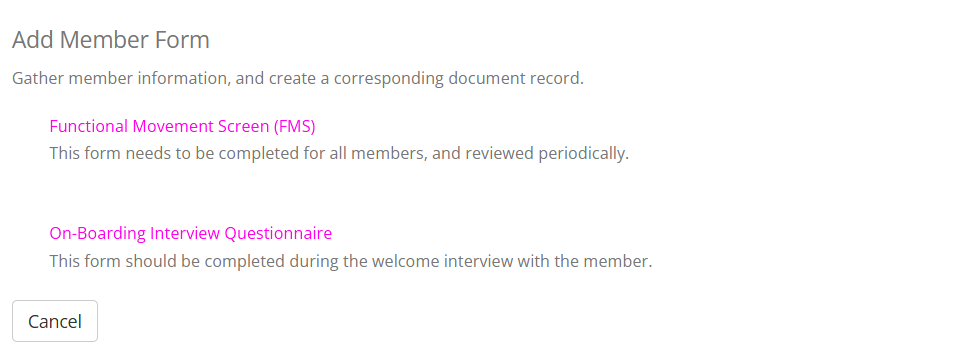
- From the pop-up selection screen, click on the name of the member form that you wish to add and complete.
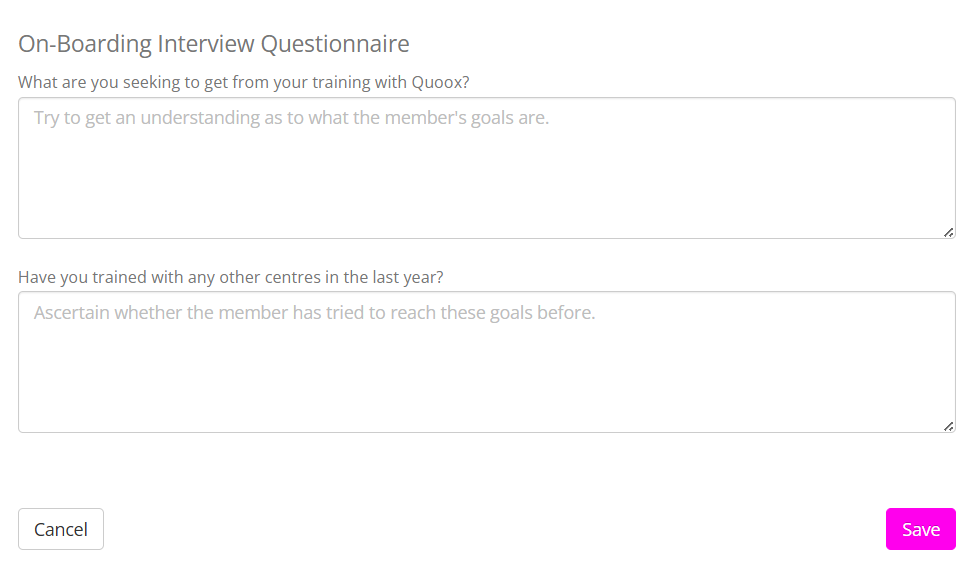
- Complete the form accordingly, and then click the Save button.
The form will be recorded on the documents tab of the member record.
The form is also saved as a PDF document, which you may download by clicking the icon alongside the form. You may optionally share this form with the member by clicking the icon.
Cloning a member form
You may use an existing member form as the starting point for an updated version by clicking the icon alongside the form.
GymOS will open a new window for form completion, with the content prepopulated with the previous answers provided. These answers may then be updated accordingly, before the form is saved as a new form.