
Mobile App: Dashboard
Dashboard Overview
The dashboard provides members with a clear, at-a-glance summary of their account, upcoming activity, and important actions within the app.
Top navigation Icons
At the top of the screen, members will see three key icons:
- – Tapping this opens the member’s personalised barcode. This barcode can be scanned on entry to the facility or used to check in for a booked session.
- – This directs the member to their notifications, where they can view any updates or alerts issued through the app.
- – This opens the app settings, allowing the member to manage their preferences and account-related options.
Weekly Overview & Credits
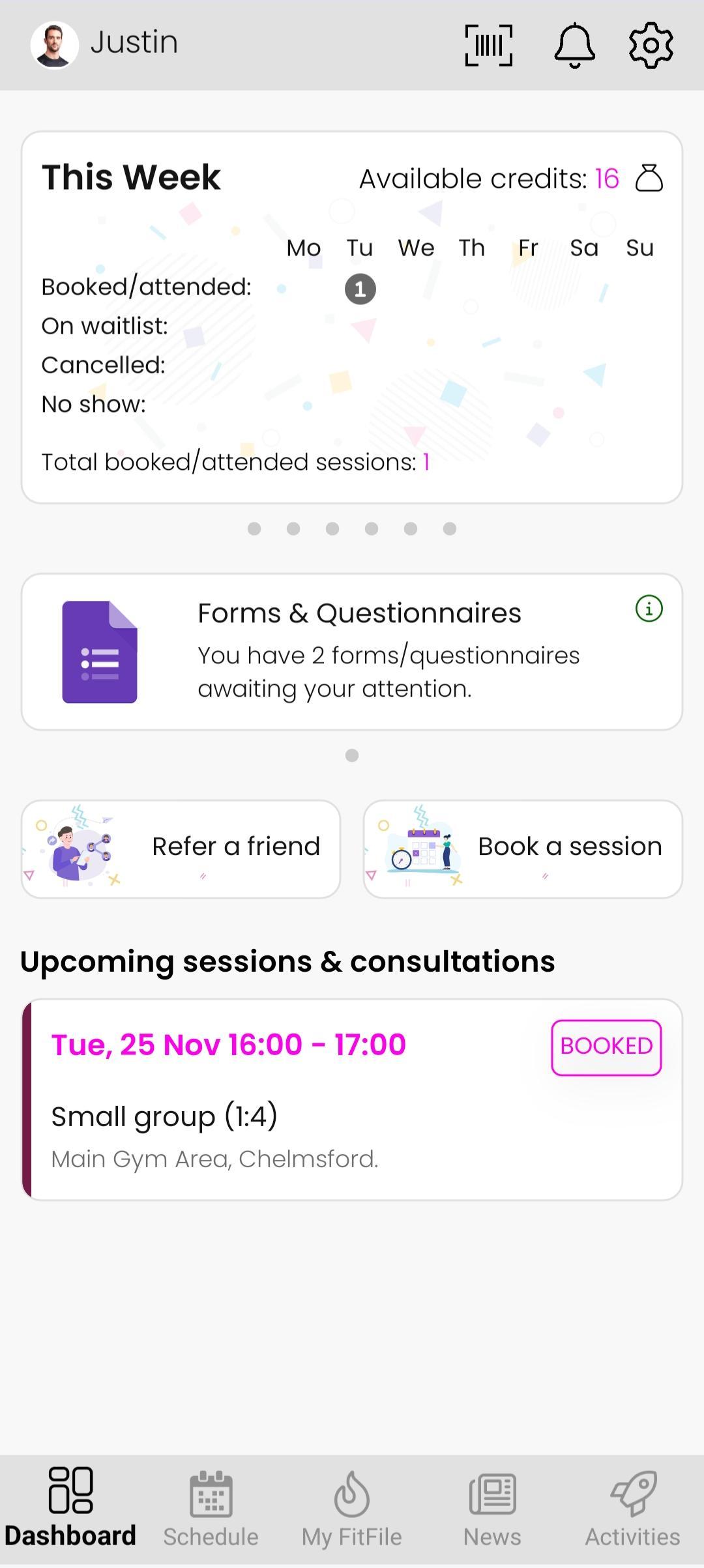
The Dashboard displays the member’s available credits, along with a brief summary of their bookings for the current week, including:
- Sessions booked or attended
- Sessions cancelled
- No-shows
- Total weekly activity
Members can scroll horizontally across this section to view additional information:
- This Month – Displays credit usage for the current month.
- Last Month – Shows the previous month’s totals for booked, attended, cancelled, and no-show sessions.
- Last 12 Months – Provides an overview of sessions booked and attended over the past year.
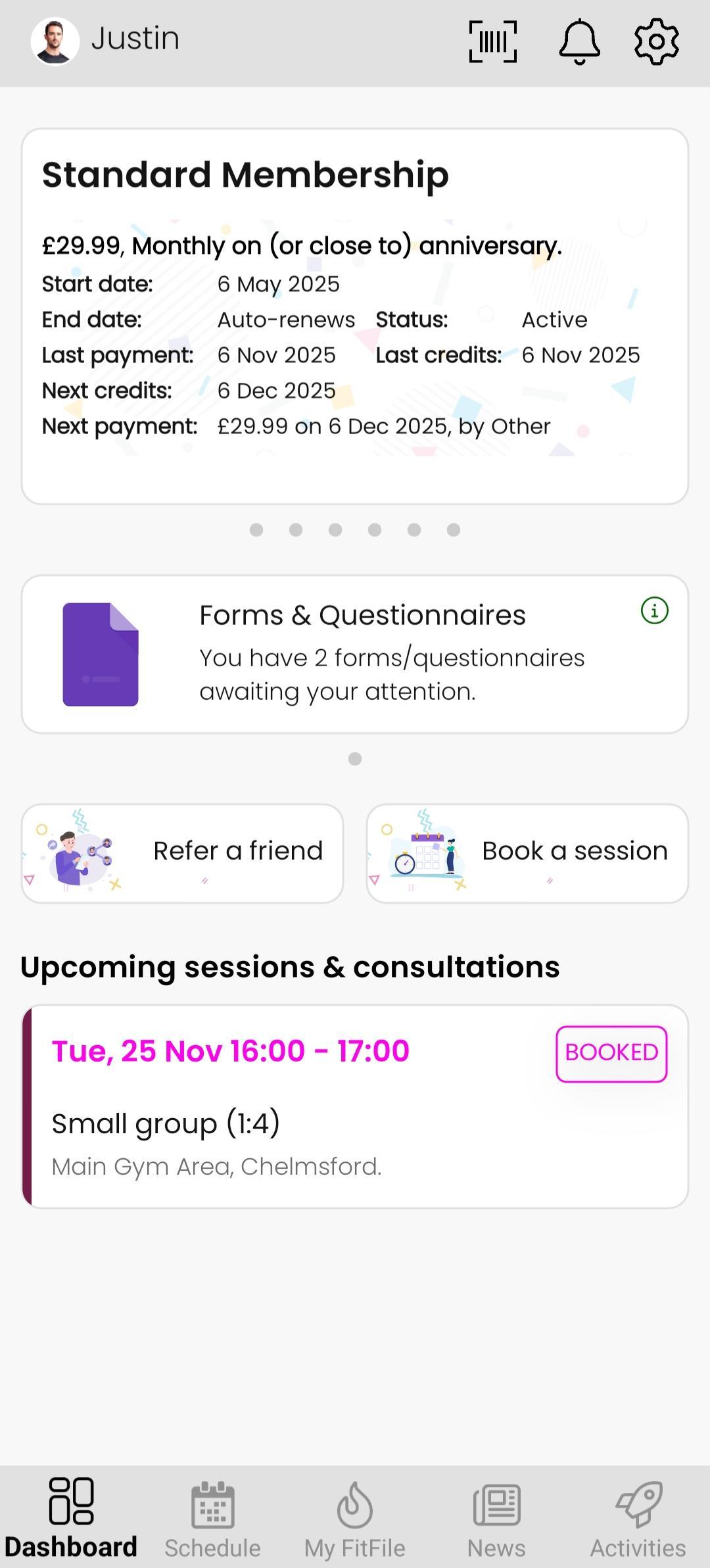
- Membership Details – Presents key membership information, including:
– Membership start and end dates
– The current status of the membership
– Previous and next payment dates
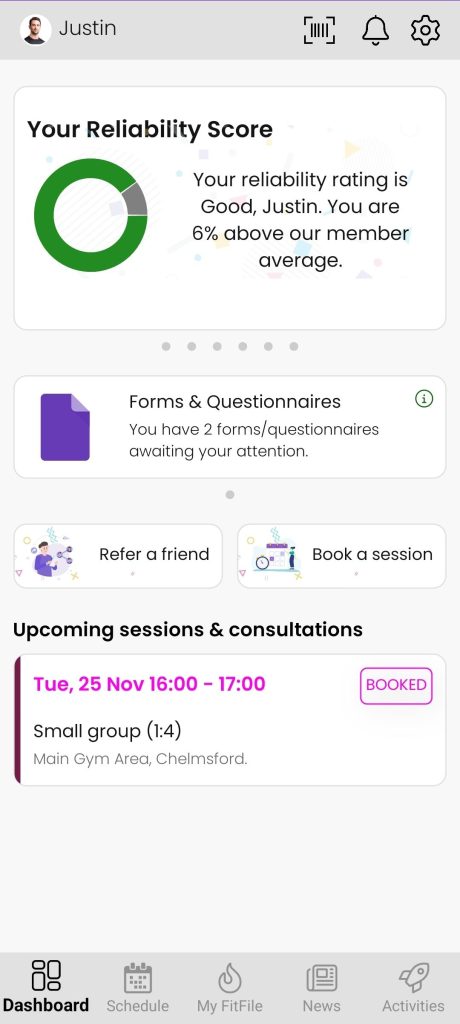
– Last and next credit issuance dates - Reliability Score – Provides a quick insight into the members attendance and booking reliability.
Forms & Questionnaires
If the member has any outstanding Forms & Questionnaires to complete, these will appear prominently on the Dashboard. Tapping this section will take the member directly to the form(s) requiring their attention.
Quick-Action Buttons
Below this, two quick-action buttons are available:
- Refer a friend – Allows the member to enter the contact details of someone they wish to refer.
- Book a session – Opens the daily session list, along with a calendar view that enables members to browse future dates and check the availability of sessions.
Upcoming sessions
Finally, the Dashboard displays any upcoming booked sessions, including the session name, location, date and time. This provides an immediate reminder of what the member is scheduled to attend.