
Mobile App: BodyHop™
BodyHop™
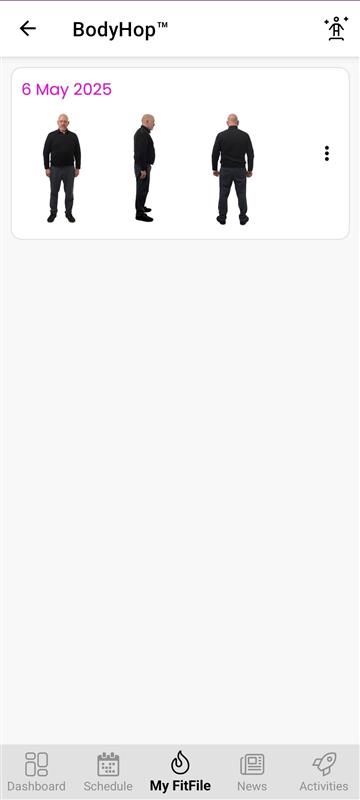
The BodyHop™ feature can be accessed through the My FitFile menu. This section allows members to upload and track their progress using visual comparisons over time.
Upon opening the BodyHop screen, the member will see any previously uploaded progress images. These are displayed as smaller preview thumbnails, which can be tapped to view the image in full size. If multiple images were uploaded as part of the same BodyHop entry, the member can swipe left to view each image included in that upload.
Uploading a New Bodyhop
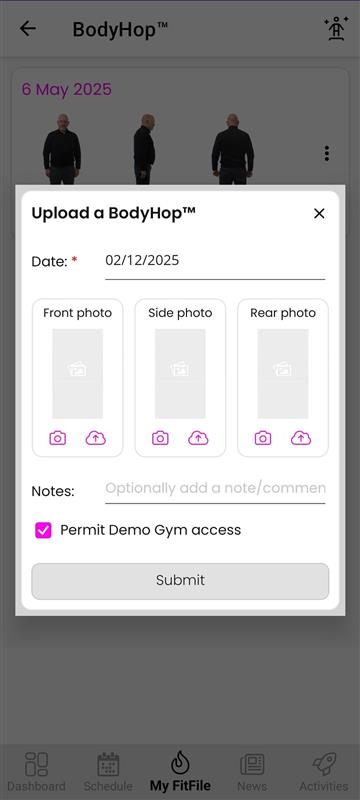
To upload a new BodyHop entry, the member can tap on the person icon located in the top-right corner of the screen. A small pop-up form will appear, prompting them to:
- Set the date the photos were taken
- Upload images from their device gallery or take new photos directly
- Provide the three required images:
- Front view
- Side view
- Back view
- Add any relevant notes
- Choose whether they would like the gym to have access to the uploaded BodyHop images
Once all required information has been entered, the member can tap Submit to complete the upload.
Deleting a BodyHop
If the member wishes to delete a BodyHop entry, this can be done by swiping left on the upload and tapping the red bin icon that appears. The BodyHop will then be removed from their progress history.