
Mobile App: How to Change Your Password
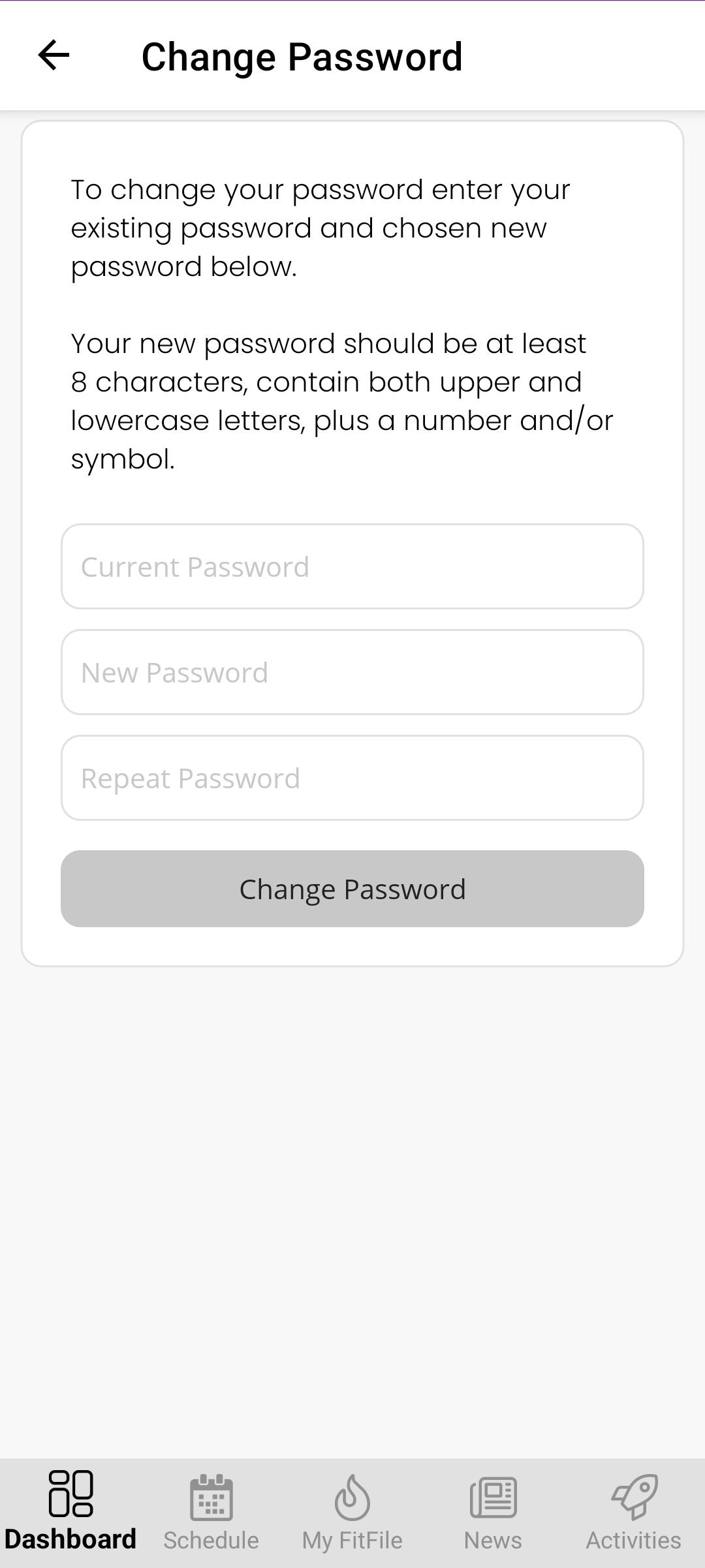
How to Change Your Password
Members can change their password at any time while logged in to the mobile app. This allows them to keep their account secure or update their password if required.
Changing a Password
To change a password, the member should follow these steps:
- From the Dashboard, tap the cog icon in the top-right corner.
- Select My Account.
- Tap Change my password.
- Enter the current password.
- Enter the new password.
- Re-enter the new password to confirm the change.
- Tap Change Password
Once submitted, the new password will be saved and will be required for all future logins.
Password Requirements
The new password must meet the following criteria:
- Be at least 8 characters long
- Contain both upper and lower case letters
- Include at least one number and/or symbol
If the password does not meet these requirements, the change will not be accepted.