Employee listing
The Employee Listing may be accessed by selecting Employees from within the Manage section of the main navigation menu.
The employee listing is the most common route for accessing the configuration of your employees.
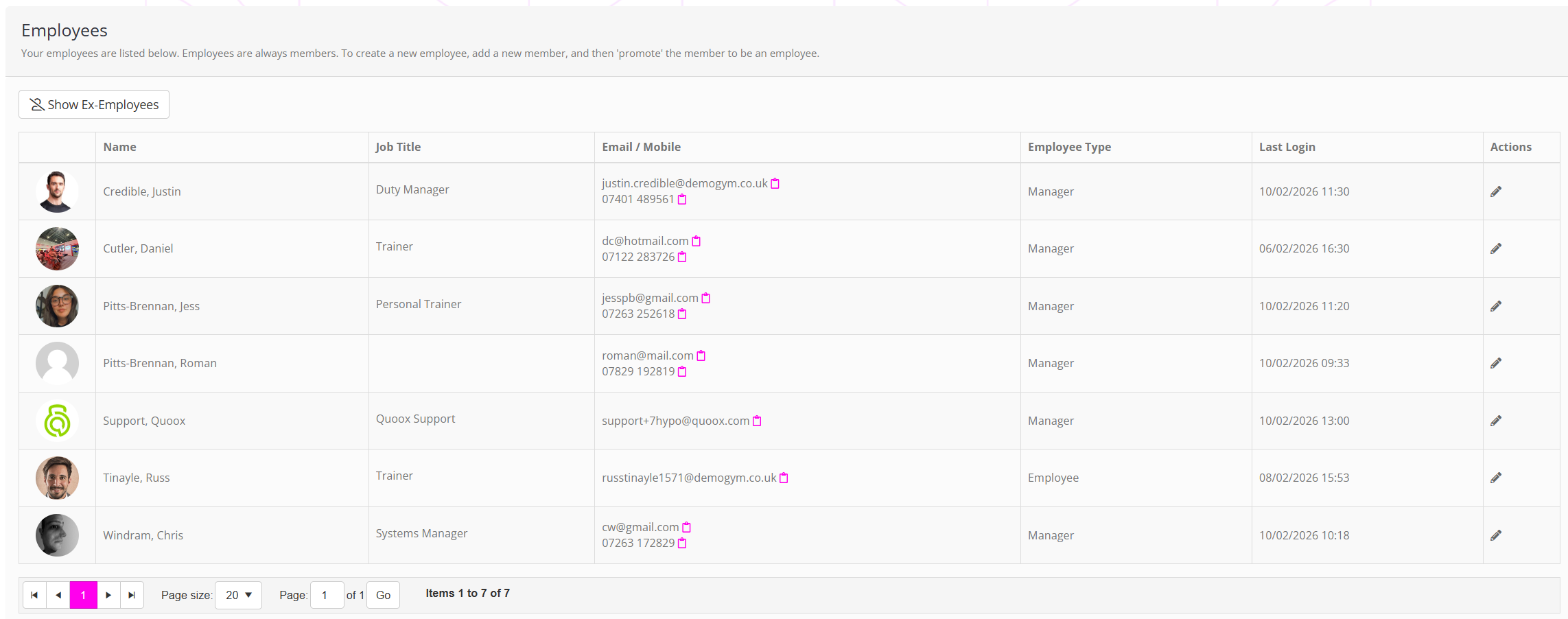
The listing
On a paged basis, the search result listing shows one matching employee per row.
The information displayed for each employee comprises:
- Employee avatar (derived from their member record, if provided).
- Job title.
- Email and mobile contact details.
- The employee type.
- The date/time that the employee last logged in to the system.
By default, ex-employees are hidden. They may be shown by clicking the Show Ex-Employees button.
Listing actions
For each employee in the results list, several actions are available depending on their status. The complete list comprises:
- Double-click on the row to open the member record.
- Edit the record (the same as double-clicking).
Clicking on the icon next to the employee’s email or mobile number, copies that information into the clipboard on your device.