To-do tasks
To-do tasks are scheduled, typically recurring, and you may assign them to individual team members or staff groups. Example usage might be “check stock levels”.
To-do tasks are flagged to team members in the assignments widget on the dashboard. From there, they may review and action the task accordingly.
Task listing
The list of existing To-do Tasks is accessed by selecting To-Do Tasks from the Settings section of the main navigational menu.
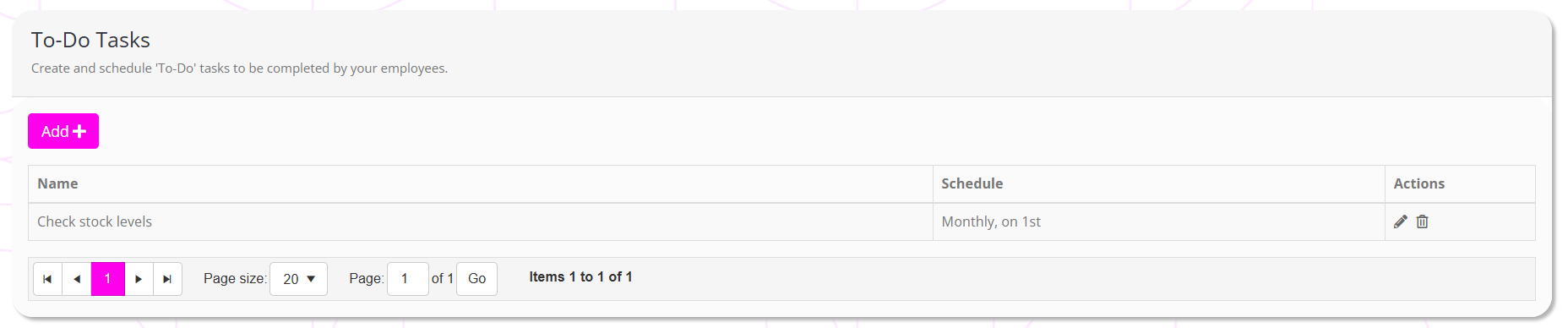
For each existing to-do task, the information displayed comprises:
- Name – the name of the task
- Schedule – the schedule upon which the task is allocated
- Actions, comprising:
- Edit an existing task
- Delete an existing task
The process for editing a task is essentially the same as for adding a new task, outlined below.
Adding a new to-do task
To add a new to-do task, navigate to To-Do Tasks from the Settings section of the main navigational menu.
Click the Add button. This will display the add/edit form, as shown below.
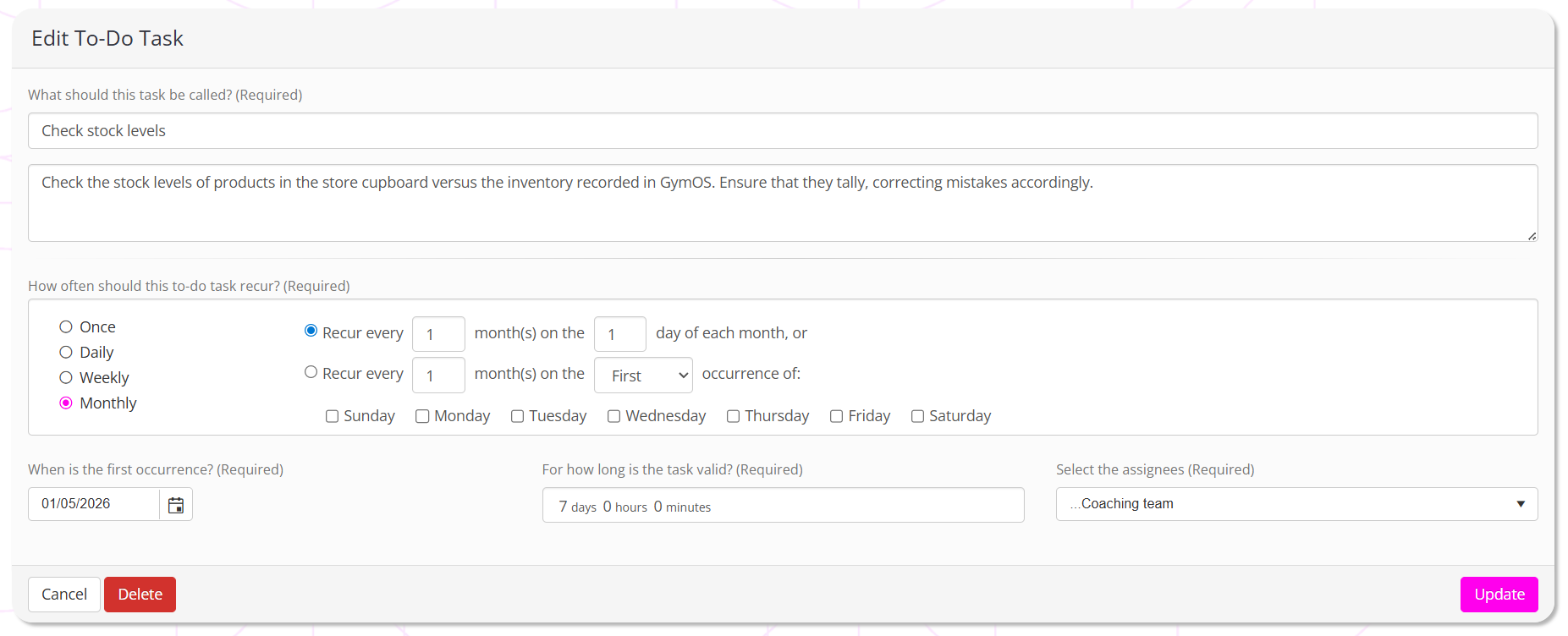
Each field should be reviewed and completed accordingly.
What should this task be called?
Provide a meaningful name for the task, such as “Check stock levels”.
Description
Provide a description or guidance for the person undertaking the task, so that they correctly understand the assignment and what is expected of them.
How often should this to-do task recur?
Configure the period at which the to-do task should recur.
When is the first occurrence?
Indicate when the task should first be allocated. This date should sit on the allocation schedule assigned above.
For how long is the task valid?
This is the period of time a task is displayed before disappearing, regardless of whether it has been completed. To prevent a build-up of incomplete tasks, you would typically set this to be less than the recurrence period.
For example, if the task is issued monthly, and you expect it to happen at the start of each month, 7 days is probably a reasonable time to expect the task to be completed in.
Select the assignees
Select the team group(s) or individual assignee(s) to whom the to-do task is assigned.
Click Save or Update accordingly.