
Widget: Assignments/To-Do Tasks
The Assignments/To-Do Tasks widget is important for you as a team member. It shows your pending assignments, tasks and reminders which either need reviewing or actioning.
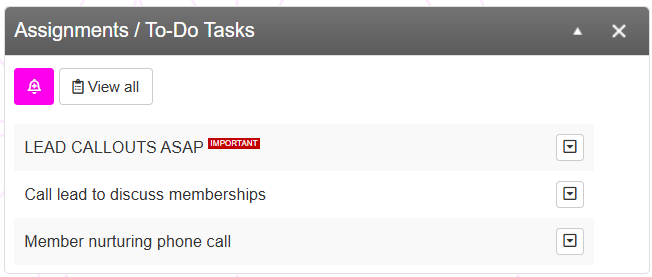
Assignments and tasks are created in many places throughout the GymOS system, but this is easiest place to view what you have pending.
Some tasks and assignments are timed and scheduled accordingly. Others are of a limited time span and may be removed from the list if not addressed.
The list is displayed chronologically, with the oldest item displayed first. If the list is too long or if you wish to view the tasks by day, you can click the View all button. You may create a new task by clicking the button.
Alongside each task is a context-sensitive drop-down menu accessed by clicking on the icon. Subject to the type of task, the options may comprise:
- View Details
Clicking this item opens the pop-up details window, detailed below. - Open Message
If the task is linked with an email or SMS message, this will open the corresponding message in the message centre. - Go to Member
If the task is linked to a member, this will open the member record. - Go to lead
If the task is linked to a lead, this will open the lead record. - Mark as…
- …Pending
This marks the task as pending, and not yet started. - …In Progress
This marks the task as having been started, but not yet complete. For group assignments, this gives you ownership and responsibility of the task. - …Completed
This marks the task as having been completed.
- …Pending
Assignment Details
The Assignment Details pop-up is displayed when you click to View Details of a given task. From this window, you can view additional information related to the task and provide feedback on it.
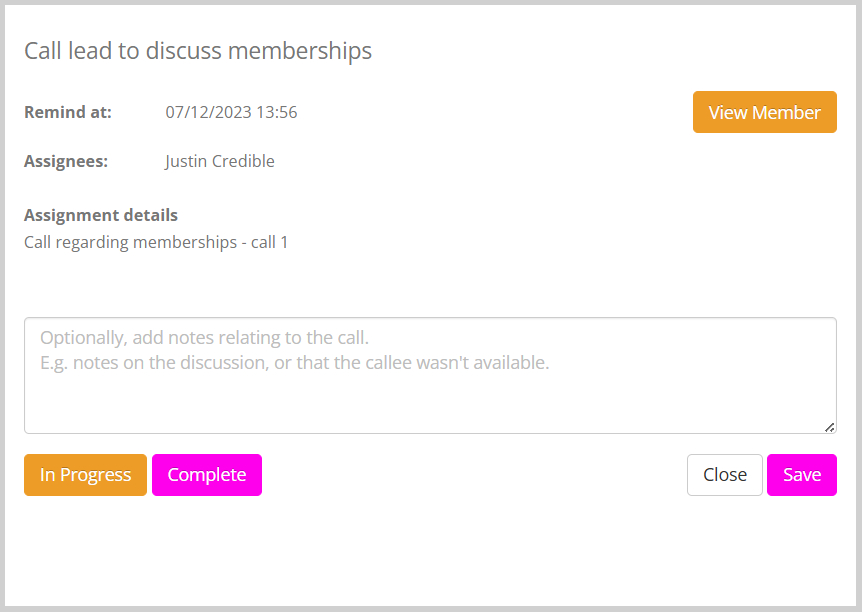
The pop-up provides details of the assignment and the allocation.
From the pop-up, you can access the same actions and links as shown in the drop-down menu in the Assignments/To-Do Tasks widget.
Optionally, you can record additional notes against a task. This is particularly useful if you could not fully complete a task (E.g. “Could not clean cubicle 3, as it was in use.”)
You can update an assignment without changing its status by clicking . To mark a task as complete, click the button.
Assignment Listing
The full assignment listing page is accessed by clicking the View all button within the Assignments/To-Do Tasks widget.
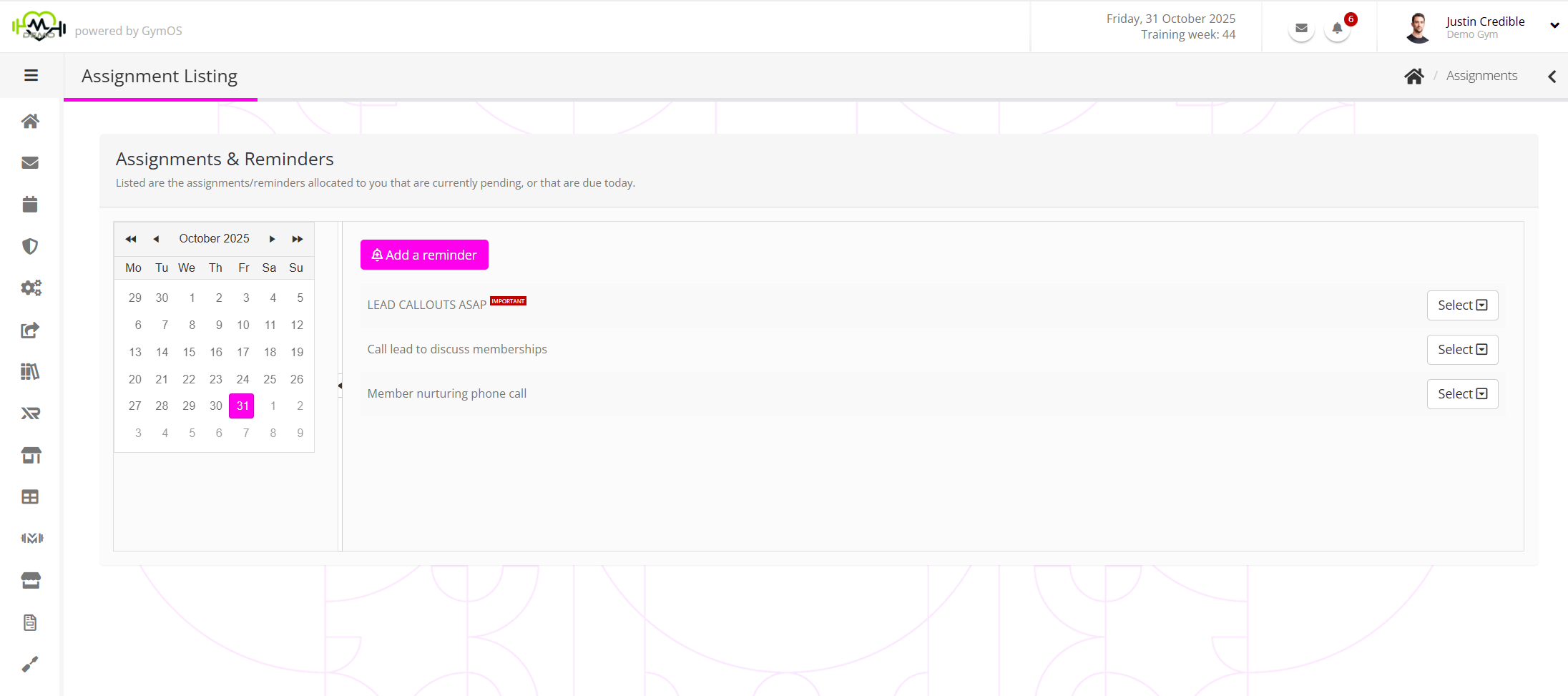
The listing functions in the same way as the widget, except that the tasks and reminders are filtered by their assignment date.
Clicking the button enables you to create a new ad hoc task or reminder.