Administering lists and groups
Within the GymOS system, there are numerous lists and groups that may be customised. In most cases, this is done via the Lists and Groups function.
To configure the content of a list or grouping, first select Lists and Groups from the Settings section of the main navigational menu. This will display the list listing.
List listing
The list listing shows all of the different list and group types that may be configured.
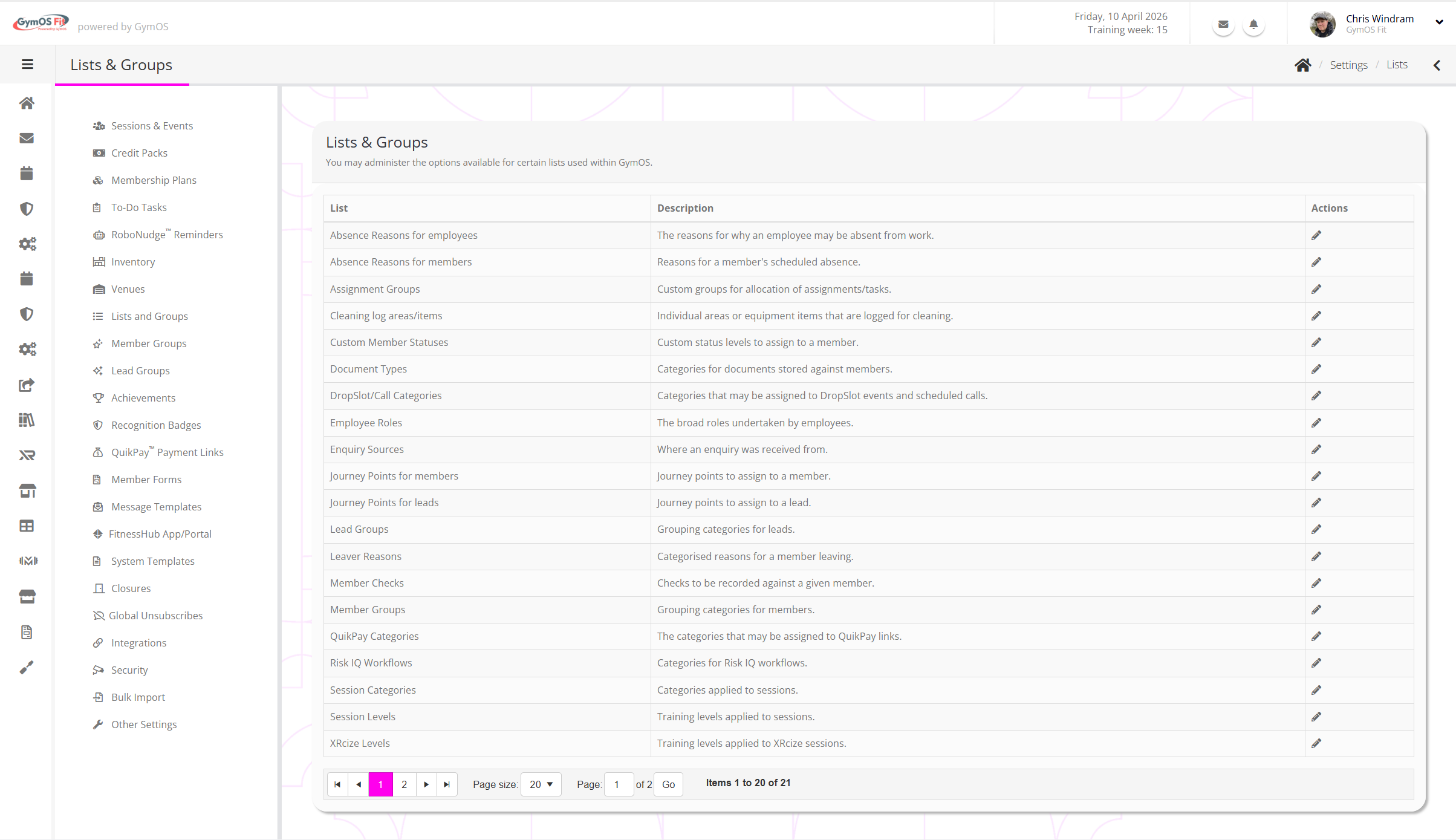
The lists available for configuration include:
- Absence Reasons for employees
The reasons for why an employee may be absent from work. - Absence Reasons for members
Reasons for a member’s scheduled absence. - Assignment Groups
Custom groups for allocation of assignments/tasks. - Cleaning log areas/items
Individual areas or equipment items that are logged for cleaning. - Custom Member Statuses
Custom status levels to assign to a member. - Document Types
Categories for documents stored against members. - DropSlot/Call Categories
Categories that may be assigned to DropSlot events and scheduled calls. - Employee Roles
The broad roles undertaken by employees. - Enquiry Sources
Where an enquiry was received from. - Journey Points for members
Journey points to assign to a member. - Journey Points for leads
Journey points to assign to a lead. - Lead Groups
Grouping categories for leads. This is a special type of list which is administered in the Lead Groups function. - Leaver Reasons
Categorised reasons for a member leaving. - Member Checks
Checks to be recorded against a given member. - Member Groups
Grouping categories for members. This is a special type of list which is administered in the Member Groups function. - QuikPay Categories
The categories that may be assigned to QuikPay links. - Risk IQ Workflows
Categories for Risk IQ workflows. - Session Categories
Categories applied to sessions. - Session Levels
Training levels applied to sessions. - XRcize Levels
Training levels applied to XRcize sessions.
To configure a given list, click the icon.
Editing a list
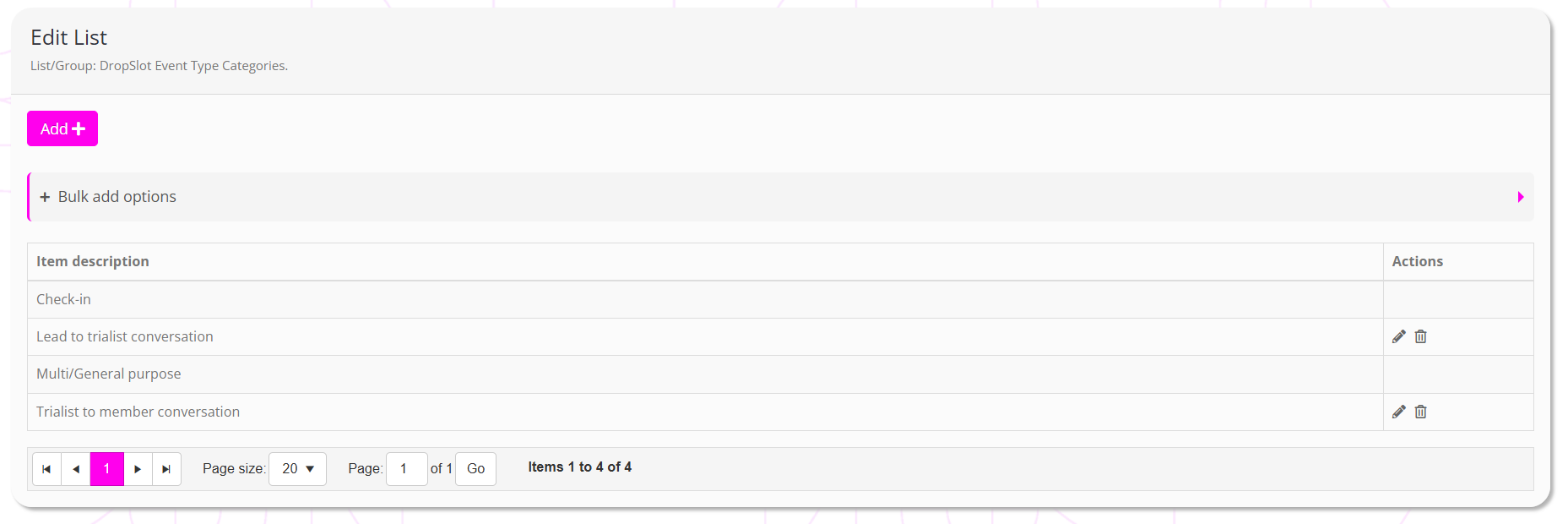
Whilst most lists are single-level, some are hierarchical.
You may edit a given list item by clicking the icon. An item may be deleted by clicking the icon.
Note: Some lists contain system entries. These entries may not be edited or deleted, and a required for the correct functioning of the GymOS system.
There are two methods for adding a new item to a list:
- Individually: Click the Add button. Learn more.
- In bulk: Click the Bulk add options section. This option is not available for hierarchical lists. Learn more.
Adding an individual item
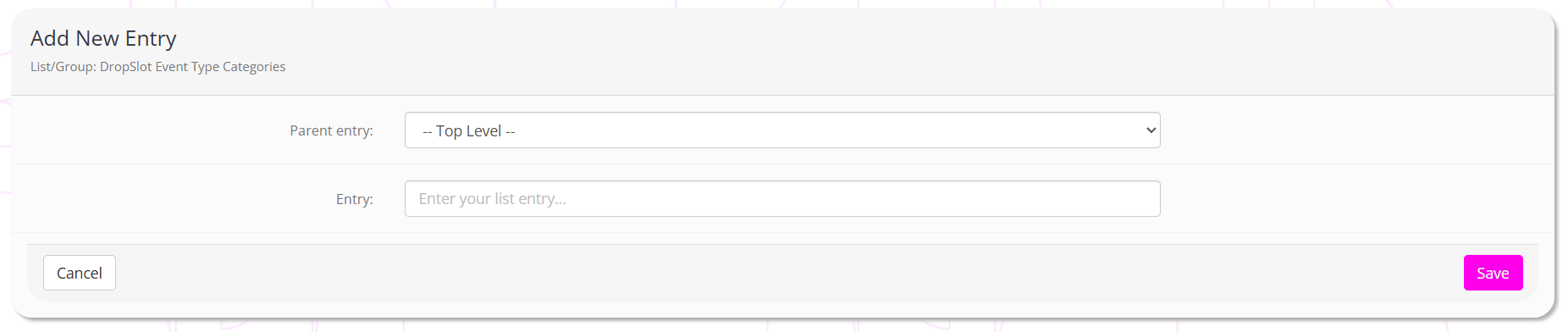
If the list is hierarchical, you may select the level at which your new entry sits.
Enter a name for your entry in the Entry field. Click Save to commit your new item or amendment.
Bulk adding items

For single-level lists, you may enter items in bulk. To do this:
- Enter your new entries, one per line.
- Click the Bulk Add button.