
Rewards and recognition badges
Recognising your members’ achievements is an important aspect of operating a premium training gym. It is great for motivation and helps build community.
GymOS features recognition badges that can be customised and allocated to members on an ad hoc, automated, or triggered basis.
Recognition badges are administered by selecting Recognition Badges from the Settings section of the main navigational menu.
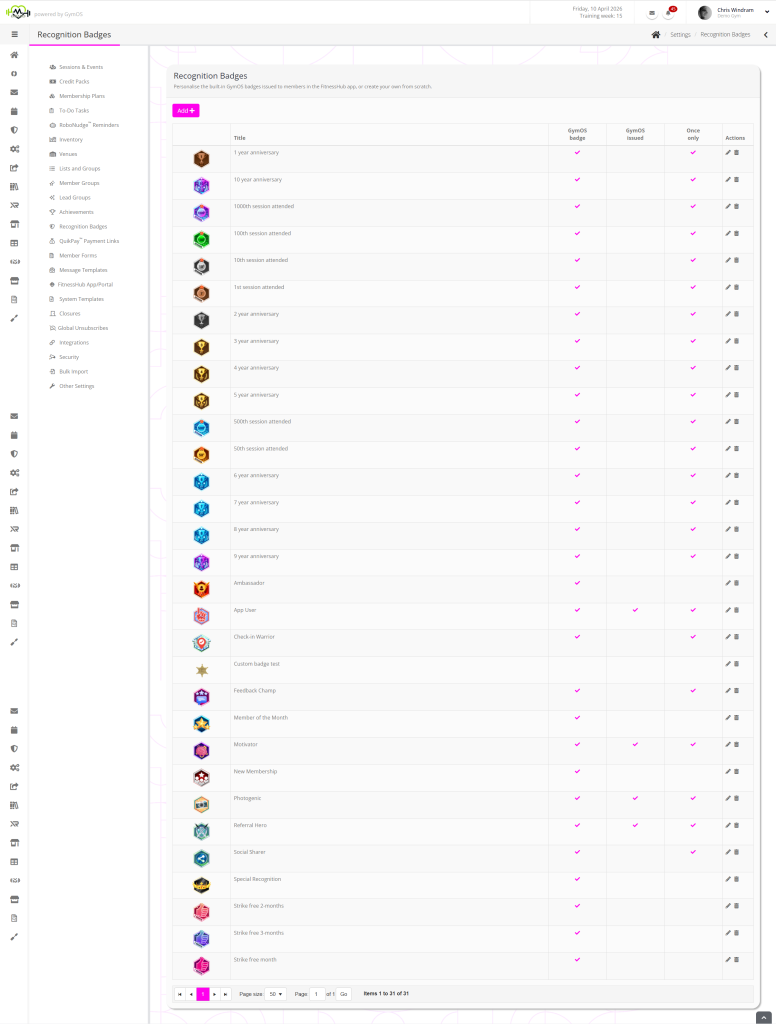
The badge listing shows all of the configured badge, and for each:
- Title – the name of the badge.
- GymOS badge – whether the badge is an internal (system) GymOS badge or one you created.
- GymOS issued – an indication as to whether the badge is issued by the GymOS system and doesn’t need any issue configuration.
- Once only – if the badge is restricted to be issued once only, and cannot be awarded to the same member more than once.
Actions are available for:
- – Edit the badge
- – Delete the badge
To add a new badge of your own, click the Add button.
Configure a badge
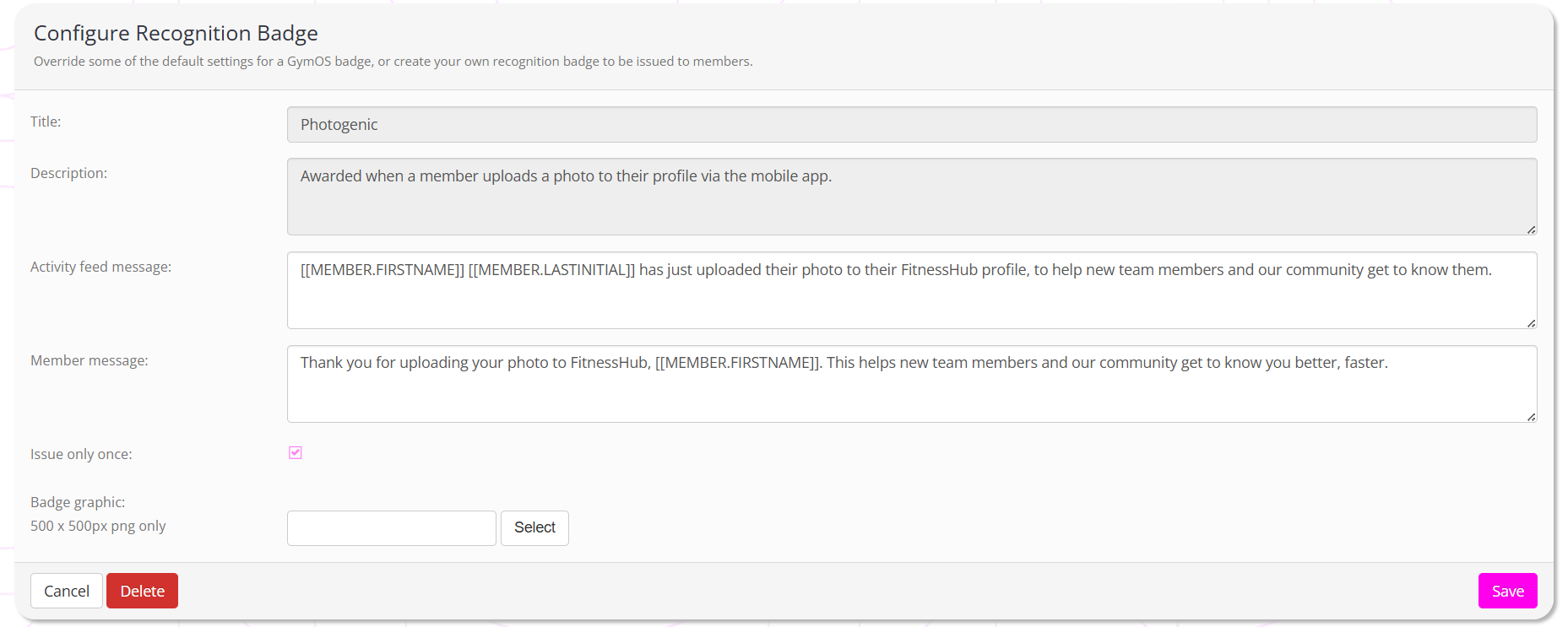
Editing or adding a new badge is done via the configuration screen shown below.
Important information about system badges
- You cannot delete system badges. If you do, it resets the badge back to the default configuration.
- You cannot edit the title or description for system badges.
- You can update the messages and the badge visual for system badges.
The fields displayed comprise:
- Title – the title for the badge.
- Description – a description as to why the badge is awarded.
- Activity feed message – where used, the message that will be displayed in the activity feed sharing the news of the badge award with your community.
- Member message – the message sent to the member as push notification, advising them of the badge award.
- Issue once only – whether the badge is restricted to be issued only once to a given member.
- Badge graphic – an option for uploading an alternate or custom badge image. See notes below.
Buttons are provided for:
- Cancel – return to the badge listing, without saving any changes
- Delete – delete (or reset) the current badge
- Save – save the current badge settings
You may use the member and business merge fields in the activity feed message and the member message.
Badge graphic
Because the badge is used in the FitnessHub mobile app, it must meet specific requirements:
- It must be a PNG image file
- It must have the .png file extension
- It must be 500 pixels wide by 500 pixels high
- It must have a transparent background
GymOS will attempt to verify the validity of the uploaded file and will advise if it detects any issues.
Awarding badges
Four system badges are awarded automatically: “App User,” “Motivator,” “Photogenic,” and “Referral Hero.” You do not need to issue these badges manually.
All other badges are available for use at your discretion. Most are designed to be issued by triggers, using the “Award Badge” trigger action against any of the member triggers.
Additionally, you can award badges and/or publish announcements to the activity feed on an ad hoc basis. This is done by selecting Award badge or recognition from the drop down Actions menu for the member to whom you are awarding a badge, or about whom you are making an announcement.
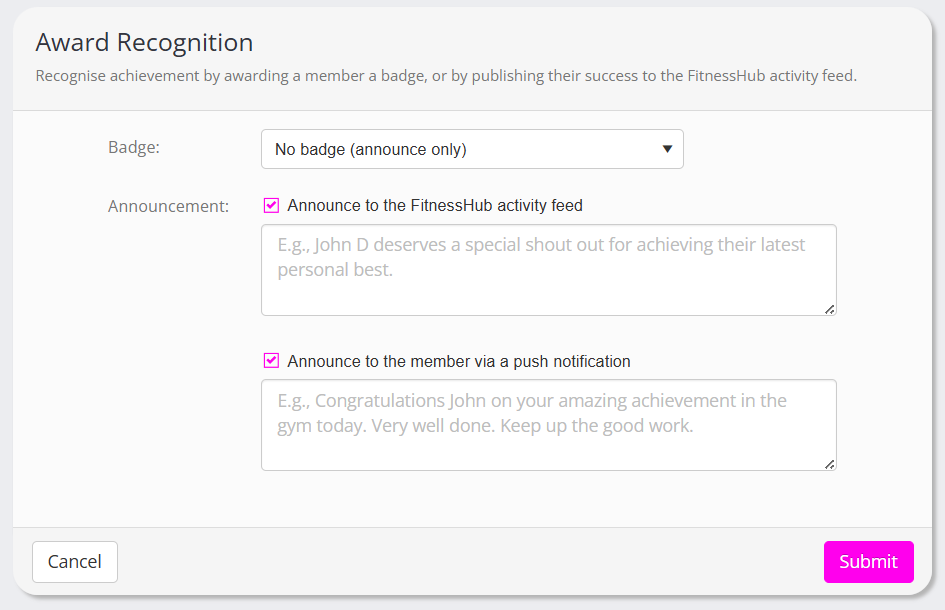
To award a badge on an ad hoc basis, select it from the dropdown list. Alternatively, if the announcement does not require a badge, select the “No badge” option.
When selecting a badge, the activity feed and push message boxes will pre-fill with the default messages. You can override these if you wish. If you are not awarding a badge, enter the activity feed message and/or member push notification manually.
Click the Submit button to process the award, or the Cancel button to abort.
Note: If you select to award a member a “once only” badge that they have already received, no action will be taken at all.
Activity feed privacy
By default, all of your members can see notifications published to the activity feed relating to any member. This is by design. The feed should not comprise any personal information and should celebrate member successes within your facility.
Within the FitnessHub app, members can choose to restrict the visibility of activities published about them within the Settings area. They can restrict visibility to just those with whom they are buddies, or make it such that only they can see their activities.
Typically there is no reason a member should need to restrict visibility, and the community should be encouraged to recognise the wins of their peers.