
Changing or forgotten password
This article relates to changing your own password. To change a member’s password, review the article about the Member’s Details tab.
Setting your password for the first time
When you sign up for a GymOS account or if you are added as a new employee to the system, you will receive a welcome email from GymOS. This email contains a “set your password” link that you should follow to set your password for the first time.
Forgotten/Lost password
If you have forgotten or lost your GymOS administration password, this can easily be recovered and reset.
- Go the to GymOS login page
- Click on the Lost Password? link.
- Start typing your business name, and click on it when it appears in the list.
- Enter your email address, as registered in the GymOS system.
- Click . GymOS will send you an email with a password reset link.
- Follow the link in the email you receive.
Note: This link will only work once. Repeat the above process if you need to be sent a new link. - Enter and repeat your new password.
Your new password needs to be at least 8 characters in length, include an upper case letter; a lower case letter; a number; and a symbol. - Click the button.
Changing your password
If you know your password, you can change it within the GymOS administration portal.
Note: The same password is used across all interfaces and devices, so if you change your password in the administration portal, it will change for your member portal login and your mobile app login also.
- From the profile menu (top-right) select the Change Password option. The change password dialog will display:
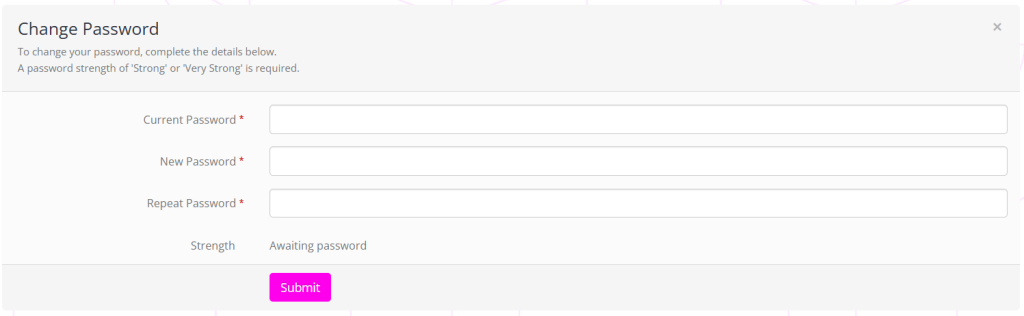
- Enter your current password.
- Enter and repeat your new password.
Your new password needs to be at least 8 characters in length, include an upper case letter; a lower case letter; a number; and a symbol. - Click the button.