
Alert notifications
In the header of the dashboard is the alert notification area.

This section comprises two icons:
- Unread messages
- Unread system alerts
A number indicating the number of unread items within each area will be displayed.
Viewing messages
To view messages (unread or otherwise), click on the icon. This will open the Message Centre.
Viewing system alerts
To view system alerts, click on the icon. This will open the latest alerts pop-up window:
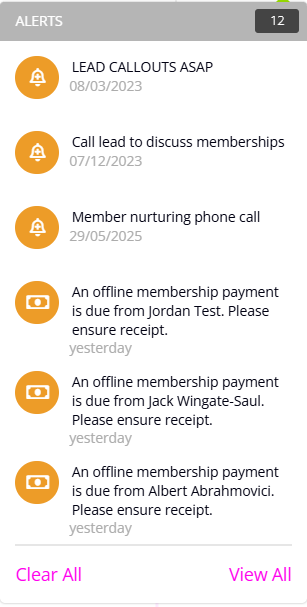
The recent alerts are displayed in reverse chronological order, with the most recent alert appearing first. Each alert has a corresponding icon and colour alongside it.
- Grey: Informative.
- Green: “Successful” or “Good”.
- Orange: An advisement of something you should be aware of.
- Red: A warning of something of important and that likely requires your attention.
Clicking the Clear All link will mark all system alerts as having been “read”. Clicking the View All link will open the full System Alerts listing.
System Alert Listing
The System Alert Listing provides a comprehensive list of all non-deleted system alerts, including both unread and other alerts.
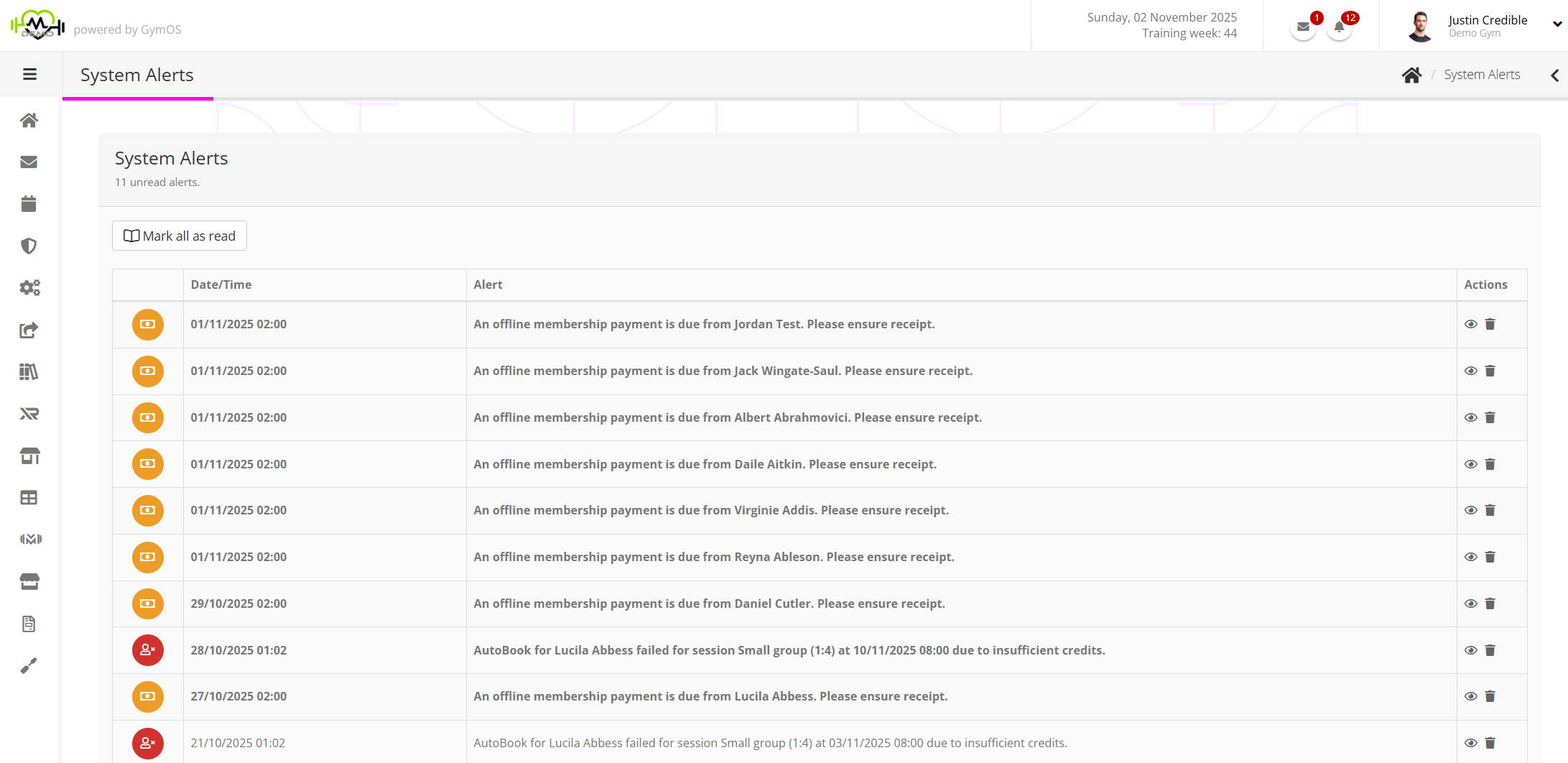
Alerts that have not been read are shown in bold.
If an alert has an icon alongside, clicking this icon will take you to a relevant section of the GymOS system, such as a corresponding member record (E.g., to a corresponding member record). Clicking the icon will permanently delete the given system alert message.
You can mark all system messages as having been read by clicking the Mark all as read button.