
Adding a video to an immersive email
Emails, as a medium, do not support embedded videos. Sending videos as attachments are also a bad idea, as videos are very large in size and the recipients of your email will not appreciate the lengthy download of their email and their in-box being clogged up.
The “correct” method for addressing this limitation is to add an image (“thumbnail”) of your video to your email, and to make that image a link to the video file, which then streams via a web browser. This is all achieved nice and easily through GymOS, without needing to use 3rd party apps to create thumbnails etc.
To add a video to your immersive email, follow these steps:
- Select FitFlix Video Library from the Libraries section of the main navigation menu.
- If you have not done so previously, we would recommend creating a folder for your email videos, to keep your FitFlix library tidy:
- Click the Add Folder button.
- Enter a suitable name for the folder. E.g., “Videos for immersive emails”.
- Optionally, enter a suitable description for the folder. E.g., “Videos used/embedded in immersive emails”.
- Click the icon to add the folder.
- Click on either the folder name or the icon next to the newly created folder to open that folder.
- Click the Upload Video button.
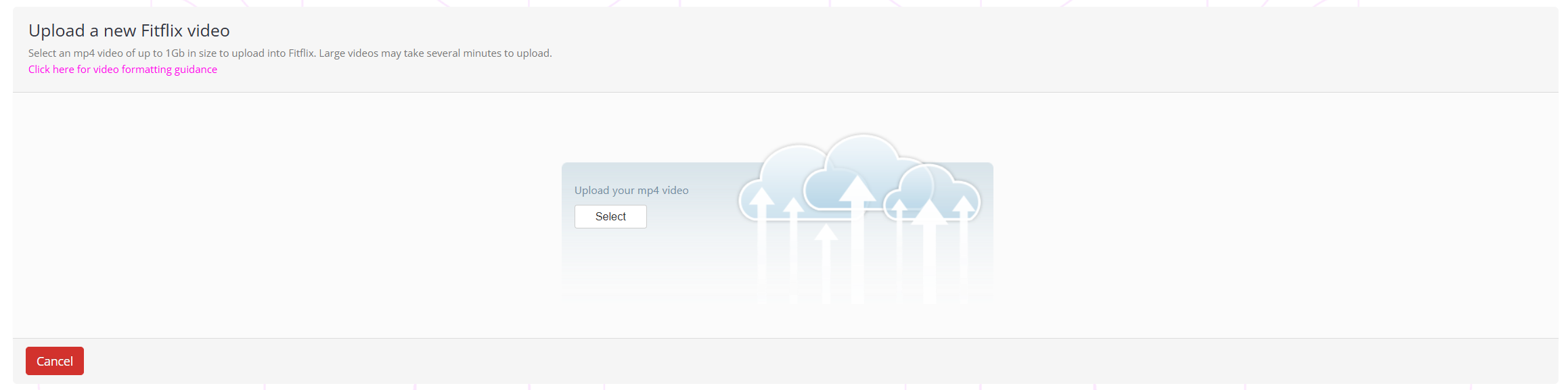
- Click the Select button and select the mp4 video that you wish to upload from your device.
- It may take up to a couple of minutes for the video to upload and complete processing, depending on the video size. Once completed, the “update a video” page will display.
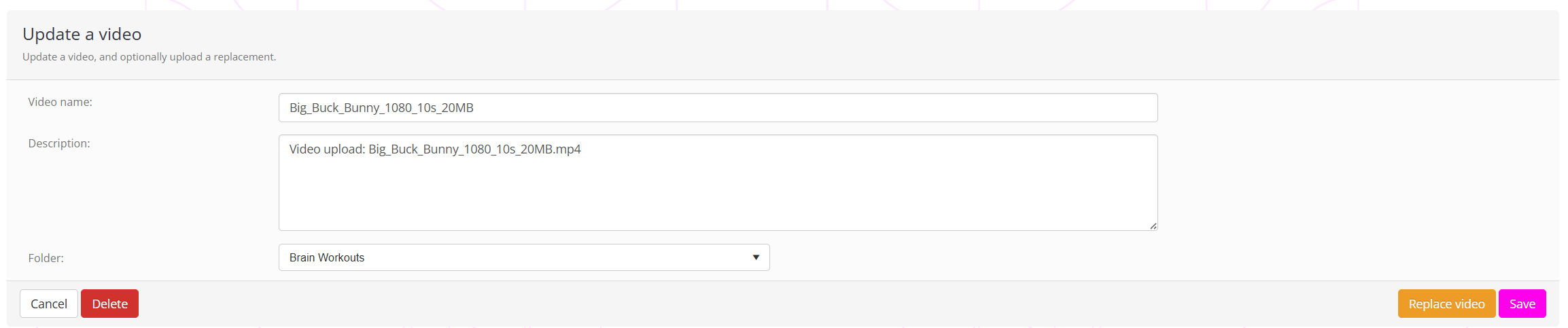
- By default, the name used will be that derived from the filename you uploaded. Change this to something more appropriate/meaningful as you see fit and press the Save button. This wll return you to the folder listing.

- Click the View Video link next to the newly uploaded video. This will open the video preview page.
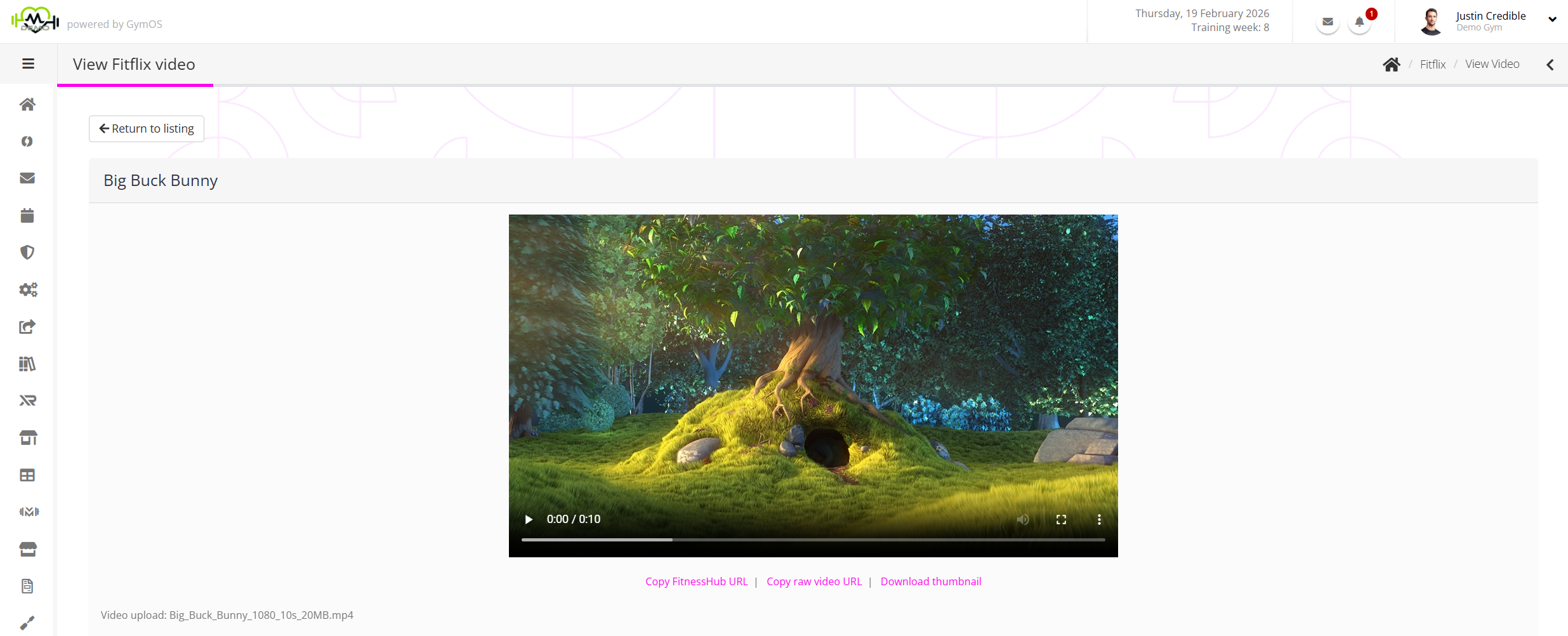
- Click the Download thumbnail link, and save the image that GymOS creates to your device.
- Click the Copy raw video URL link, which will copy the URL of the video to your device’s clipboard.
- Return to editing your immersive email.
- Add an image element of your choosing from the pre-created template elements.
- Click the Change Image icon, and select the thumbnail from your device that you downloaded in step 8.
- Click the Link icon and set the Link URL to be the one you copied from step 9. Check the Open New Window box.
- Click Ok to close the image dialog and complete your email accordingly.
- Make sure you test your immersive email and video using the Test Send function.