
Adding & customising FitnessHub content
You may add your own additional pages and customise some existing content within the FitnessHub member portal.
To add or edit content within the portal, first navigate to FitnessHub App/Portal from within the Settings section of the main navigational menu. Next, click the Edit Pages button from within the Pages & Content section at the top of the page.
Your existing page/content elements will be displayed:
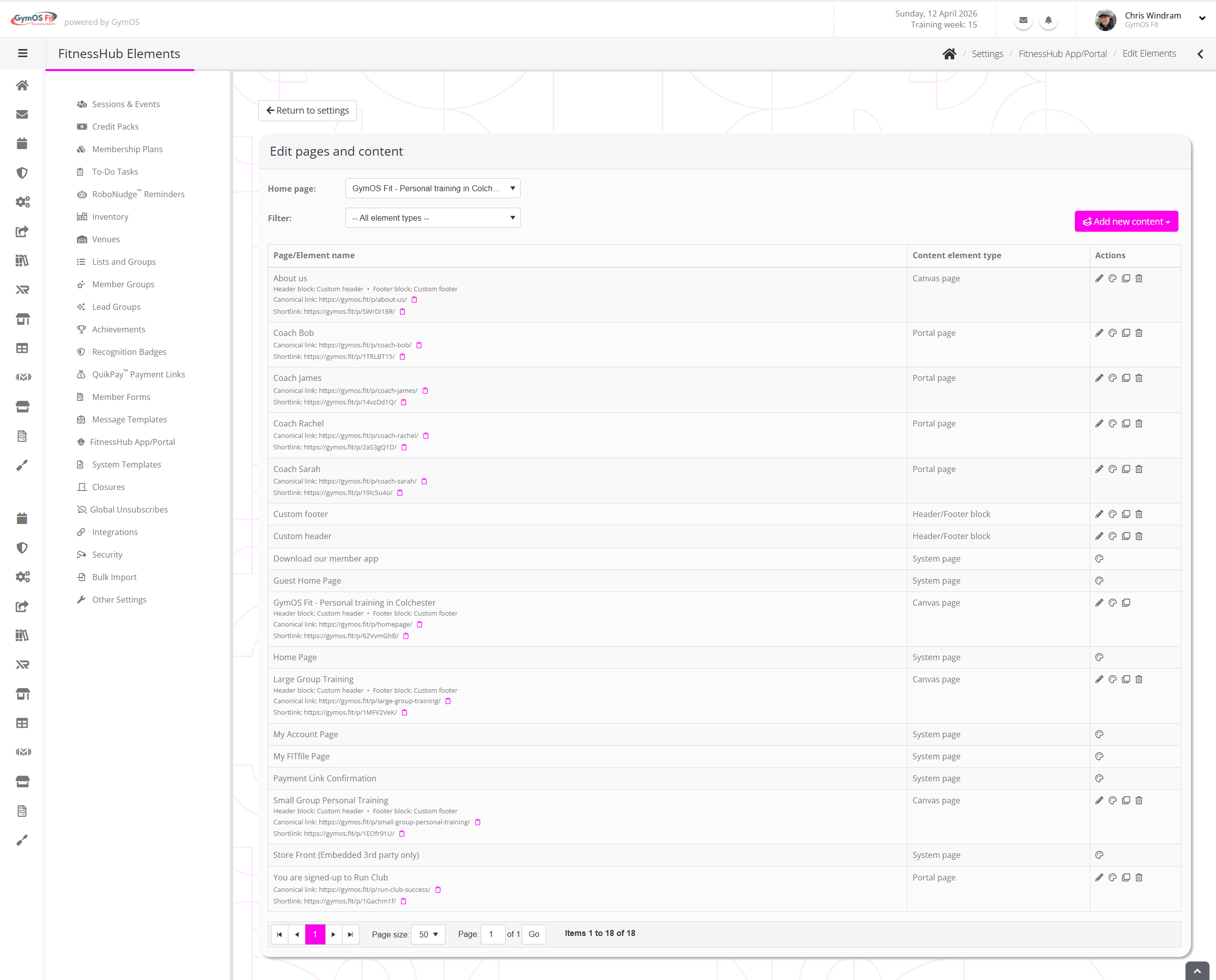
For each page/element, the information displayed may comprise:
- Name – the name of the content element, E.g., “About us”
- Header/Footer – for canvas pages, information regarding the header and/or footer, if assigned.
- Canonical link – the primary GymOS URL for the page. Clicking the icon will copy the URL to your device’s clipboard.
- Shortlink – an alternate shortlink for the page that takes up less space. Following the short link bounces the user to the canonical URL for SEO purposes. Clicking the icon will copy the URL to your device’s clipboard.
- Content element type
The type of content element (see below). - Actions, comprising:
- Edit the configuration of the content page/element
- Edit the content of the page/element
- Clone the page/element
- Delete the page/element
Content types
There are four types of content type:
- System page
This is a GymOS-managed page for which you may edit some of the content. - Portal page
This is a custom page that you may create to add your own content. The content will sit between the header menu and footer bar of the main FitnessHub site. You do not need to provide your own navigation, but may include links as you see fit. - Canvas page
This is a custom page that you may create to add your own content. It is a blank canvas, and you control all of the content on the screen. You should provide your own navigation, which may be assisted by using header and footer elements. - Header/footer block
A header/footer block is a piece of content that you may optionally assign to sit above or below the content of a canvas page. These elements are designed to enable you to create a menu or footer structure just once, then apply it across multiple pages.
Creating a new content element
To create a new content element, select the desired content type from the Add new content drop-down button.

Provide the details for your page accordingly. The configuration options will depend on the content type selected, and may comprise:
- Page title
The name for your page or content element. In the case of a page, this is used as the browser page title so should be something appropriate. - Header content
For canvas pages, optionally select a header/footer block to use as the header for your content. - Footer content
For canvas pages, optionally select a header/footer block to use as the footer for your content. - URL slug (suffix)
Provide a unique slug to use as the suffix for your page URL. - Requires login
Ticking this box will require the member to be logged in to the FitnessHub site to be able to view the content.
Editing content
The content within your element is edited by clicking the icon next to the content you want to edit. The content will open in the GymOS landing page editor, and you can create it as you wish.
Setting the FitnessHub home page
You may set your FitnessHub home page to either be the default or any canvas page. This enables you to completely control the entry point into the portal, and you can effectively build an entire public-facing site in front of the member portal.
Remember: Make sure you provide a link through to the member functionality (E.g., the login page); otherwise, your members will not be able to access the portal unless they have a link through to a specific page.
Pixels and tracking
GymOS will automatically insert Google Analytics tracking and Meta pixels, as per your configuration.