
Landing page editor
The GymOS WYSISYG landing page editor is used within multiple areas of the system, including campaign landing pages and FitnessHub custom pages. It is similar to the WYSIWYG immersive email editor, but is tailored to building HTML web pages, rather than HTML emails. The two disciplines share commonalities, but have important differences.
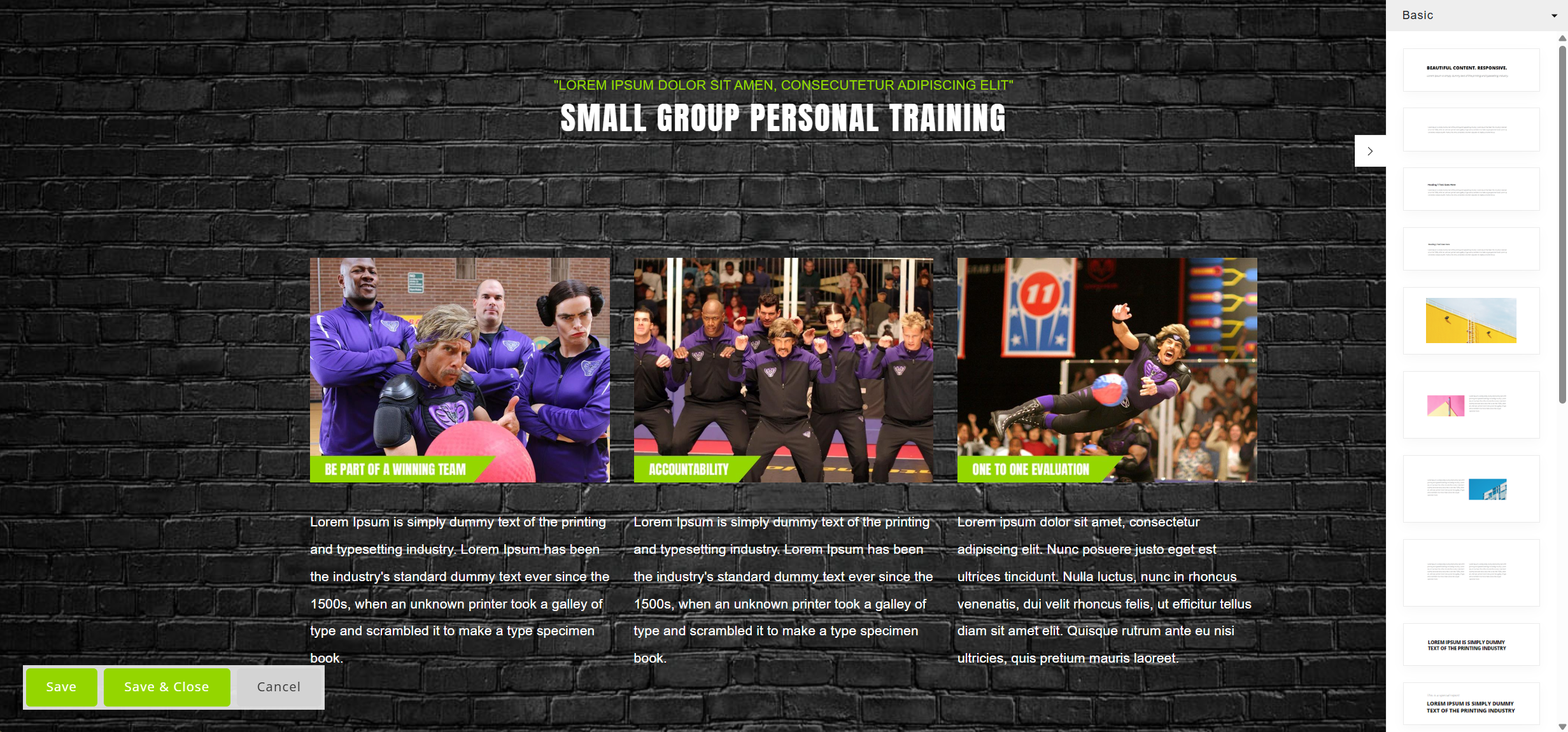
The editor comprises a main visual editing area, which is a close representation to the final rendering.
Changes are saved by clicking Save or Save & Close. Clicking Cancel will abort any changes made since your last save.
Important: Make sure you save regularly to avoid the risk of losing any of your work.
Adding a new pre-configured layout element
The GymOS page editor includes several hundred preconfigured layout elements. These are pre-designed to be responsive (I.e. they self-adapt for mobile and desktop layouts). You may also add your own layouts manually, but will need to consider how they adapt across different devices.
The pre-built elements are categorised, and a new category may be selected from the drop-down list at the top-right of the screen. The default category is “Basic”. Others include headlines, buttons, features, and more.
They layout selector may be hidden by clicking the icon.
To add a new element to your page, left-click your mouse on your chosen element and drag it onto the page. The newly added element will be rendered, and is then available for you to edit.
Editing content
Editing content within the page is largely self-explanatory. To edit text, simply click on the text and change the content.
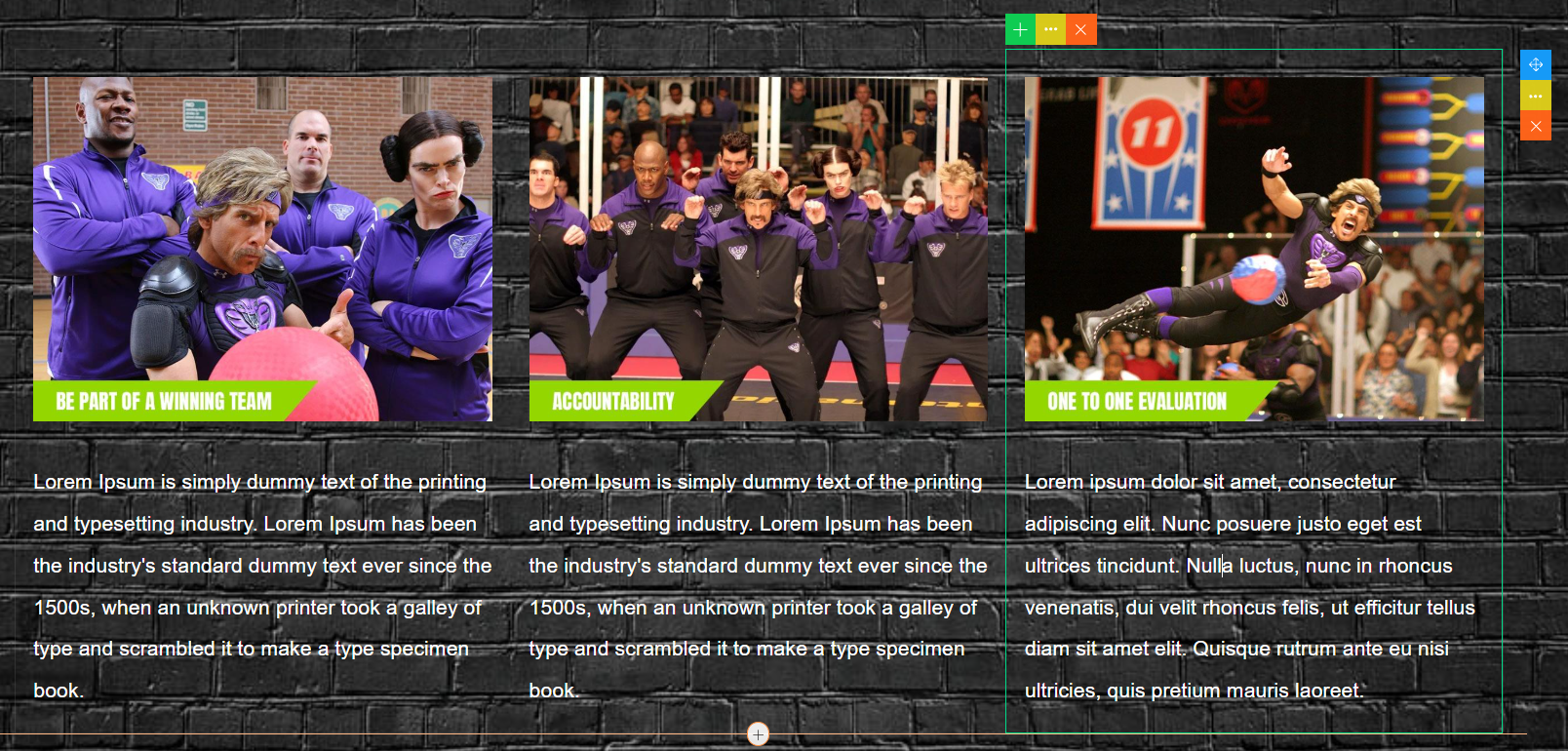
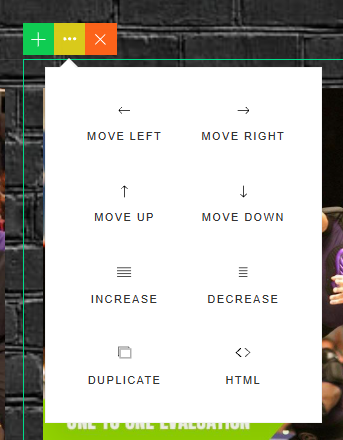
When you select a content block in the editor, it wil be highlighted by a box and a number of options will become available.
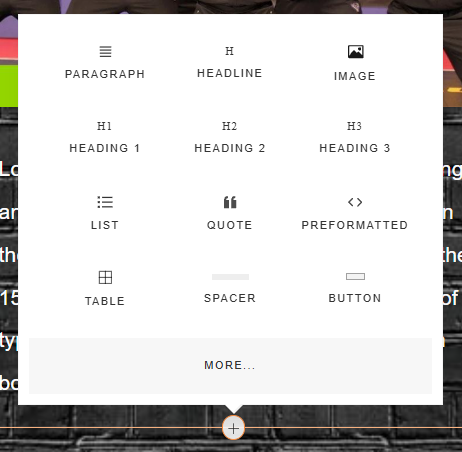
Clicking the icon will open the pop up window to select a new element type to add above/below the current element.
You may move a block by clicking on the icon and dragging the element elsewhere on the page (typically up or down).
Clicking the icon will reveal a pop up menu of additional options.
Clicking the icon will delete the block.
Subject to the context of the item being edited, an additional “top options” bar may be presented:
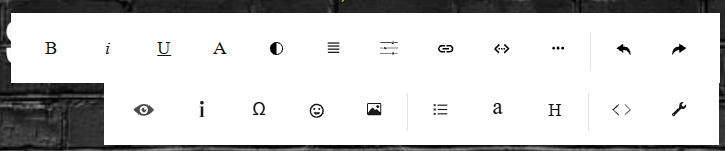
This top bar gives access to a lot of additional formatting options. A full HTML view is also available.
Changing and formatting pictures
To change an image, click on the image and then click the Change Image icon. Upload a web-applicable photo. GymOS will resize your photograph upon first save to ensure that it is a suitable size.
If you wish to make the image a hyperlink, click the image and then click the Link icon. Provide a valid URL in the Link box, and optionally provide a title for the link (displayed as a hover-over in some browsers) in the Title box. If you wish the link to open in a new browser window, click the Open New Window checkbox.
Adding video to your page
You may add a video to your page by first uploading your video to FitFlix. Having done so, grab the raw video URL. You may then use the video element (within Basic) to add a video element to your page, setting the URL to the one you copied from FitFlix.
Advanced editing
If you are familiar with HTML and CSS, you may access advanced editing features by selecting the HTML and Settings options.
These should be used with care and, be aware, if you enter invalid content this may “break” your page and content may be lost. Save regularly!
Adding the HTML, JS, CSS elements from the Basic elements menu provides a mechanism for adding custom HTML, JavaScript or CSS to the page. The standard rules of cross-site scripting apply, and GymOS will block any external content from being added to the page.
Please note that any deliberate misuse of the coding elements (such as behaviour tracking, key logging etc.) may result in suspension or termination of your GymOS account.