Creating or editing a credit pack
Credits are the method by which members on a recurring membership will book your scheduled sessions. If you are not familiar with the GymOS credit principles, we recommend that you read the Credit Principles article before continuing.
To administer credit packs, select Credit Packs from the Settings section of the main navigational menu. The credit pack listing will be displayed.
Credit pack listing
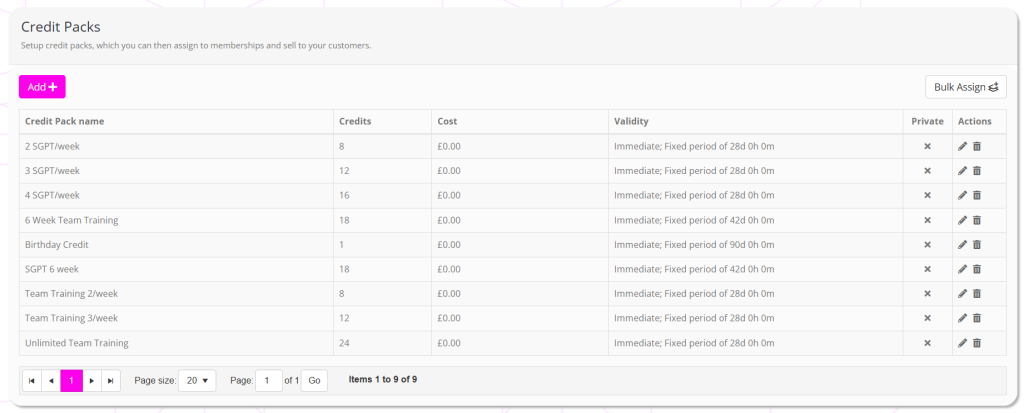
For each credit pack, the information displayed comprises:
- Credit pack name – the name of the credit pack, visible to members.
- Credits – the total number of credits issued by the credit pack.
- Cost – the cost to purchase the credit pack. Note: 0.00 means free. Make the credit pack private if you do not wish members to be able to buy it ad hoc.
- Validity – the validity period configured for the credit pack.
- Private – whether the credit pack is private, and thus not available for purchase by members.
- Actions, comprising:
- Edit the credit pack
- Delete the credit pack

Adding a new credit pack
To add a new credit pack, click the Add button. The new credit pack screen will open.
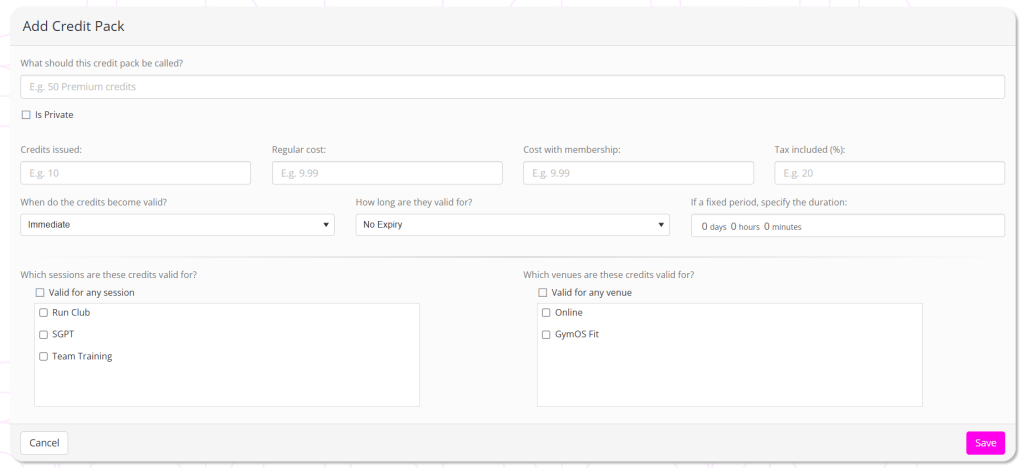
Review and complete every field on the form, ensuring that you configure you credit pack as you wish.
What should this credit pack be called?
Give your credit pack a meaningful name. This will be displayed to members. E.g., “SGPT, 4 credits”.
Is Private:
Tick this box if you do not want members to be able to purchase it via the store in the FitnessHub member portal.
Credits issued:
The number of credits the credit pack should issue.
Regular cost:
The cost for the credit pack, when purchased ad hoc.
Important: If you set this to 0.00 that means “free”. Unless you wish members to be able to buy it for free, make sure you mark the credit pack as “private” (see above).
Cost with membership:
The cost of the credit pack for members with any active membership purchasing it ad hoc.
Tax included (%):
The percent tax included within the gross monetary purchase figures provided.
When do the credits become valid?
The point in time when the credits become valid. Typically, you would leave this as “Immediate”.
How long are they valid for? and If a fixed period, specify the duration:
The duration of the validity of the credits. Be extremely mindful if you select “End of month”, as the duration of the credits is therefore subject to the day of the month upon which they are purchased.
Typically, you would set a validity period for the credits that ties in with your credit issue period. E.g., 28 days.
Which sessions are these credits valid for?
If you are restricting the credits to certain sessions only, tick the sessions. Otherwise, tick “Valid for any session”.
Which venues are these credits valid for?
If you are restricting the credits to specific venues, tick the venues. Otherwise, tick “Valid for any venue”.
Click Save to create your credit pack.
Editing an existing credit pack
If you are editing an existing credit pack, click the icon alongside the credit pack you wish to edit.
Make the amendments necessary. If you wish to update the session and venue validity for all existing credit packs, make sure you check the box accordingly.
Click the Update button. If you opted to update the session and venue validity for existing credits, this will occur as a background process over the next few minutes following the credit pack update.