Embedding a campaign form
In GymOS, it is easy to embed a campaign form into a landing page or website. The method varies slightly, depending on whether the page is being built within GymOS or whether it is in an externally managed site:
- Embedding a campaign form into a page being built using the GymOS landing page editor
- Embedding a campaign form into a page not built or managed within GymOS
Embedding a campaign form into a GymOS page
To embed a campaign form into a GymOS landing page or portal page, follow these steps:
- From the landing pages tab of your campaign, click the Sign-up form URL link. This will add the form URL to your clipboard.
- Edit your page in the GymOS page editor.
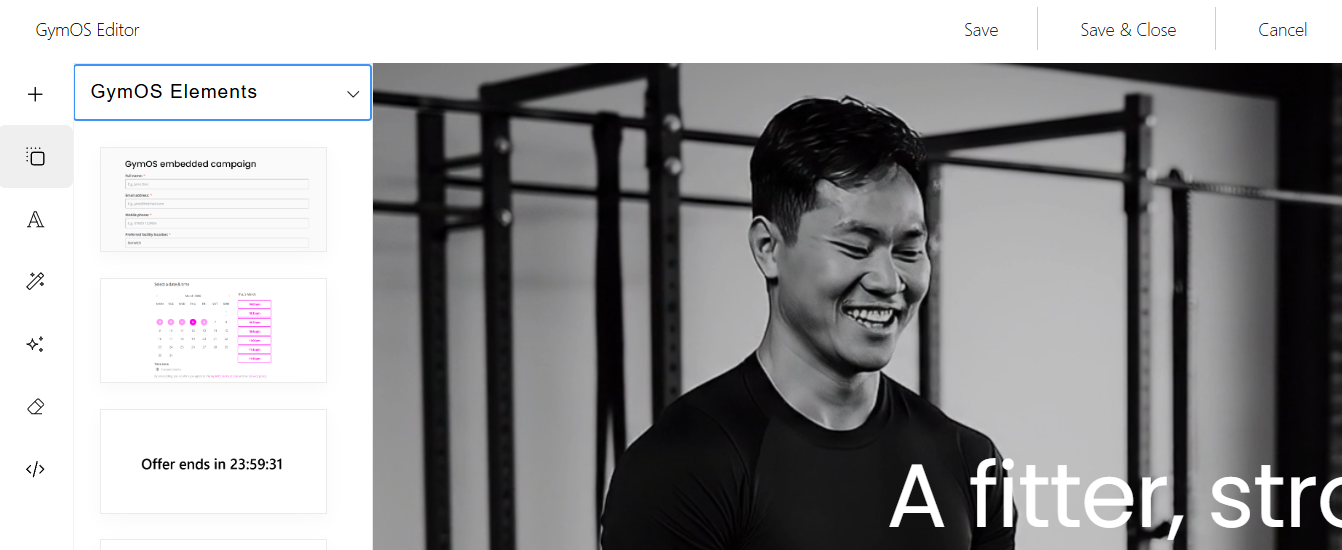
- Click the Blocks button, select the GymOS Elements section, and drag the “GymOS embedded campaign” component onto your page.
- Click on the new component in your page, and paste the URL you copied in step 1 into the configuration field.
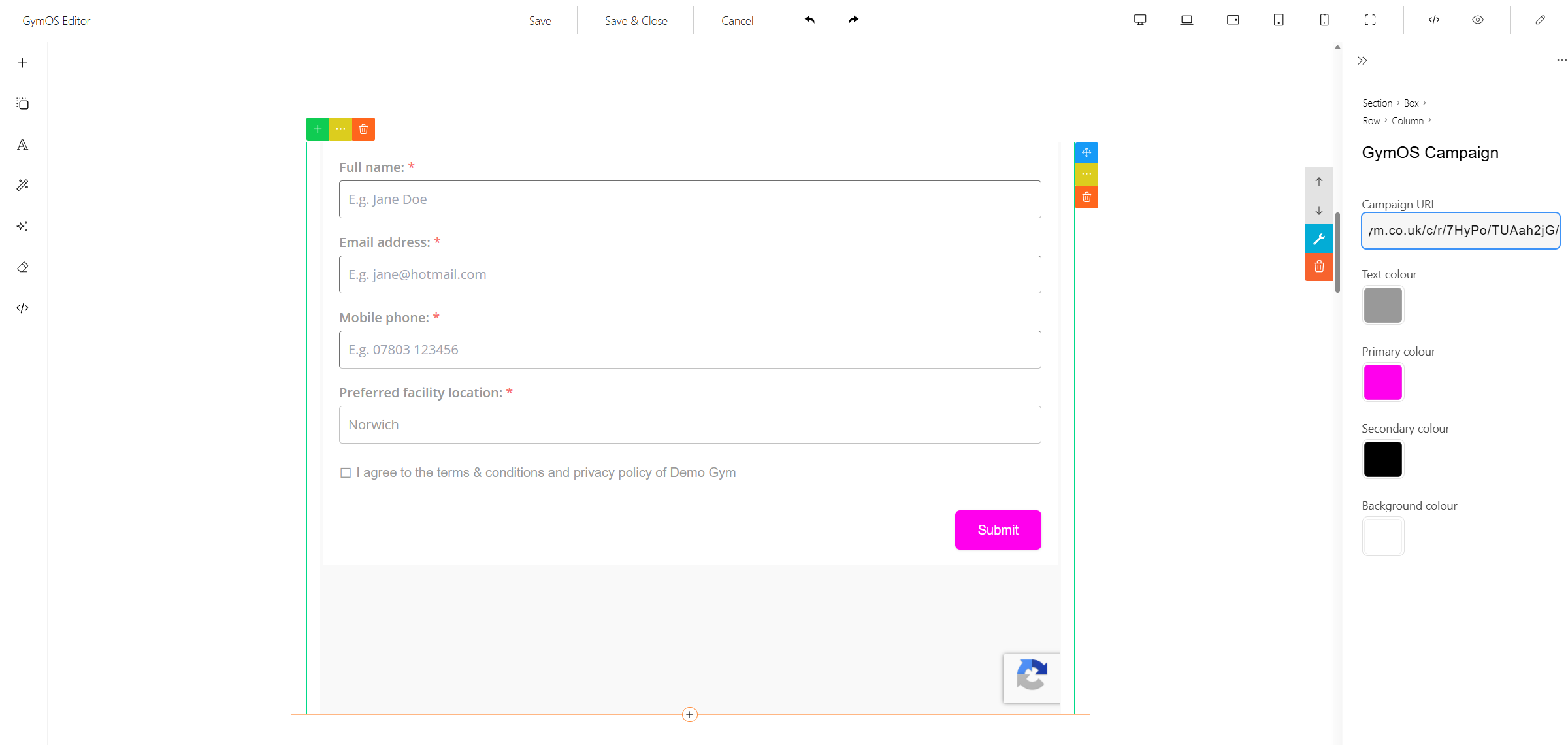
- Edit the text, primary, secondary, and background colours to suit the design of your page.
- Click to save your page. The form will be embedded within your page.
Embedding a campaign form into a website page
To embed a campaign form into a non-GymOS web page, follow these steps:
- From the landing pages tab of your campaign, click the Embed code link. This will open the embed code configuration popup window.
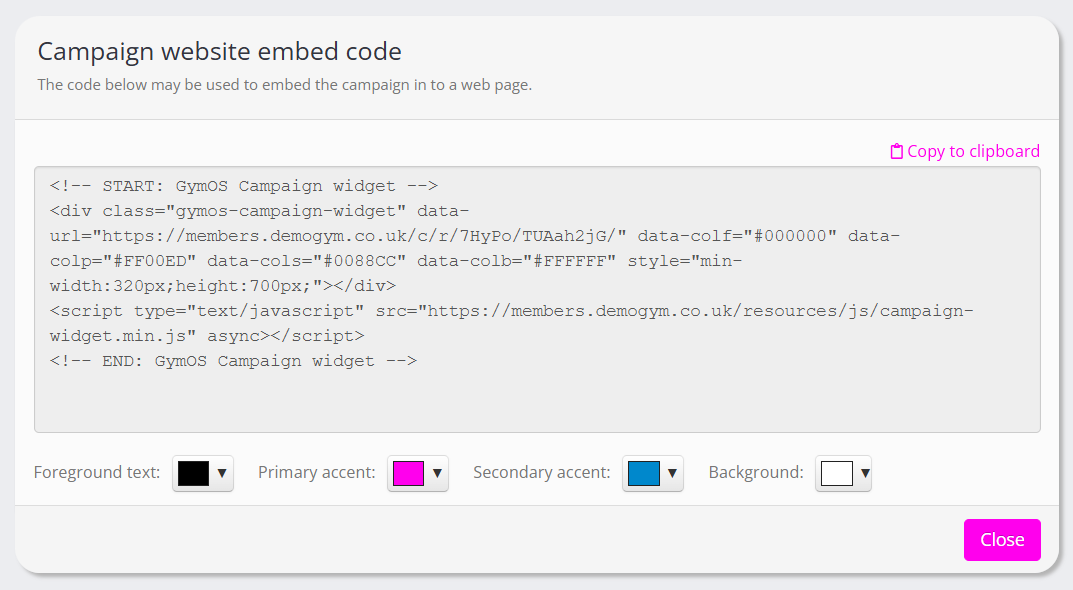
- Select the text, primary, secondary, and background colours you wish to use for the form.
- Click the Copy to clipboard link.
- Paste the code from your clipboard into your web page as HTML code.