Performing session roll-call
Session roll-call may be performed within the mobile app or within the administration portal. Details for the portal are provided below.
To perform roll-call for a given session:
- Navigate to Schedule from the main menu.
- Navigate to the date/time of the session for which you wish to perform roll-call.
- Either double-click on the session or right-click and select View/Edit Bookings from the menu.
- Click the Roll call button.
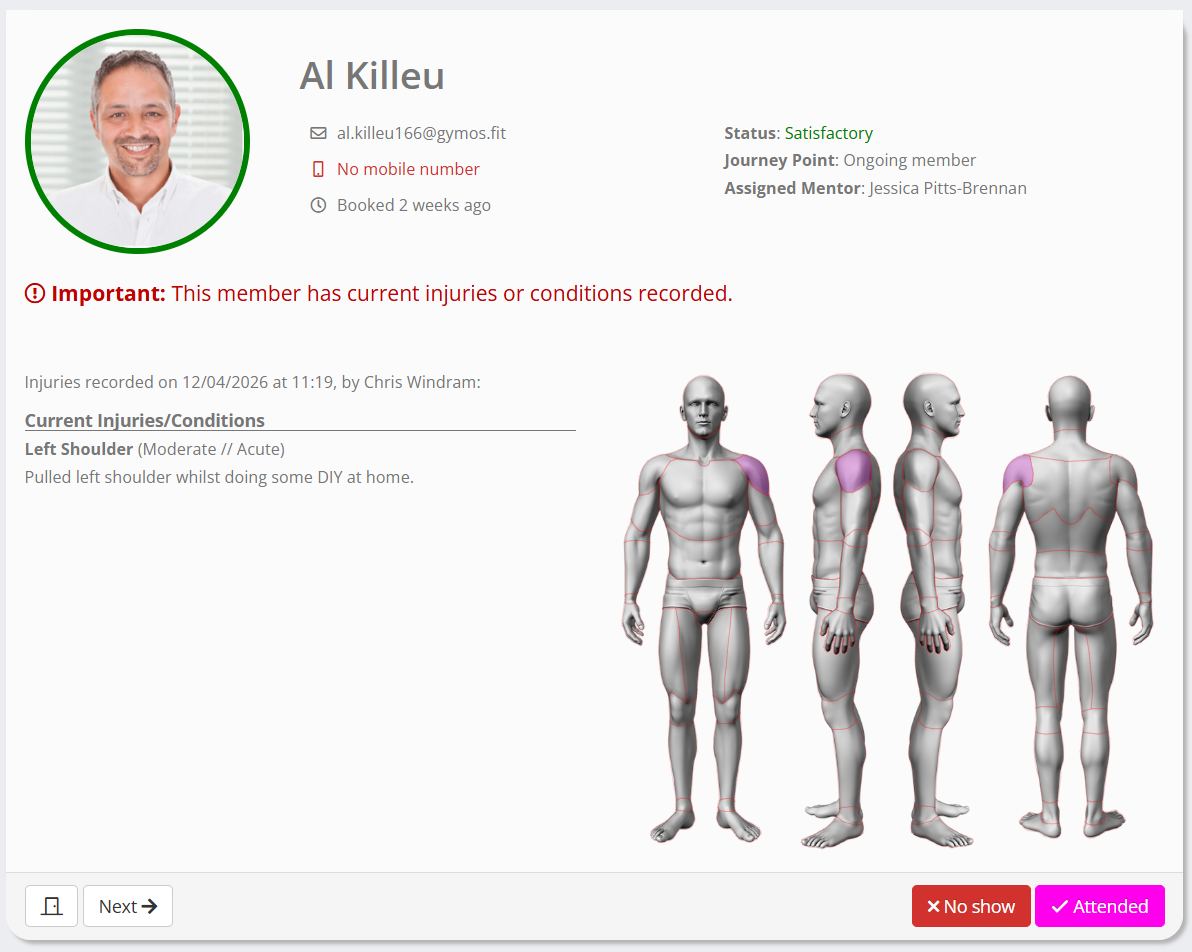
- GymOS will talk you through the attendees for the session, one by one.
For each, key information will be displayed. This will include current medical conditions, plus any pending tasks, alerts, or reminders. - Actions buttons are provided for:
- Close roll-call.
- Next Move on to the next record, without updating this attendee.
- No show Mark the attendee as a “no show”.
- Attended Mark the member/guest as having attended.