
Reviewing discussions in the administration portal
Every discussion recorded with Scribe is kept on the record of each member and lead who took part. In the administration portal you can read its summary and transcript, play the recording, correct who said what, and keep notes for each person.
Finding a discussion
Open the member’s or lead’s record and choose the Calls & Consultations tab. Discussions are in the Recordings and transcripts list, below the call log, together with any Konduo call recordings, newest first. The Type column says In-person discussion or Phone call, and Who says who recorded it.
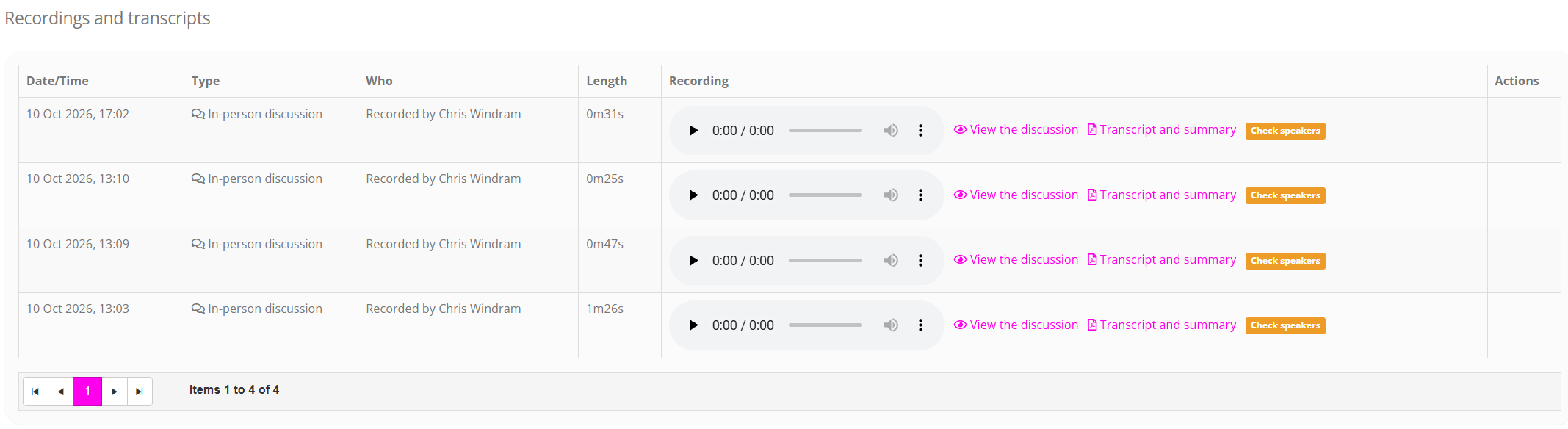
Each discussion’s row has:
- A player, for managers and the member of staff who recorded it. Anyone else sees who can listen instead.
- View the discussion, which opens everything about it (see below).
- Transcript and summary, a PDF of the summary, action points and transcript, to read, save or print.
Discussions also appear in the person’s Conversations timeline, as In-person discussion with the first line of the summary, and an Open link to the same view.
Processing times
A discussion appears in the list as soon as the member of staff stops recording. The transcript and summary usually follow within a few minutes. Until then, the row is marked:
| Marked | What it means |
|---|---|
| Processing | The recording is still arriving from the phone, or is being transcribed and summarised. |
| Check speakers | Scribe was not fully confident which voice belonged to whom. Open the discussion and check who said what. |
| Not transcribed | Rarely, a recording cannot be transcribed. Open the discussion to see why. |
| The recording and transcript were deleted | A manager deleted them. The summary and notes remain. |
A row with no mark against it is ready.
The discussion
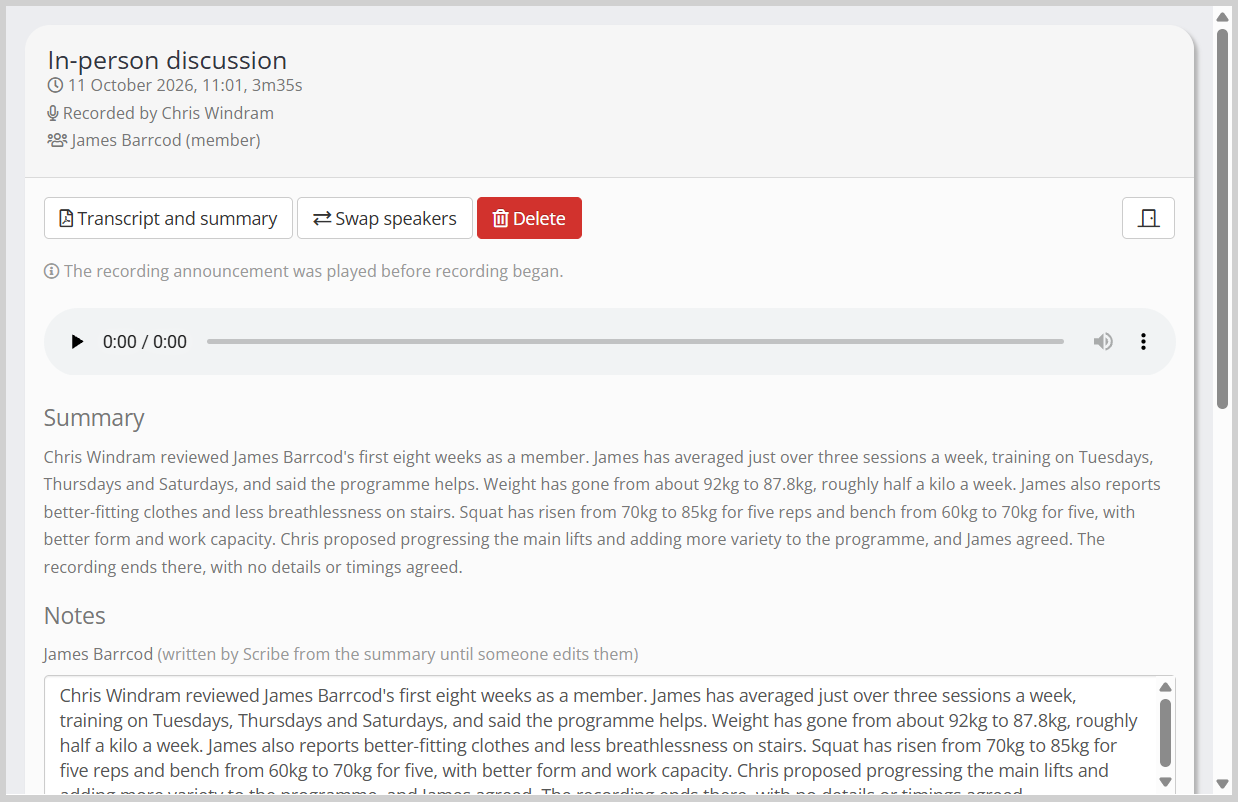
View the discussion opens a window with everything about it, from top to bottom:
- When, who recorded it, and who took part.
- Notices, where they apply: that the discussion is still being processed; that the speakers need checking; that it was recorded in a noisy room, so some words may have been misheard; whether the announcement was played; and how many times it was paused.
- The recording, for managers and whoever recorded it.
- Summary, a few sentences written by AI, and the Action points that were agreed.
- Notes, one box for each member and lead in the discussion.
- Transcript, every line with the speaker’s name and the time in the recording, so you can find that moment in the player.
The transcript is made by a machine and is never edited, so names, numbers and dates may be misheard. Treat it as a guide to the recording: the recording is the record of what was said.
Correcting who said what
Scribe hears everyone through one phone, separates the voices, and names them from what was said. If it has the names the wrong way round, a manager or whoever recorded the discussion can put it right:
- Two people. Press Swap speakers, and each person takes the other’s voice.
- More than two. Under Who said what, choose the person for each voice, using the time it was first heard to find it in the recording, then press Save the speakers. A voice that was nobody in the discussion can be left unnamed.
Only the names change: the words are never edited. The summary is written again with the right names, at no charge, along with any notes Scribe wrote. Notes your team has written are left alone. Scribe never changes your correction again.
Notes
Each member and lead in the discussion has their own notes. They start as the notes written at wrap-up, or, if those were left blank, as Scribe’s summary and action points, marked as written by Scribe. Any member of staff can change them: edit the box and press Save the notes. Once someone has saved notes for a person, Scribe never overwrites them.
These are the same notes you see for that person on the consultation’s appointment.
Deleting a recording
A manager can delete a discussion’s recording and transcript, by pressing Delete in the discussion view and confirming. This cannot be undone.
- Deleted: the recording, the transcript, and the transcript PDF on each person’s record.
- Kept: the summary and action points, the notes, the consultation and its attendance, and the record that the discussion happened.
A discussion can be deleted once it has finished processing. Deleting it does not refund its charge.
What else a discussion adds to the record
- A DropSlot consultation. A discussion recorded from a booking stays on that booking. Any other discussion is added as an attended consultation of its own, under the type In-person discussion, with no emails or invitations sent. To have discussions filed under your own consultation types, book the consultation first, then record from the booking.
- Attendance. Every member and lead in the discussion is marked as attended. So if you have an automation that starts when a consultation is attended, such as a follow-up email, it starts after a Scribe discussion too.
- A touch point. Each discussion logs an in-person contact for each member and lead in it.
- Nothing on staff records. Colleagues who took part are named in the transcript, but nothing is kept on their own records.
When a lead becomes a member, their Scribe discussions move to their member record with the rest of their history.
Common questions
Why can’t I play the recording?
Recordings can be played by managers and by the member of staff who made the recording. Every member of staff can read the summary and transcript.
The discussion has been processing for a long time.
The recording may still be on the phone that made it, waiting for a connection. Ask whoever recorded it to open the FitnessHub app with a signal. See Scribe – tips, rules, privacy and troubleshooting.
Can I edit the transcript?
No. The transcript stays exactly as Scribe wrote it, so that it always matches the recording. You can correct who said what, and write your own notes.
Where are the transcript PDFs?
Use Transcript and summary in the Recordings and transcripts list, or in the discussion view. They are always made from the latest version, so they include any correction to the speakers.
Can a member ask for a copy?
Members never see Scribe in GymOS. A request from a member for their information is handled as your gym handles any other such request, and a manager can download the PDF to share it. See Scribe – tips, rules, privacy and troubleshooting.
Where did the Consultations tab go?
The Calls and Consultations tabs on member and lead records are now one tab, Calls & Consultations. Everything that was on either tab is still there: the call log, recordings and transcripts, and DropSlot® consultations.