
Sharing FitFlix videos with members
Once videos and folders have been added to the FitFlix library, they may then be shared with members. There are many different ways to do this, each suited to various needs and contexts — some manual, while others are fully automated.
The methods include:
- To individuals, groups, or memberships from the FitFlix library
- Via a nurture program
- By an event trigger

Having allocated a video/folder to a member(s), you might need to revoke the access at a future point.
Sharing a video or folder from the FitFlix library
When manually allocating files or folders to members, a broader set of options are available from the Share option in the document library itself:
- Select FitFlix Video Library from the Libraries option on the main navigation menu.
- Navigate the library to locate the folder/file that you wish to share.
- Click the Share Folder/File option alongside the folder/file that you wish to share. The share pop-up window will appear, with the context varying slightly depending on whether you are sharing a folder or a file:
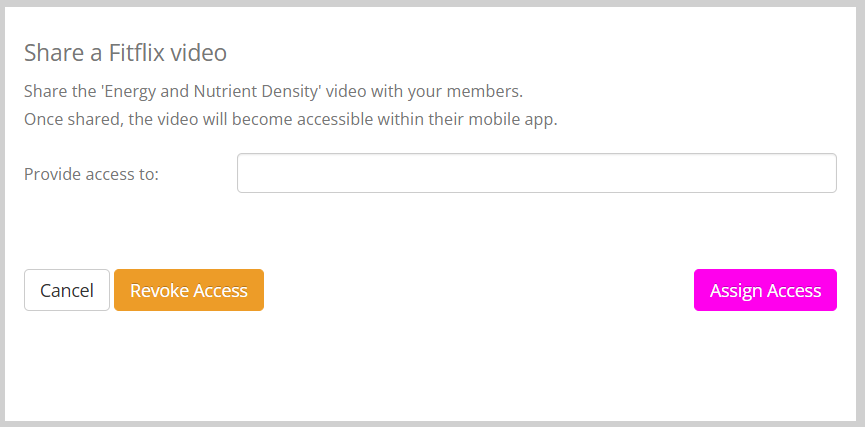
- In the Provide access to box you may enter one or more of:
- Member name(s)
- Membership name(s)
- Group name(s)
- Clicking the Assign Access button will assign access to the folder/video for all of the members or members of the groups/memberships you selected.
Via a nurture program
It is possible to allocate a video or folder to a member as part of a nurture program using the Add a FitFlix video(s) action.
This process is described in more detail in the Nurture Program Steps article.
By an event trigger
The FitFlix Video action step within Event Triggers enables you to assign a video or folder to a member as part of a triggered workflow.
This process is described in more detail in the Trigger Steps article.
Revoking access to a video or folder
The method for revoking access to a video or folder depends on the process and means by which you allocated the video/folder.
- If you have allocated a video or folder to a group, and the member ceases to be a member of that group, they lose access to the video/folder. That is, unless they have been granted access to that video/folder through an alternate assignment (E.g. a membership).
- If you have allocated a video or folder to a membership and the membership ceases to exist, the members lose access to the video/folder. That is, unless they have been granted access to that video/folder through an alternate assignment (E.g. a group).
- If you have allocated a video or folder on a group or membership basis, you cannot revoke access to an individual within that group or membership. The allocation is group- or membership-wide and non-exclusive.
The revocation method is, similar to the share method outlined above. At first, it may feel slightly counterintuitive.
- Select FitFlix Video Library from the Libraries option on the main navigation menu.
- Navigate the library to locate the folder/file for which you wish to revoke access.
- Click the Share Folder/File option alongside the folder/file for which you wish to revoke access. The share pop-up window will appear, with the context varying slightly depending on whether you are sharing a folder or a file:
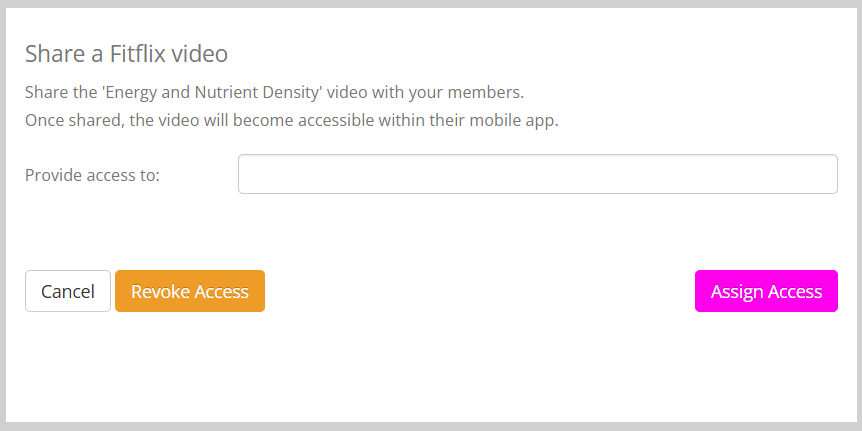
- In the Provide access to box you may enter one or more of the groups/people from whom you wish to revoke access:
- Member name(s)
- Membership name(s)
- Group name(s)
- Clicking the Revoke Access button will revoke access to the folder/video for all of the members or members of the groups/memberships you selected.
Note: Members can download videos shared with them. If a member has downloaded a video to their device, revoking access does not (and cannot) remove that video from their device.