
Cancelling an assigned membership
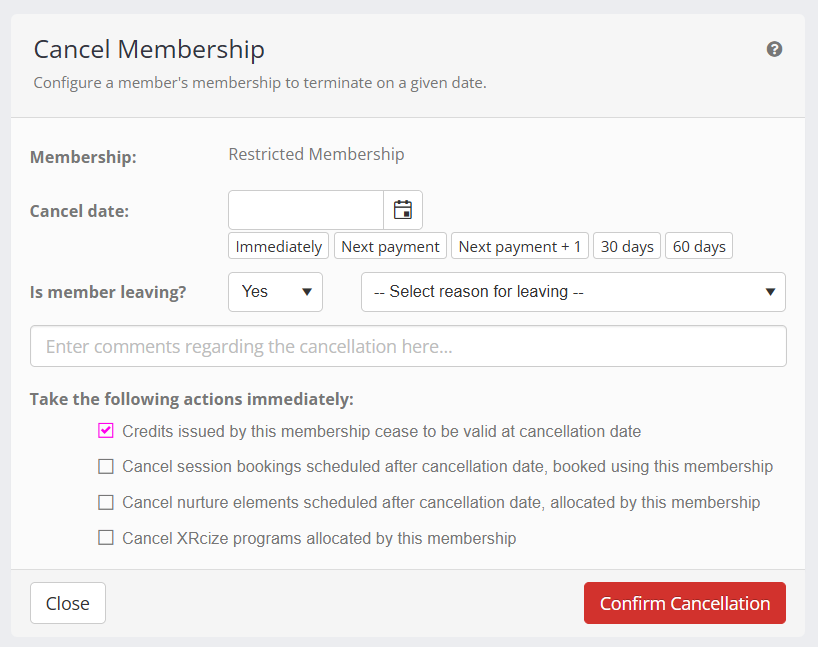
An active membership against a member may be cancelled by clicking the Cancel button alongside the membership. This will open the cancel membership popup window:
To cancel the membership:
- Enter the date on which you wish the membership to end. Shortcut opens for Immediately, Next payment, Next payment + 1, 30 days, and 60 days are provided.
- You may indicate whether the member is leaving your facility and, if so, the reason for their leaving. If provided, this will create a leaver record for the member.
- Enter the reason that the membership is being cancelling (E.g., “Upgrading to Platinum membership”)
- Check the actions that you wish GymOS to take once you confirm the cancellation:
- Credits issued by this membership cease to be valid at cancellation date
GymOS will set an expiry date on existing credits that coincides with the cancellation date, preventing them from being used beyond that point.
Important: GymOS does not adjust the number of credits allocated. Depending on your company policy, you may wish to adjust the number of credits allocated during the final credit period. - Cancel session bookings scheduled after the cancellation date, booked using this membership
GymOS will cancel the member from any sessions booked against this membership that are scheduled to occur after the cancellation date. - Cancel nurture elements scheduled after cancellation date, allocated by this membership
If you assigned nurture elements as part of the Deliverables on the membership, checking this option will end the program at the membership termination date. - Cancel XRcize programs allocated by this membership
If you assigned XRcize programs as part of the Deliverables on the membership, checking this option will end the programs at the membership termination date.
- Credits issued by this membership cease to be valid at cancellation date
- Click Confirm Cancellation to process the cancellation, or Close to abort.
f you have selected an immediate cancellation, this will be processed immediately and the membership tab will be updated with the revised information.
A note will be added to the Documents tab of the member record, providing information about the cancellation and the resulting calculations.
Confirmation Screen
The confirmation screen will confirm that the actions requested have been taken.
In some cases, a refund may be considered due. If so, the amount calculated by GymOS will be displayed. Important: You must verify this amount to be correct and in line with your business policies. As with all refunds, we recommend that they be processed by direct bank transfer outside of GymOS.
In some cases, the member’s final payment will be a pro-rated reduction as it may only cover part of a payment period. In this case, the final payment and the amount calculated by GymOS will be displayed. Important: You must verify this amount to be correct and in line with your business policies. You should make necessary adjustments in the “Scheduled cost adjustments” section.
Calculations
To handle the payment adjustments, GymOS may create one or more “scheduled cost adjustments” for the membership. Any amendment to or removal of these will adjust the payment sequence.
Several methods are used to calculate any pro-rated amounts:
- If the membership period is of fixed length with no future payment, the amount is calculated by determining a daily rate from the recurring cost and the fixed period.
- If the membership payment period is monthly, the amount is calculated by determining a daily rate – taking the recurring cost, multiplying it by 12, and dividing it by 365.
- If the membership payment period is something other than monthly, the amount is calculating by determining a daily rate – taking the recurring cost, and dividing it by the number of days determined to exist in the next payment period.
Calculation Errors
It is important that you verify that any refund or final payment calculated by GymOS is correct and in line with your business policies.
GymOS will perform calculations on a pro-rated basis on the current recurring period and the current billing cycle. It does not (and cannot) factor in pauses during the period or other factors that might adjust the amount due in a refund or a final payment.
Notes
- GymOS does not adjust the final number of credits issued, only the period for which they are valid. Therefore, subject to your company policies, you may need to make a final (manual) adjustment to the last set of credits issued to a member.
- Cancelling a membership will cancel any pause periods configured to start after the membership end.
- Cancelling a membership will cancel any pause periods configured to end after the membership end.
- Once a membership has been marked for cancellation, it cannot be undone.
- Once a membership has been marked for cancellation, no further pause periods can be configured.