
Member tab: Messages
The Messages tab on the member record is where you can view incoming and outbound messages relating to that specific member. This is a filtered set of the message centre functionality.
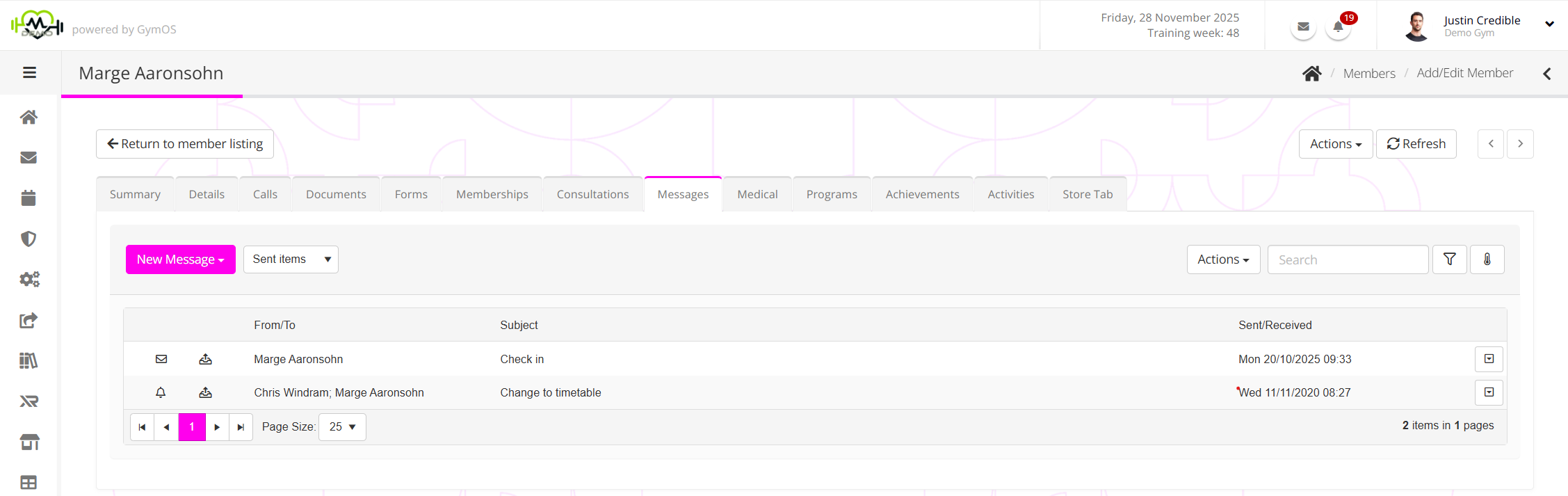
By default, the listing will show inbound messages. You may view the outbound messages by selecting Sent items from the Inbox drop-down list.
The actions bar
The actions bar sits above the listing and provides access to a number of different functions.
Sending a new message
Within the New Message drop-down options, you can send a New Email message, a New SMS message, or a New Push alert.
Learn more about these functions in the Sending and receiving messages article.
Mark all as read/actioned
From the Actions drop-down you can select to Mark all as read or Mark all as actioned. These actions apply to all messages for the selected member. Additionally, you can select Refresh listing if you need to reload the message view.
Searching for a message
You can search within the subject of a message by entering text in the Search box and clicking the button.
Email Engagement Log
Clicking the button opens the pop-up Email Engagement Log. This log records information about emails delivered, opened, and clicked on for the last 90 days.
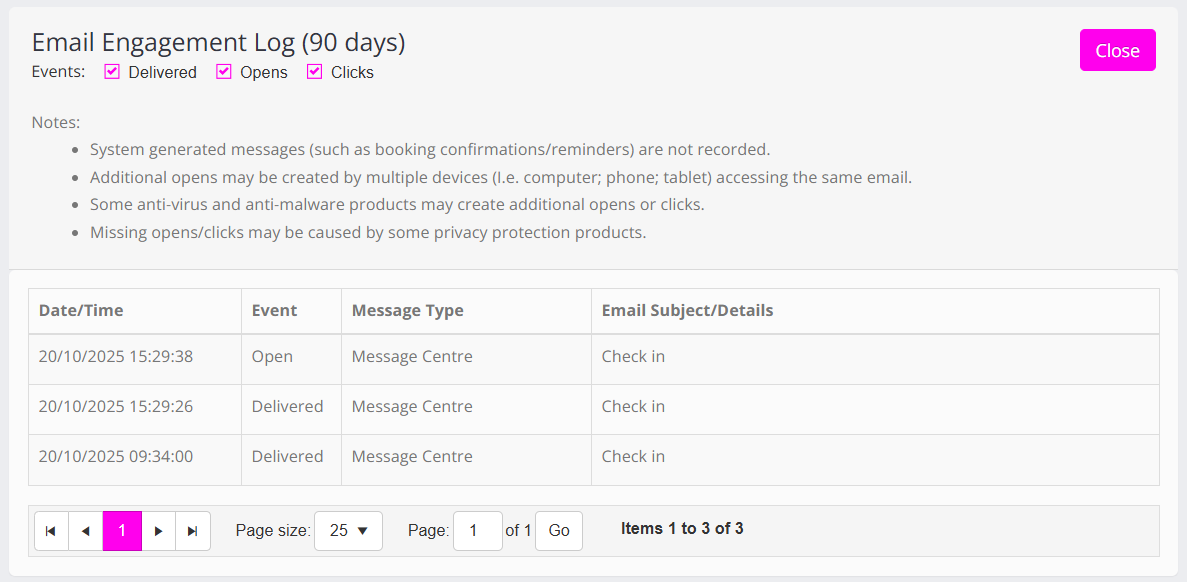
Checking/unchecking the Delivered, Opens, and Clicks checkboxes will filter/unfilter the results listing.
Important notes:
- System generated messages (such as booking confirmations/reminders) are not recorded.
- Additional opens may be created by multiple devices (I.e., computer, phone, tablet) accessing the same email.
- Some anti-virus and anti-malware products may create additional opens or clicks.
- Missing opens/clicks may be caused by some privacy protection products.
- Email engagement tracking should not be taken as definitive.
The message listing
Messages in bold either have not yet been read or have been read and subsequently reset to “unread”.
Each row summarises a message that has been either sent or received. The information provided for each comprises:
- A visual icon indicator of the type of message (Email or SMS).
- A visual icon indicator to show if the message has one or more attachments.
- A visual icon indicator to show whether an inbound message has been replied to.
- A visual icon indicator to show whether the message was inbound (received) or outbound (sent).
- The name(s) of the sender or recipient.
- The message subject line. Note: For an SMS message, this will be the actual message.
- The date/time that the message was received or sent.
Alongside each message is an icon which opens a context-sensitive menu of options. This menu and its usage is detailed here.