
Sending and receiving messages

Email, SMS, and push notification messaging are all deeply integrated into the GymOS system and can be deployed via various means.
Whilst outbound messages may be created by various means, and inbound messages may also be found against members and leads records, the Message Centre provides a central place where all recorded messages can be viewed, and ad hoc messages can be sent.

Accessing the Message Centre
The Message Centre is accessed by selecting the Message Centre option from the main navigation menu. Additionally, it may also be accessed by clicking the button in the header alerts area.
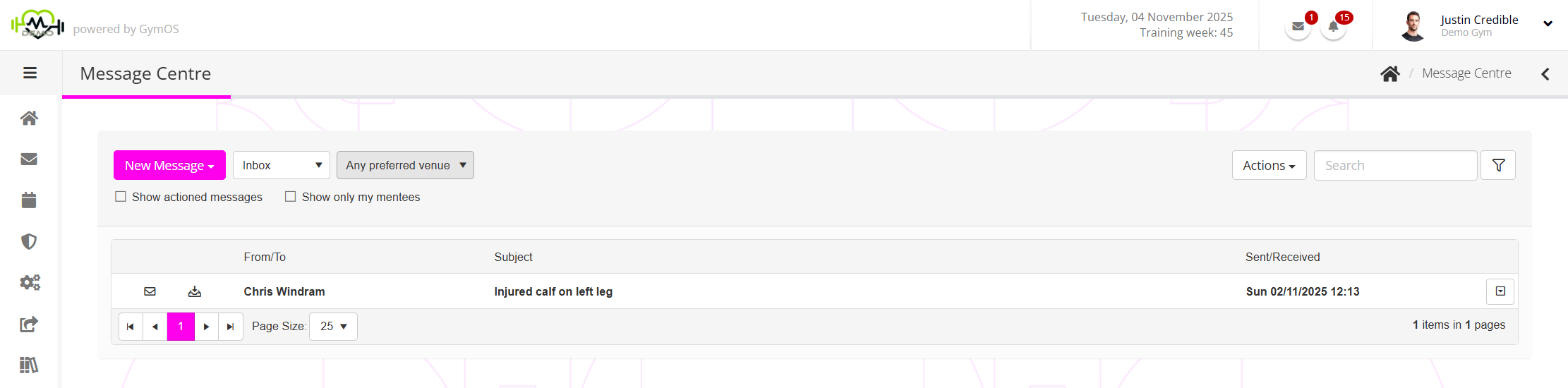
The message centre features an actions bar, plus the message listing. The message listing is paged and displayed in reverse chronological order, with the most recent message displaying first.
Messages in bold either have not yet been read or have been read and subsequently reset to “unread”.
Each row summarises a message that has been either sent or received. The information provided for each comprises:
- A visual icon indicator of the type of message (Email or SMS).
- A visual icon indicator to show if the message has one or more attachments.
- A visual icon indicator to show whether an inbound message has been replied to.
- A visual icon indicator to show whether the message was inbound (received) or outbound (sent).
- The name(s) of the sender or recipient.
- The message subject line. Note: For an SMS message, this will be the actual message.
- The date/time that the message was received or sent.
Alongside each message is an icon which opens a context-sensitive menu of options. This menu is described further below.
You may double-click on a message row to open the full message in a pop-up box.

The actions bar
The actions bar is where you can initiate actions or filter the message listing.
To search the subject of a message, enter text into the Search box and then press the button.
From the Actions drop-down menu, you have these options:
- Refresh listing
Refreshes the message centre listing. - Mark all as read
Marks all items in the mailbox as having been read. - Mark all as actioned
Marks all of the items in the mailbox as having been actioned.
You can select whether you wish to view the Inbox (inbound) messages or the Sent Items (outbound) messages by selecting from the Inbox drop-down list.
The mailbox may be filtered to show messages only to/from members for whom their primary venue is set to a given location by selecting from the Any preferred venue drop-down list.
By default, messages that have been marked as actioned are hidden from the default view. These may be revealed by checking the Show actioned messages checkbox.
Checking the Show only my mentees checkbox will filter the message list to comprise messages only from members for whom you are the assigned mentor.
Context-sensitive actions menu
The context-sensitive actions menu sits alongside each message. The items available in the menu vary depending on the nature and status of the message. The full set of menu options comprises:
- Open Message
Opens the full message in a pop-up box. - Forward Message
Opens the full message in a pop-up box in a manner that allows you to forward the message. - Mark as…
- …pending review
Resets the status of the message to the default. - …actioned
Marks a message as having been actioned, thus removing it from the default view. - …no action required
Similar to marking the message as actioned, but this option indicates that no action was deemed necessary. - …read
Marks the message as having been read. - …unread
Resets the read flag on the message, making it appear as though it hasn’t yet been read.
- …pending review
- Assign to…
- an assignment group…
You may assign the message to a group of individuals for review (Learn more). - an individual employee…
Assign the message to a given team member for their attention (Learn more).
- an assignment group…
- Cancel assignment
If a message has previously been assigned to a team member, this option revokes that assignment. This might be necessary if the team member is absent, and you need to re-assign or pick up the message yourself. - Delete message
This option permanently deletes the message from the GymOS system. It becomes unavailable in all views.
Sending a message
You can send a new message to one or more individuals by selecting the desired media type from the New Message drop-down action button.
Options comprise:
- New Email message
Send a message to a member, lead, or 3rd party as an email. - New SMS message
Send a message to a member, lead, or 3rd party as an SMS text message. - New Push alert
Send a message to a member as a push alert.
Note: Push alerts are handled by the GymOS FitnessHub app; therefore, the member must have this installed and logged in for the push message to be received. They also need to have approved the receipt of push notifications when first accessing the app.
Each option will open the corresponding message pop-up window.
The full message pop-up window
The message pop-up window varies based upon i) the message type, and ii) the requested action or context.
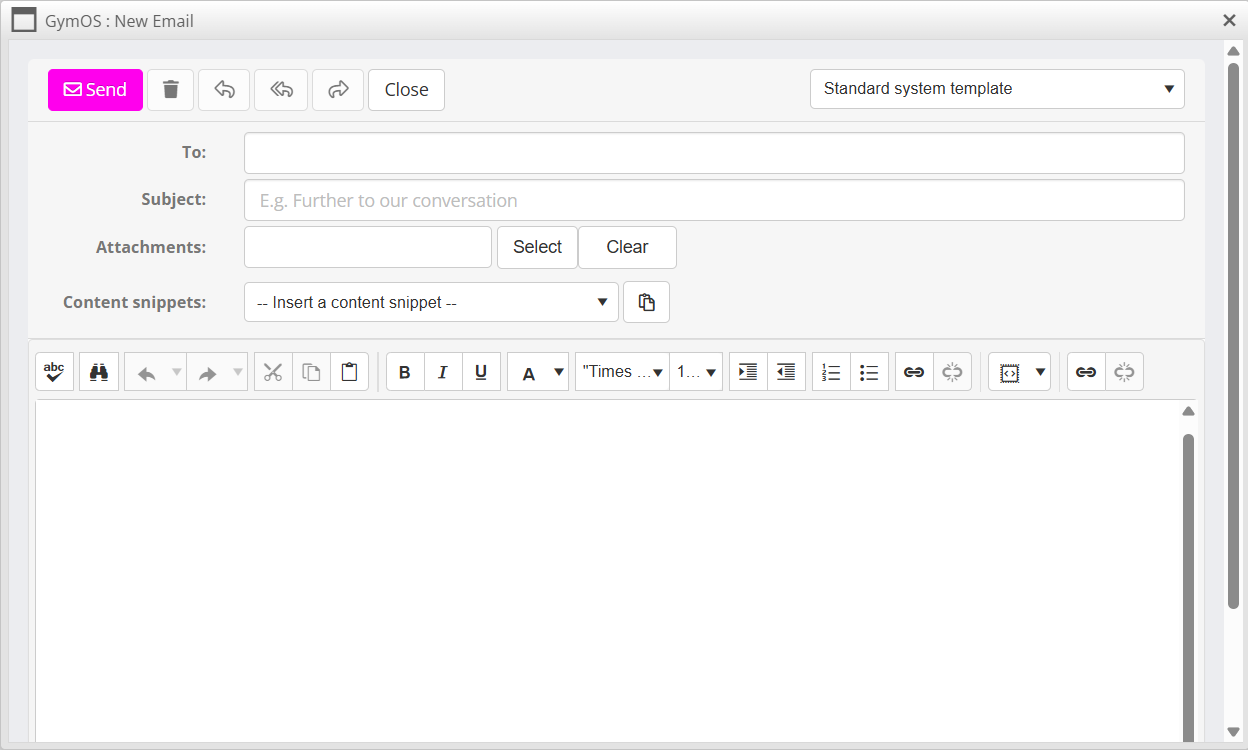
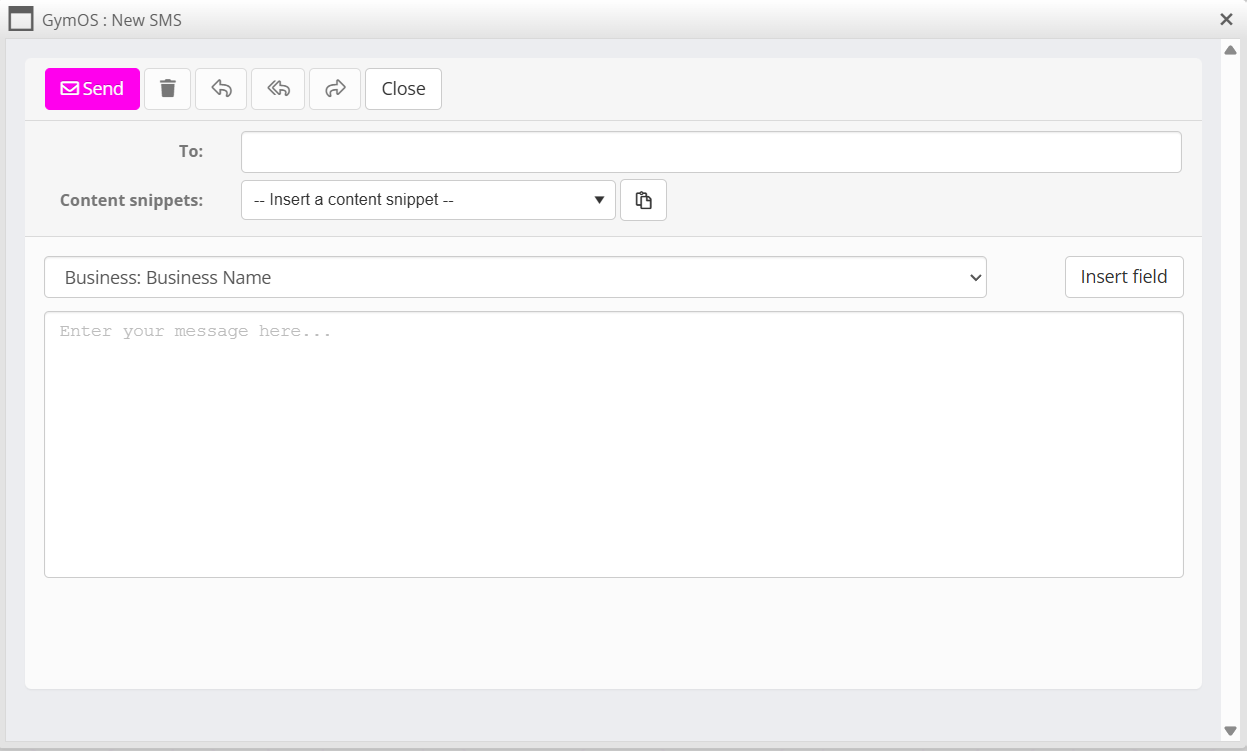
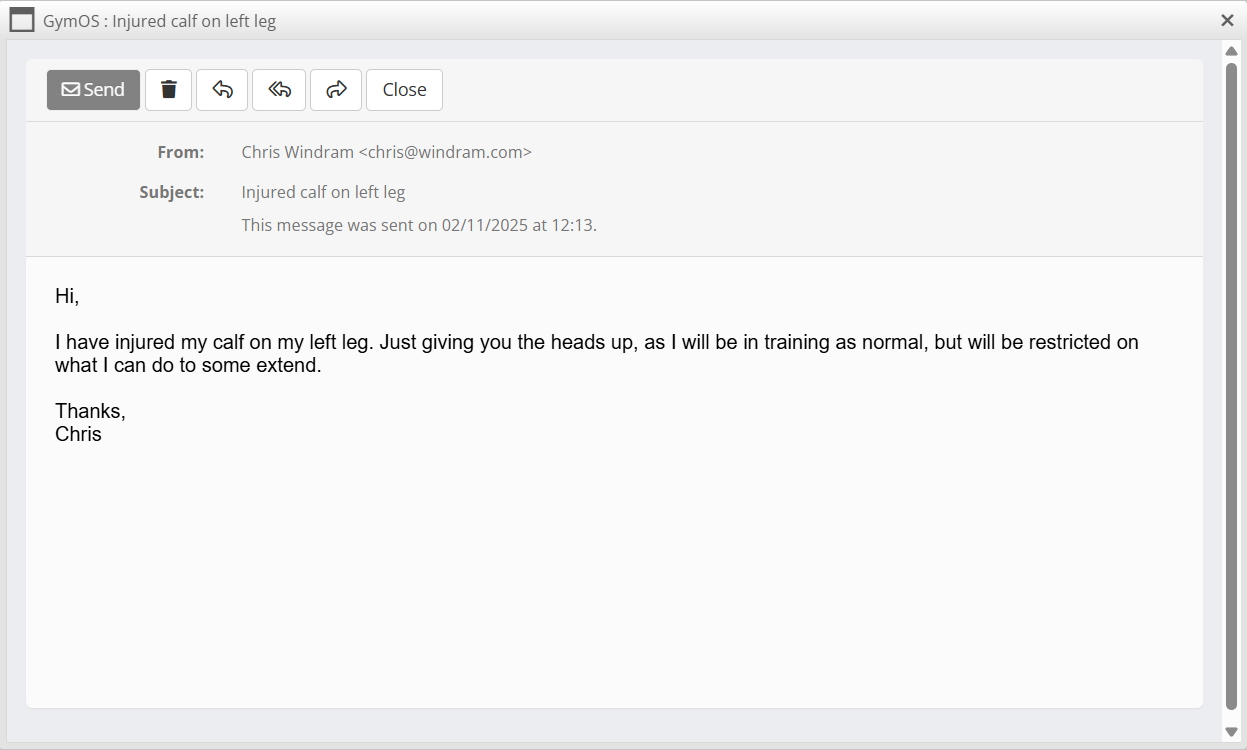
Sending a new message
When sending a new message, you should enter the name(s) of the recipient(s). To do this, start typing in the box and click on the desired recipient when their name appears. You may also enter the name of a system, dynamic, or custom group.
Reminder: when sending to more than a handful of people (i.e. > 10), we strongly encourage the use of the Scheduled Broadcast function, as this will give you a much better (and faster) experience. It also provides greater design options.
For emails, you’ll need to provide a subject line. You can also upload attachments to be sent along with the message if you’d like. The maximum size for an attachment is 10Mb.

You may select the Message Template that will be used to wrap your content by choosing from the template drop-down list. This defaults to your preferred selection.
If you have created Content Snippets, you may select a snippet from the drop-down — Insert a content snippet — list. The content will be used to pre-populate the message body.
Finally, enter the message you want to send, then press the Send button. Various common formatting functions are provided as part of the message body editor, such as adding hyperlinks, etc.
You may use [[merge fields]] within your message subject or body to auto-complete content, subject to the context of the message being sent and the person to whom it is addressed.
Replying to or forwarding a message
From the message pop-up window you have options to reply to the sender of a message, reply to all participants in a conversation, or forward a message.
You may also delete a message by clicking the button.
Message statistics
When viewing a message that you have sent, you are presented with three message statistics:
- indicates the number of unique, successful deliveries (ideally equates to the number of recipients).
- indicates the number of opens.
Note 1: Some email clients inhibit open tracking, so this number may not be 100% accurate.
Note 2: People may open an email multiple times, so this number is not necessarily reflective of how many recipients opened it. - indicates the number of clicks made on any of the links within the email.