Cloning shifts
You can clone employee shifts from within the Shift Manager, or the Shifts tab of a given employee record. The methodology is the same between the two.
To clone a range of shifts that you have already scheduled, click the Clone Shifts button. This will open the cloning pop-up window.
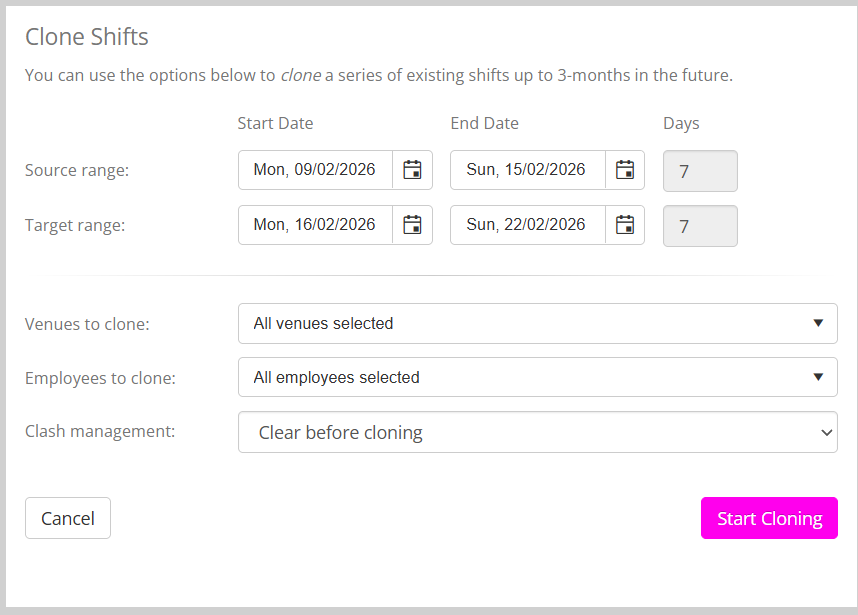
Select the Source range of dates from which you wish to clone the shifts. For example, if you have a weekly shift pattern, you would configure one week, then select the start and end dates for that week. If you have a fortnightly shift pattern, you would configure two weeks’ worth of shifts, then select the start and end dates for that two-week period. GymOS will show the total number of days selected.
Select the Target range of dates to which you wish to clone the shifts. The target range must not overlap the source range, and the target range should be a multiple of the source range. GymOS will show the total number of days selected.
Choose the venue(s) whose shifts you wish to clone. By default, the selection will be for all venues.
Choose the employee(s) whose shifts you wish to clone. By default, the selection will be for all employees.
Finally, select the clash management option that suits your purpose:
- Clear before cloning
Remove any existing shifts from the target range before cloning the source range. - Overwrite clashing shifts
Any shifts that exist in the target range that clash with one being copied from the source range will be overwritten. - Move clashes to open shifts
Any shift from the source range that conflicts with an existing shift in the target range will be created in the target, but will be allocated as an “open shift”. - Don’t copy shifts that clash
Any shift from the source range that conflicts with an existing shift in the target range will be ignored and will not be cloned.
To commence the shift cloning process, click the Start Cloning button. The process may take a few seconds or minutes, depending on how many shifts you have selected to clone.