
Shift Manager
The Shift Manager is the central location for managing employee shifts across the board. It is a broader view of the employee-specific shift management on the Shifts tab.
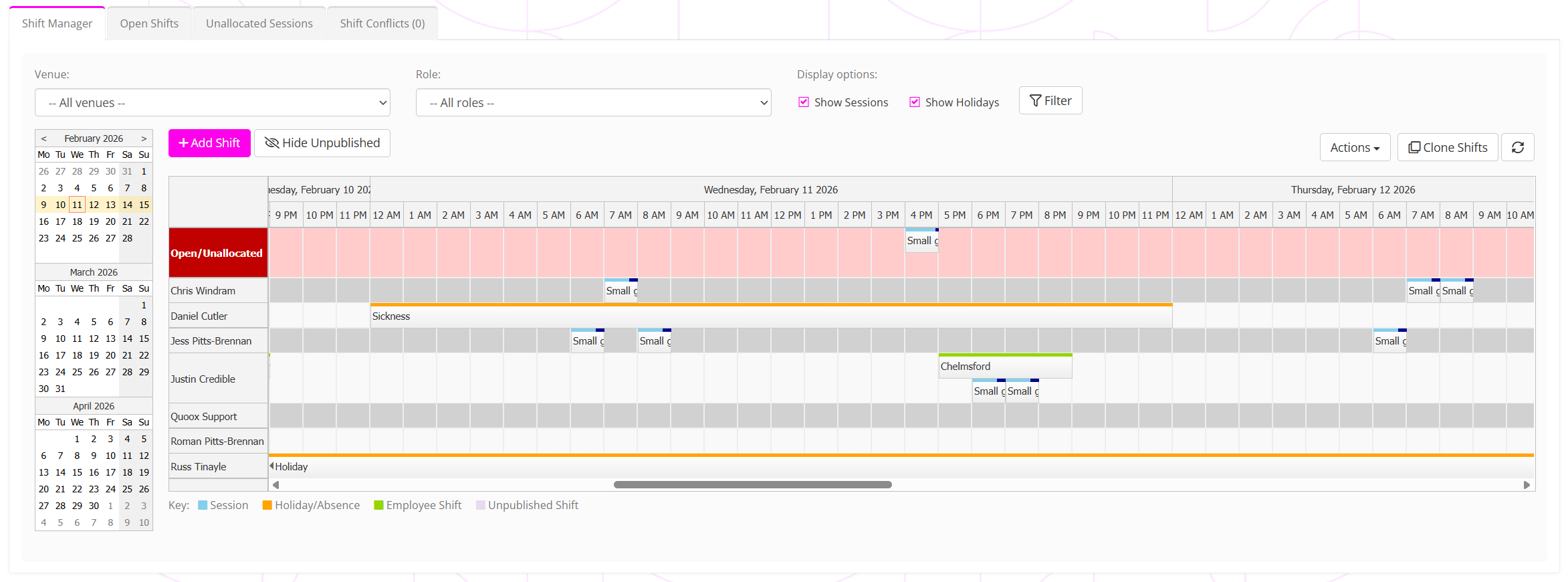
The Shift Manager comprises four different tabs:
- Shift Manager
The primary shift management functionality, as detailed further below. - Open Shifts
A page that details all shifts that are yet to be allocated, as explained further in the Open Shifts article. - Unallocated Sessions
A page that details all sessions without an allocated lead coach, as explained further in the Unallocated sessions article. - Shift Conflicts
A page that provides an at-a-glance summary of shift conflicts, where the same employee has been assigned to multiple concurrent shifts. This is detailed further in the Shift conflicts article.
Managing shifts for employees
The Shift Manager tab comprises four primary focus areas:

The filter bar

The filter bar allows the refinement of the data shown in the shift/session view.
The view may be filtered by venue and/or a given role. By default, the view will show shifts, sessions and holidays. You may optionally exclude sessions by unchecking the Show Sessions checkbox. You may toggle the display of holidays by clicking the Show Holidays checkbox.
The filter is applied and the view updated by clicking the Filter button.
The action bar

The action bar is where you may make actions relating to shifts. These include:
- Adding a new shift, as described in the Adding/creating an employee shift article.
- Toggling the visibility of unpublished shifts, by clicking the Hide Unpublished button.
- From the Actions drop-down selector:
- Publish shifts this week
- Publish all future shifts
- Unpublish shifts this week
- Unpublish all future shifts
- Add a new ad hoc session
- Schedule a recurring session
- Clone a range of shifts, as described in the Cloning shifts article.
- Refresh the view
The navigation bar
The navigation bar is found to the left of the main shift/session view. It comprises calendars covering a 3-month period.
Clicking on any date within the calendars highlights the given week, and the shift/session view is refreshed to the same date range.
The shift/session view
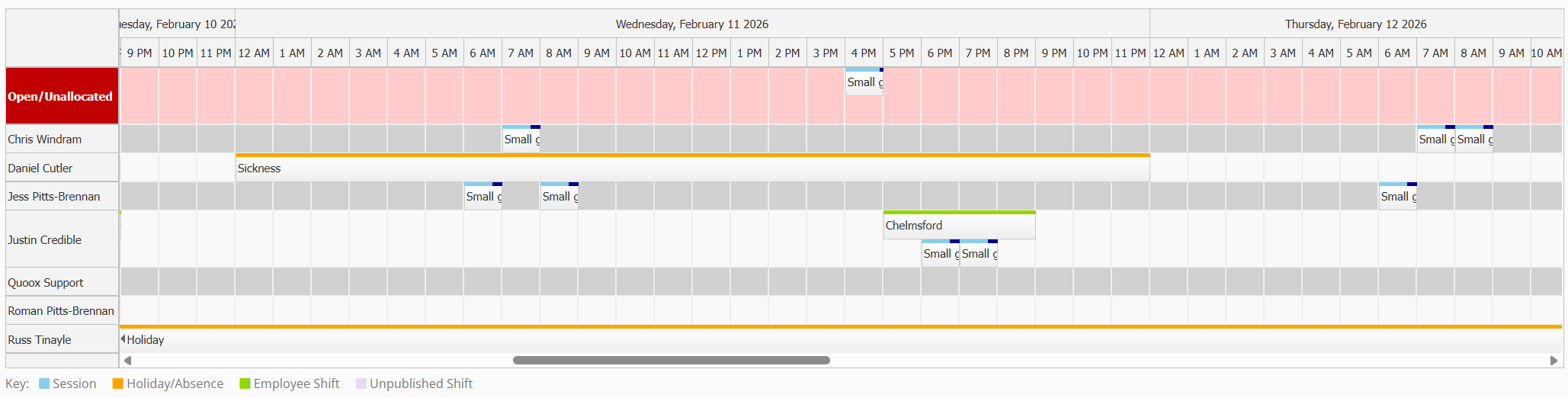
The shift/session view will show the scheduled shifts, sessions and holidays for the employees across the date period selected, and filtered as per your filter settings. It also highlights open/unallocated shifts, where a shift has been scheduled but hasn’t been assigned to an employee.
You may edit a scheduled shift by clicking on it within the shift/session view. Editing a shift is the same as per the Adding/creating an employee shift process.