
Post-registration reach-outs
Post-registration reach-outs apply to all three campaign types.
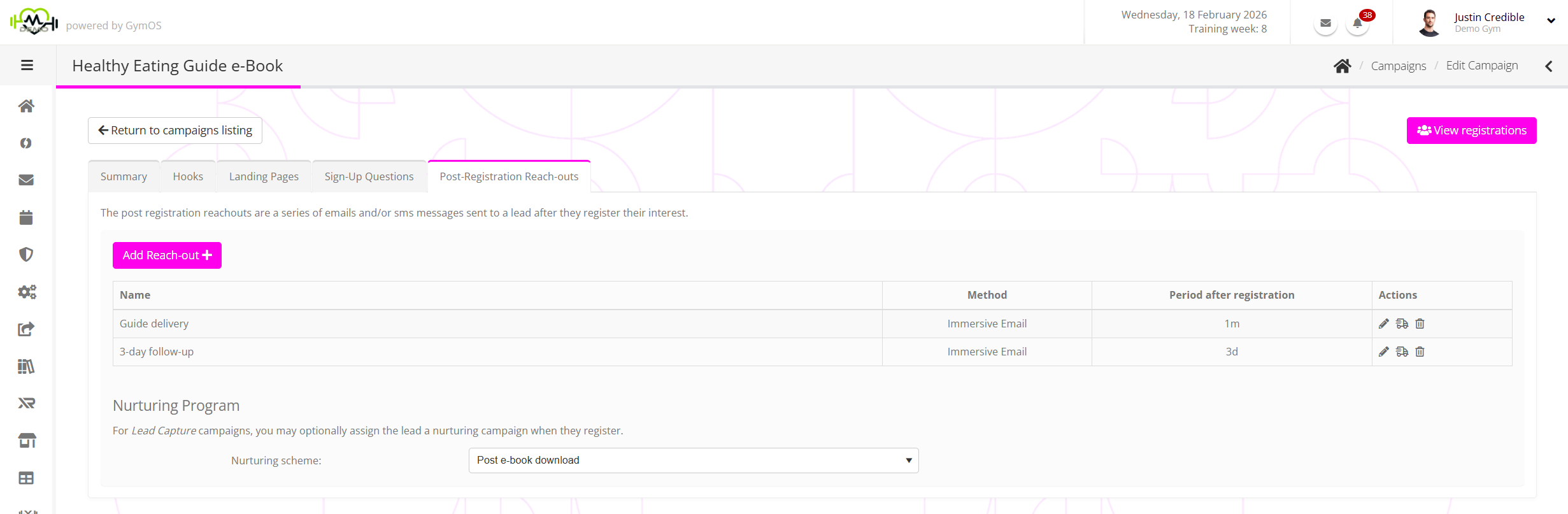
The Post-Registration Reach-outs tab comprises two main sections:
Reach-outs

The reach-outs section of the tab lists the current post-registration reach-outs configured for the campaign.
For each reach-out, the information displayed comprises:
- Name – the name given to the reach-out.
- Method – the method by which the communication is being sent (E.g. Email, SMS).
- Period after registration – The (approximate) period of time after the lead has completed registration at which the communication will be sent.
- Actions, comprising:
- – Edit the reach-out communication.
- – Send a test copy of the communication to yourself.
- – Delete the reach-out.
Adding a new post-registration reach-out
- To add a new reach-out, click the Add Reach-out button. This will open the reach-out add/edit page, for which the initial view is shown below.
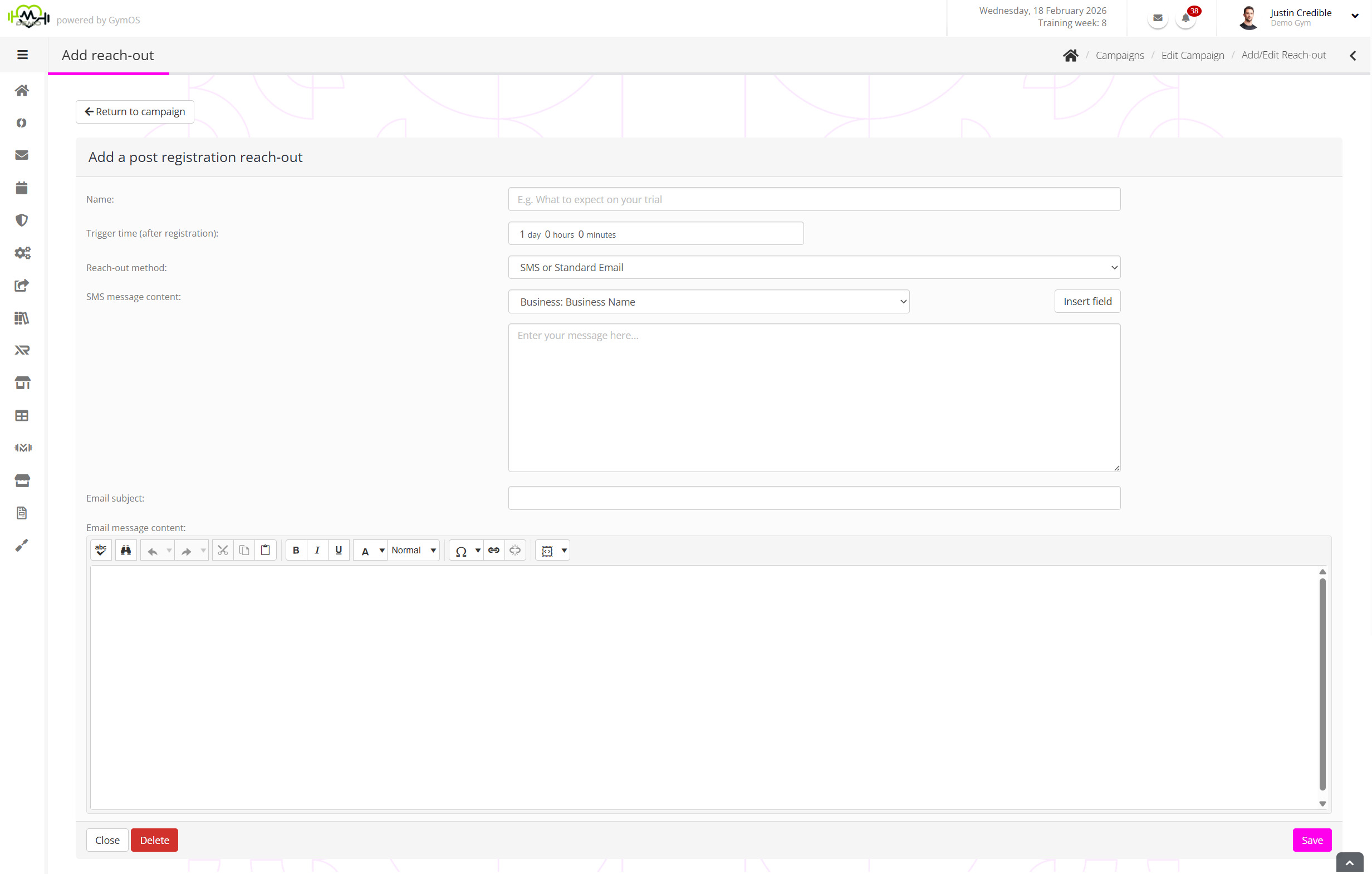
- Provide a meaningful Name for the reach-out, which will help you identify the content at a later stage.
- Select the Trigger time (after registration) at which the communication should be sent. This time is approximately, but typically accurate to about 5 minutes, depending on transmission times.
Important: Avoid setting any two reach-outs at exactly the same time. Set them 1 minute apart at the closest. - Select your desired Reach-out method. The page will refresh, with content relevant to the reach-out method you selected.
- Standard email
The message is sent as standard (non-immersive) GymOS email, using your default template. - SMS
The message is sent solely as an SMS text message. - SMS or Standard Email
If the lead has provided a mobile number, the SMS text message will be sent. If they haven’t, the email version will be sent. - SMS and Standard Email
The lead will be sent both the SMS text message and the email content. - Immersive Email
The lead will be sent an immersive email.
- Standard email
- Complete the Email Subject, Email message content and SMS message content fields as appropriate and relevant for your choice. If you selected the Immersive Email option, select the colour palette choices and press the Edit Immersive Email button.
Further information may be found in the Immersive Email Editor article.
Nurturing Program
In addition to, or instead of the reach-outs, you may specify a pre-written nurture program that GymOS will assign to the lead once they complete the registration form.
Important: Unlike the reach-outs, which cease when a follow-up step is taken, the nurture program will continue until it is completed or terminated. A Cancel Nurture Program action on a trigger may be used to terminate a nurture program upon the lead undertaking a given action.