
FitnessHub: Schedule
The Schedule section allows members to view upcoming sessions and book onto classes hosted by the gym.
Accessing the Schedule
To view the schedule, the member should:
- Select Schedule from the main navigation menu.
By default, the member will be shown the schedule for the current day.
Selecting a Date
At the top of the page, the member will see a date selection field.
- Selecting a different date refreshes the page to display the sessions scheduled for that day.
Using the Schedule Filter
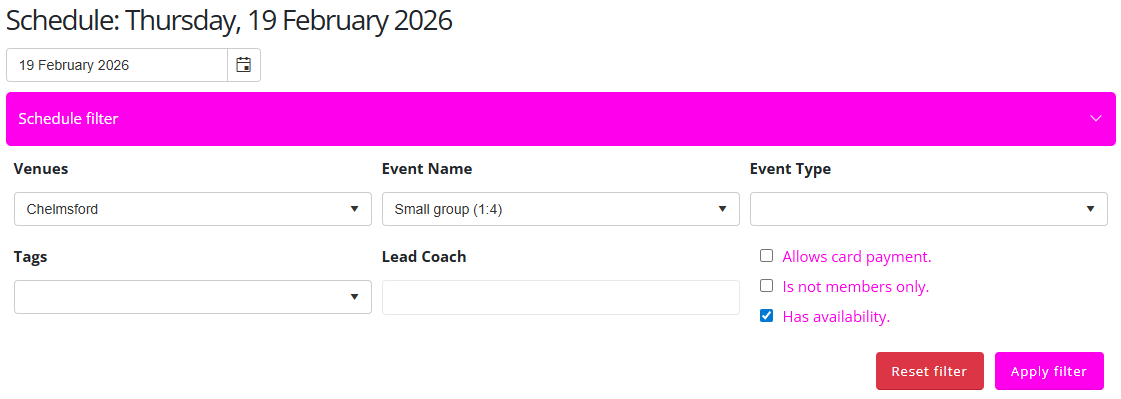
Beneath the date selector, the member will see a Schedule Filter dropdown.
Selecting this will provide additional filtering options, including:
- Venues
- Event Name
- Event Type
- Tags
- Lead Coach
- Allows card payment
- Is not members only
- Has availability
At the bottom of the filter options, the member will see two buttons:
- Reset filter – Clears any selected filter criteria.
- Apply filter – Applies the selected criteria to the schedule.
Once filters are applied, only sessions matching the selected criteria will be displayed.
Viewing Available Sessions
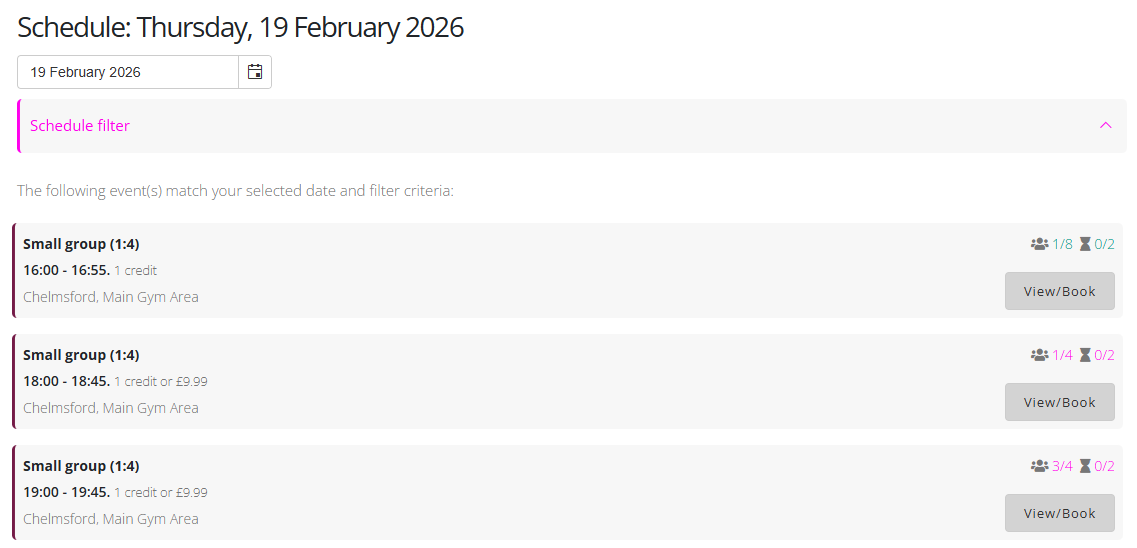
Below the filter section, the member will see a list of sessions for the selected date.
For each session, the following information is displayed:
- Session name
- Start and end time
- Venue location
- Session cost (for example, 1 credit, £xx.xx or both depending on the gym’s configuration)
- The number of people currently booked (indicated by the three-person icon)
- The number of available waitlist spaces (indicated by the hourglass icon)
Each session will also display a View/Book button.
Viewing Session Details
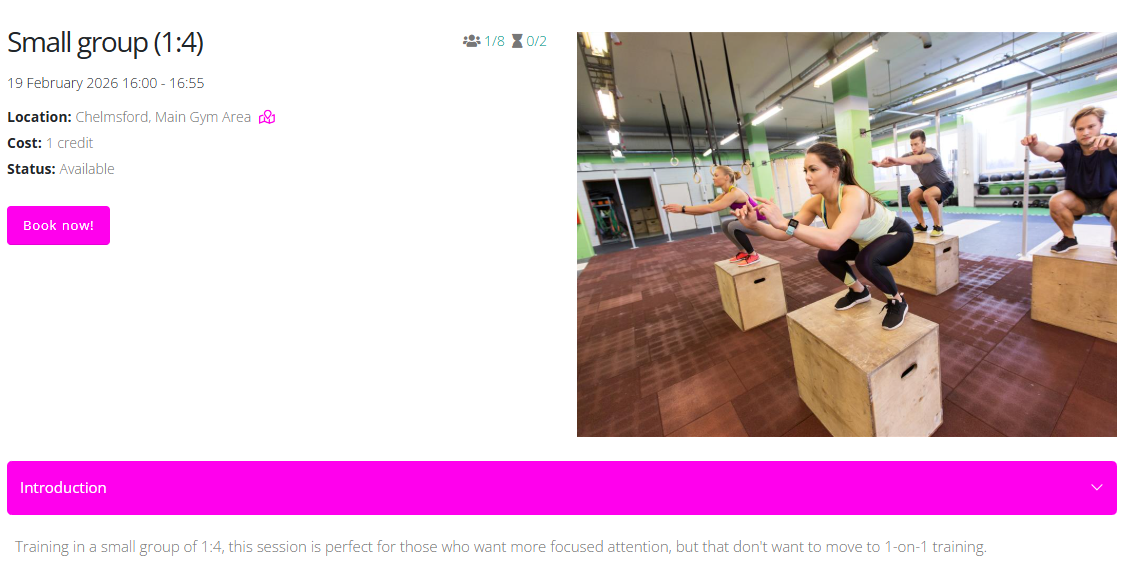
When the member selects View/Book, they will be taken to a dedicated session page displayed:
- An image representing the session
- A full session description
- The session cost
- The session status
- The venue location
A map icon is also available, which can be selected to open directions in Google Maps.
Booking a session
To secure a place on the session, the member should:
- Select the Book Now! button.
- Choose their preferred payment method (if multiple options are available).
- Confirm the booking to secure their slot.
Once confirmed, the member will be successfully booked into the session.