
FitnessHub: Weight & Progress Tracking
The Weight & Progress tracking feature allows members to record the results of their training sessions and review their previous achievements over time.
Members can track results during a booked session or view and manage previously recorded achievements from the My FitFile section.
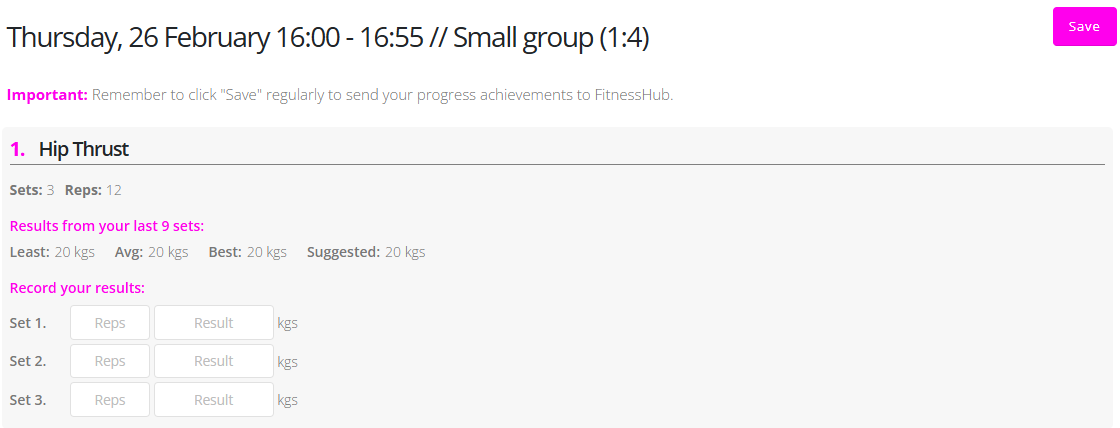
Tracking a Session
Members can track the results of a booked session by following these steps:
- Hover over My Account in the navigation menu.
- Select Booked Sessions/Events.
- Locate the booked session.
- Click View next to the session.
- Select Track Session.
The member will then see the exercises that have been planned for that session and will be able to record their results.
For each exercise, the screen will display:
- The number of sets
- The target number of repetitions (reps)
If the member has previously recorded results for the same exercise, the system will use the last nine recorded sets to make recommendations for the next weight to attempt.
Once results have been entered, the member should click Save to record their progress.
Important: Members are advised to click Save regularly to ensure their progress achievements are stored in FitnessHub.
Viewing Previously Recorded Achievements
To view previously recorded achievements:
- Hover over My FitFile in the navigation menu.
- Select Weight and Progress Tracking.
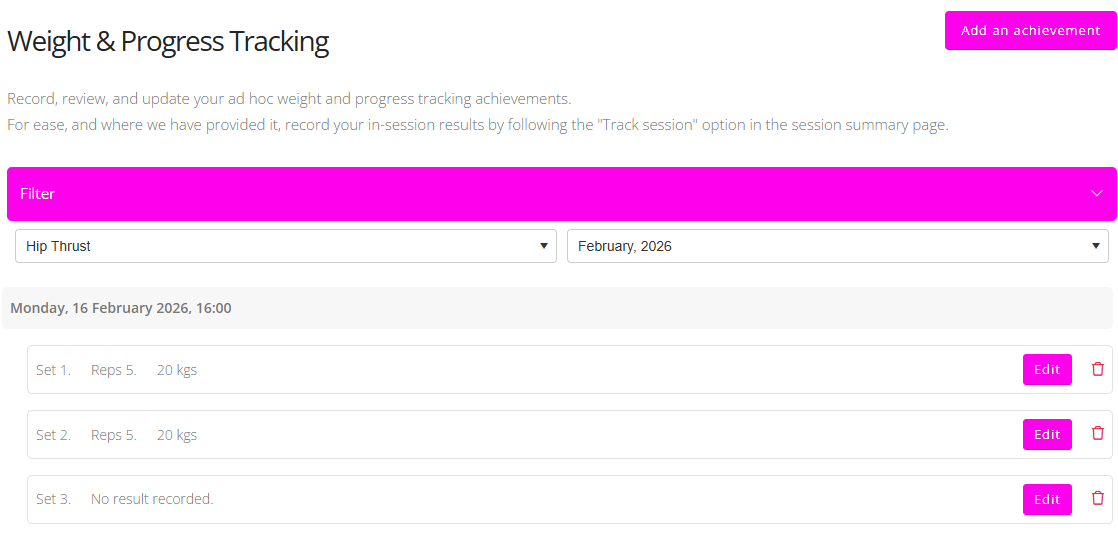
The member will then see two dropdown filters:
- Select Achievement – Choose the exercise or activity.
- Select Month – Choose the month the activity was recorded.
Once the filters have been selected, any matching achievements will be displayed, including:
- Date
- Number of sets
- Repetitions (reps)
- Weight or recorded result
Adding an Achievement
Members can manually record an achievement by following these steps:
- Click Add an Achievement.
- Select the date.
- Select the activity or exercise.
- Enter the number of repetitions.
- Enter the result (such as weight lifted or time achieved).
- Click Save.
Achievements are not limited to weightlifting and can also include activities such as recording a sprint time or other measurable results.
Editing or Deleting an Achievement
Existing achievements can be updated or removed if necessary.
To edit an achievement:
- Click the Edit button next to the achievement.
- Make the required changes.
- Click Save.
To delete an achievement:
- Locate the achievement.
- Click the red bin icon.
The achievement will then be permanently removed.