
Creating a new session type
To create a new session type, go to the Sessions & Events section of Settings from the main navigational menu.
If you are not yet familiar with sessions in GymOS, it is strongly recommended that you read the Session Scheduling Principles article first.
Click the Add a session button, then select the type of session you wish to add. You will be taken to the session type configuration form. The fields offered will be subject to the session type you selected.
In essence, you are creating a session type (E.g., “SGPT”) and then creating one or more schedules.
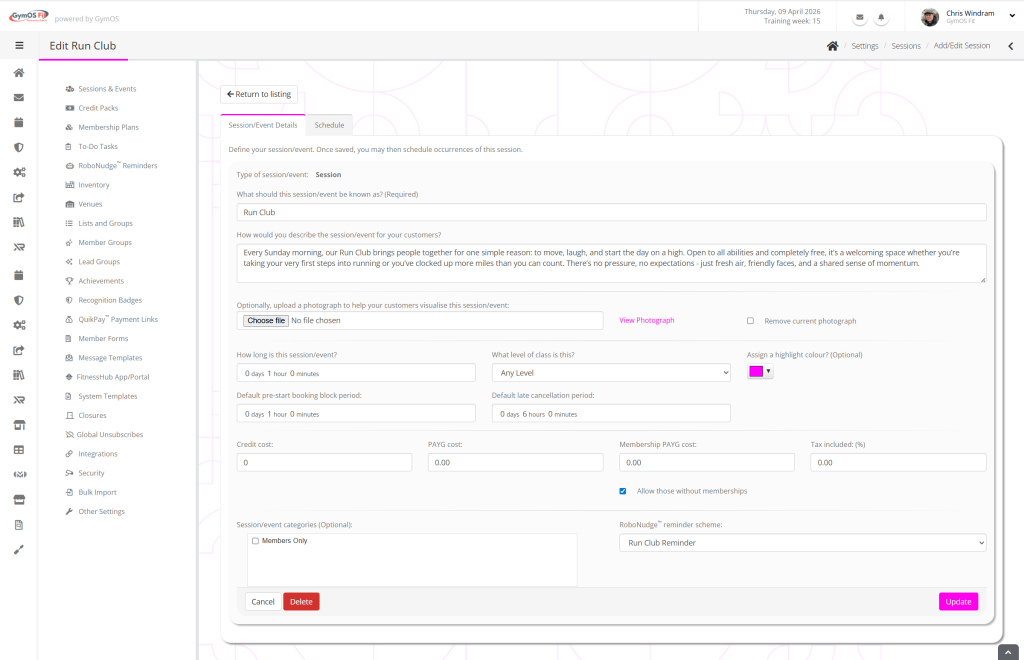
You should review every field, and ensure that they are configured as you want for your session.
What should this session/event be known as?
Give the session type a meaningful name. This is shown to members and needs to mean something to them. E.g., “SGPT”, “Cardio Blast”, “Run Club”, “Strength Training”, etc.
How would you describe the session/event for your customers?
Enter a description for your session. We urge you not to skip this step. This information is displayed to members, and is helpeful for them to understand the nature of the session and to encourage them to book.
Optionally, upload a photograph to help your customers visualise this session/event:
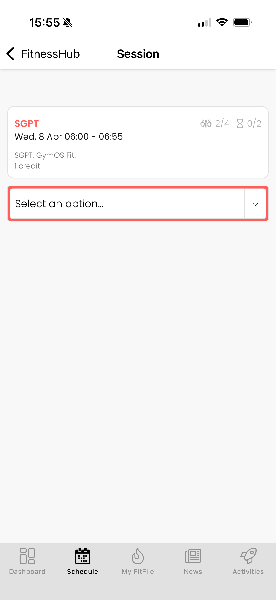
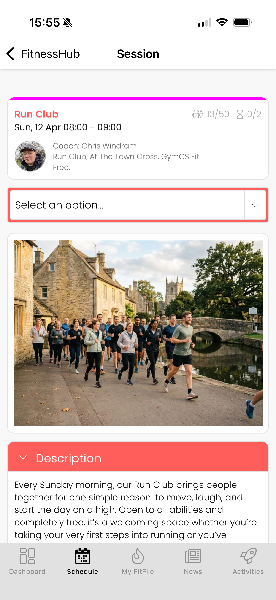
We again suggest you not skip this step, but instead upload a photograph (jpg, up to 3Mb) that helps your members understand the nature of this session.
Consider the difference between the two screenshots below:
How long is this session/event?
Specify the duration of the session or event.
What level of class is this?
You may optionally apply a level to the class, which you may configure in Lists & Groups.
Assign a highlight colour
It is recommended that you assign a unique colour to each session type. This makes it easier for your members to spot the session of the type they’re interested in amongst a busy schedule.
Default pre-start booking block period:
The period immediately before a session during which bookings are no longer accepted. Use this function to prevent last-minute bookings.
Default late cancellation period:
The period immediately before a session is considered a “late cancellation” and is subject to the penalty that the credit/payment is not refunded.
Credit cost:
The number of credits that this session costs to book.
Important: 0 credits means free. A blank entry means payment by credit is not available.
PAYG cost:
The monetary cost for booking this session using money.
Important: 0.00 means free. A blank entry means payment by money is not available.
Membership PAYG cost:
The monetary cost for booking this session using money if you have an active membership of any type.
Important: 0.00 means free. A blank entry will apply the same value as the PAYG cost.
Tax included (%):
The percentage tax included within the gross monetary figures you have specified.
Allow in-flow sign-ups:
Ticking this box enables new members to sign-up through a minimalist registration form as part of the session booking process. More details can be found in this article.
Allow those without membership:
Ticking this box means that members without a current membership who meet all other booking criteria may book. If this box is unticked, only those members with an active membership and meeting all other booking criteria may book.
Session/event categories:
You may optionally assign additional categories to the session, as configured in Lists & Groups.
RoboNudge reminder scheme:
You may assign a pre-configured RoboNudge reminder scheme to the session. This causes GymOS to send automated pre-session reminders, as configured. Members may opt out of receiving these reminders.
Click the Save button to add your new session type. Remember, many of these settings may be overridden on a per-session basis.
Next, you should add a new session schedule.