Add a new session schedule
To add a new session schedule, you must first create your session type. Having done so, click on the Schedule tab of the session type. This will show the schedules that you presently have configured for the given session type.
The schedule listing
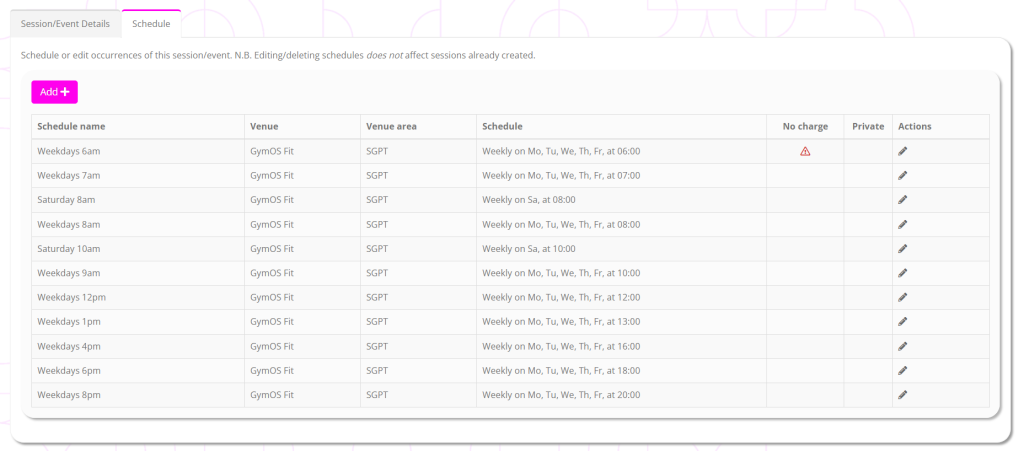
For each schedule, the following information is displayed:
- Schedule name
- Venue
- Venue area
- Schedule (as calculated by GymOS)
- No charge
Important: Pay particular attention to this column. If it has a symbol in it, you have configured that schedule so it can be booked for free. This may be as you intended, but ensure that it is. - Private
A in this column indicates that you have marked the sessions created by this schedule as “private”. They will not be available for booking by members by the GymOS FitnessHub app or FitnessHub portal, but may only be booked by staff via the administration portal. - Actions
Edit this schedule
Adding a new session schedule
To add a new session schedule to a session type, click the Add button on the Schedule tab. This will open the new schedule screen with the defaults pre-filled. You may override these as you need.
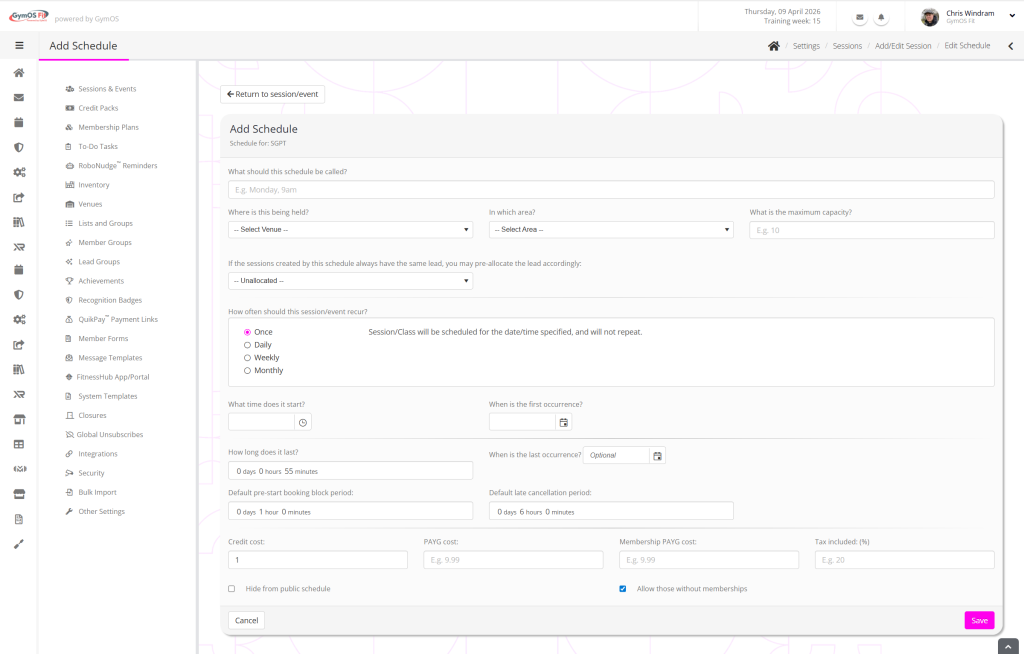
Review and complete all of the fields accordingly.
What should this schedule be called?
Add a meaningful name for the schedule, to help you readily identify it amongst a list when you look later.
Where is this being held?
Select the venue where the session is being held. Once selected, the are options will refresh.
In which area?
Select the venue area in which the session is being held. The available options depend on the selected venue. Once selected, the maximum capacity will be updated.
What is the maximum capacity?
By default, the maximum capacity is set to the venue area selected. You may override this to a higher or lower value if you wish.
If the sessions created by this schedule always have the same lead, you may pre-allocate the lead accordingly:
If all of the sessions created by this schedule always have the same lead coach, you may have GymOS assign them automatically. If the lead coach varies, you can leave this as “– Unallocated –” and assign the lead coach on a per-session basis later.
How often should this session/event recur?
Select the session’s recurrence period. If it recurs weekly, selecting “Daily” and then “Every 7 days” is a clean way of denoting that.
What time does it start?
What is the start time for the session?
When is the first occurrence?
On what date does the session first occur?
Important: This first occurrence date must fit on a day within the defined recurrence schedule. If it does not, an error may be displayed or you may find the session doesn’t schedule as you intended.
Default pre-start booking block period:
The period immediately before a session during which bookings are no longer accepted. Use this function to prevent last-minute bookings.
Default late cancellation period:
The period immediately before a session is considered a “late cancellation” and is subject to the penalty that the credit/payment is not refunded.
Credit cost:
The number of credits that this session costs to book.
Important: 0 credits means free. A blank entry means payment by credit is not available.
PAYG cost:
The monetary cost for booking this session using money.
Important: 0.00 means free. A blank entry means payment by money is not available.
Membership PAYG cost:
The monetary cost for booking this session using money if you have an active membership of any type.
Important: 0.00 means free. A blank entry will apply the same value as the PAYG cost.
Tax included (%):
The percentage tax included within the gross monetary figures you have specified.
Allow in-flow sign-ups:
Ticking this box enables a minimalist registration form for new members to sign-up as part of the session booking process. More details can be found in the In-flow booking registrations article.
Allow those without membership:
Ticking this box means that members without a current membership who meet all other booking criteria may book. If this box is unticked, only those members with an active membership and meeting all other booking criteria may book.
Hide from public schedule
Ticking this box marks the sessions created by the schedule as “private”, and they are not bookable directly by your members, only by staff throgh the GymOS administration portal.
Click Save to commit your schedule.