Configuring the FitnessHub app and portal
Whereas the GymOS administration portal is restricted only to team members, the GymOS FitnessHub mobile app and FitnessHub member portal are the interfaces that your members and leads use. They are functionally identical, except that one is a native iOS and Android app, whereas the other is web-based and can be used on any device with a web browser.
The FitnessHub functionality comprises three main areas:
- Base configuration
This is where you configure the base elements of your app and portal, along with some branding elements. This is described further below. - Page and content editing
You may add your own custom pages to the FitnessHub member portal, and customise some elements of existing pages. This is described further in the Adding & customising FitnessHub content article. - Custom URLs
This often-overlooked piece of functionality is great for prettifying or shortening URLs, as well as generating QR codes that work efficiently without the risk of ads or middleware being inserted in the middle. This is described further in the Custom URLs and QR codes article.
The FitnessHub configuration settings may be accessed by selecting the FitnessHub App/Portal option from the Settings section of the main navigational menu.
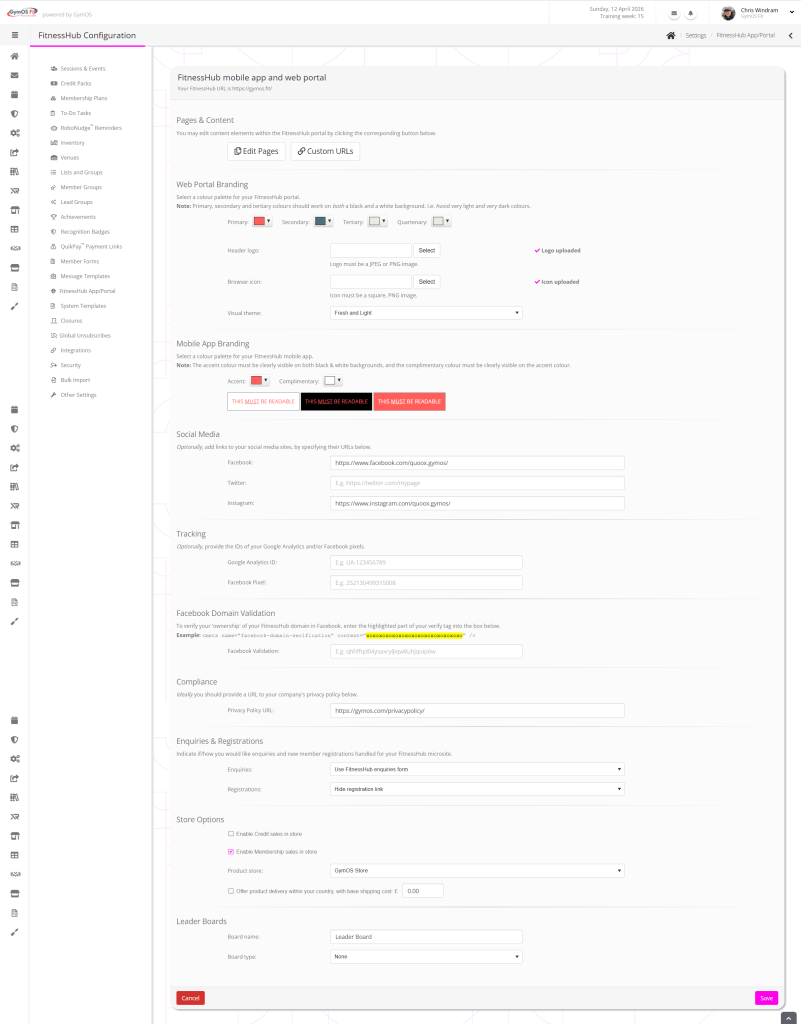
Your unique FitnessHub URL is shown at the top of the page. If you have the GymOS vanity URL, it will either be your own domain or a subdomain of your domain. This is the URL that your members use to access the member web portal.
The configuration elements that comprise the page are described below.
Web Portal Branding
This is where you configure the colours and branding elements for the FitnessHub web-based member portal.
- Primary, Secondary, Tertiary, and Quaternary
Choose the accent colours that the portal uses. These must display clearly on both black and white backgrounds.
White and black are not accent colours. They are foundation colours. - Header logo
Upload a logo for use in the member portal header. This should be a JPEG or PNG file, ideally rectangular with a transparent background. Maximum size 1Mb. - Browser icon
Upload an icon for use as the site favicon. This should be a square png image, ideally with a transparent background. Maximum size 1Mb. - Visual theme
Select between “Fresh and Light” (a light theme, based upon a white background) and “Dark and Moody” (a dark theme, based upon a near-black background).
Mobile App Branding
This is where you configure the colours and branding elements for the GymOS FitnessHub mobile app.
- Accent and Complimentary
Choose the accent colours that the portal uses. These must display clearly on both black and white backgrounds.
White and black are not accent colours. They are foundation colours.
Social Media
The FitnessHub member portal contains links to your social media sites, if provided.
- Facebook
Provide the full URL to your Facebook page. - Twitter/X
Provide the full URL to your Twitter/X account. - Instagram
Provide the full URL to your Instagram account.
Tracking
By including tracking IDs, GymOS will automatically add the corresponding tracker code to each page in your FitnessHub member portal. This is extremely beneficial for tracking user behaviour and for remarketing.
- Google Analytics ID
Enter the ID of your Google Analytics Measurement ID, E.g. G-SPWC13211K2 - Facebook Pixel
Enter the ID of your Facebook pixel, E.g., 252130499315008
Facebook Domain Validation
To use your FitnessHub site effectively with Facebook, you will need to verify your domain management with Facebook. This is done by using the verify tag and is administered within the Meta Business Suite. At the time of writing, the correct link is: https://business.facebook.com/latest/settings/domains/ However, Meta does regularly move functions, so look for Domains, often found in Brand safety and suitability.
You only need to copy the ID from the “content” part of the meta tag provided. GymOS will build the remaining tag and place it correctly within the FitnessHub member site for validation.
Compliance
In the UK, under the UK GDPR (and the Data Protection Act 2018), it is a legal requirement for your portal to be linked to your business’s privacy policy.
- Privacy Policy URL
Provide the full URL to your privacy policy.
Ensure that your privacy policy is actually complete and configured for your business. Many gyms paste in template privacy policies without taking the few minutes to fill in the required details.
Enquires & Registrations
You can configure how you wish enquiries and new member registrations to be handled in your FitnessHub portal.
- Enquiries
Options are provided for:- Hide enquiries link
- Use FitnessHub enquiries form
- Select an existing campaign to use
- Registrations
Options are provided for:- Hide registration link
- Use FitnessHub registration form
- Use FitnessHub registration form, but do not promote (I.e. it is hidden from the site, and accessible only by direct link)
- Select an existing campaign to use
Store Options
You may choose to display the GymOS store (or a 3rd-party store) on your site. You may also choose whether to enable the sale of credits or memberships via the GymOS store.
- Enable Credit sales in store
Ticking this box will enable members to purchase any credit pack not marked as private in your store.
Warning: Make sure your non-private credit packs all have a correct price set. If you have set the price as £0.00, you are selling those credit packs for free! - Enable Membership sales in store
Ticking this box will enable members to purchase any membership not marked as private in your store. - Product store
Select from:- None
- GymOS Store
- Link to 3rd party URL
- Embedded 3rd party plugin
- Offer product delivery within your country, with base shipping cost:
Ticking this box enables the delivery option within your FitnessHub store. The base shipping cost is applied in addition to any per item shipping costs that you specify.
Leader Boards
The member portal includes a session attendance leaderboard. To enable this, select Sessions Leaderboard from the board type, and give it a meaningful name. The name is shown in the menu of the FitnessHub site.
You may specify the attendance levels for a period you select. Click the Set to defaults button to have GymOS add 5 starting levels. You may then tailor these as you wish, and add more levels by clicking the Add Level button.
Click the Save button to commit your configuration choices.