Connect your GymOS account to GoCardless
Connecting your GymOS account to GoCardless to accept Direct Debit payments is a simple process:
- Navigate to Integrations within the Settings section of the main navigation menu.
- Scroll to the GoCardless section of the page.
- Click the Connect to GoCardless button.
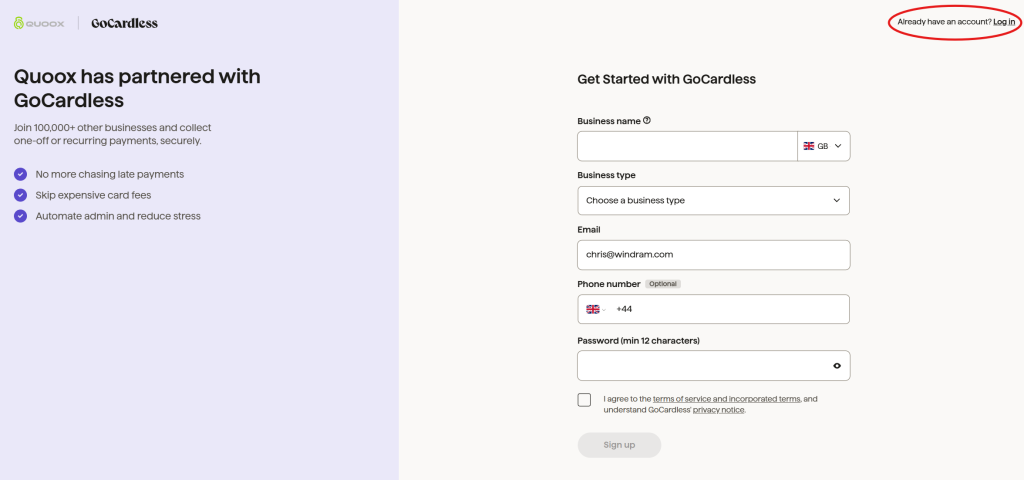
- Follow the on-screen instructions provided by GoCardless. Note: If you already have a GoCardless account, a log in option is provided in the top-right of the screen. Unlike Stripe, it is ok to connect to an existing GoCardless account.
Once you have connected to GoCardless and imported your member data, you may perform a one-off Direct Debit match-up and re-sync in GymOS. This attempts to match existing GoCardless direct debits with members in GymOS. The success of this typically relies on the matching of email addresses between the GoCardless and GymOS data sets.